

How to Turn Text Into Infographics With AI in WordPress
Have you ever wanted to turn a simple piece of text into a professional-looking infographic without spending hours designing it yourself? That’s exactly what an AI infographic generator from text can help you accomplish.
Infographics are an excellent way to transform written information into engaging visual content. They can help explain complicated subjects, organize important information, highlight key points, and give your audience another way to understand what you’re sharing.
However, traditional infographic creation often involves choosing templates, arranging design elements, selecting graphics, adjusting fonts, and manually positioning information. For WordPress website owners who regularly publish content, that process can become time-consuming.
Artificial intelligence is changing how infographics are created. Instead of starting with a blank design, you can begin with written information and use AI to help transform that information into a visual presentation.
In this tutorial, I’ll demonstrate how I use the AI Infographic Generator inside My Content Creator Pro Elite to create infographics directly within WordPress.
I’ll also explain how text-to-infographic technology works, the types of information you can transform, and how to incorporate AI-generated infographics into your blogging, SEO, and content marketing strategy.
Watch: AI Infographic Generator From Text in WordPress
Before getting into the details, watch the video below. I’ll show you how I take written information and turn it into an infographic using AI directly inside WordPress.
As you’ll see in the demonstration, creating an infographic doesn’t necessarily require extensive graphic design experience. The important part is starting with useful information and selecting a tool that helps transform it into an organized visual format.
What Is an AI Infographic Generator From Text?
An AI infographic generator from text is a tool that uses artificial intelligence to help convert written information into an infographic. Instead of manually designing every section, you provide text that serves as the foundation for the visual content.
The text might contain a series of tips, an explanation of a process, a collection of facts, educational information, or a list of benefits. AI then helps organize and visually present that information.
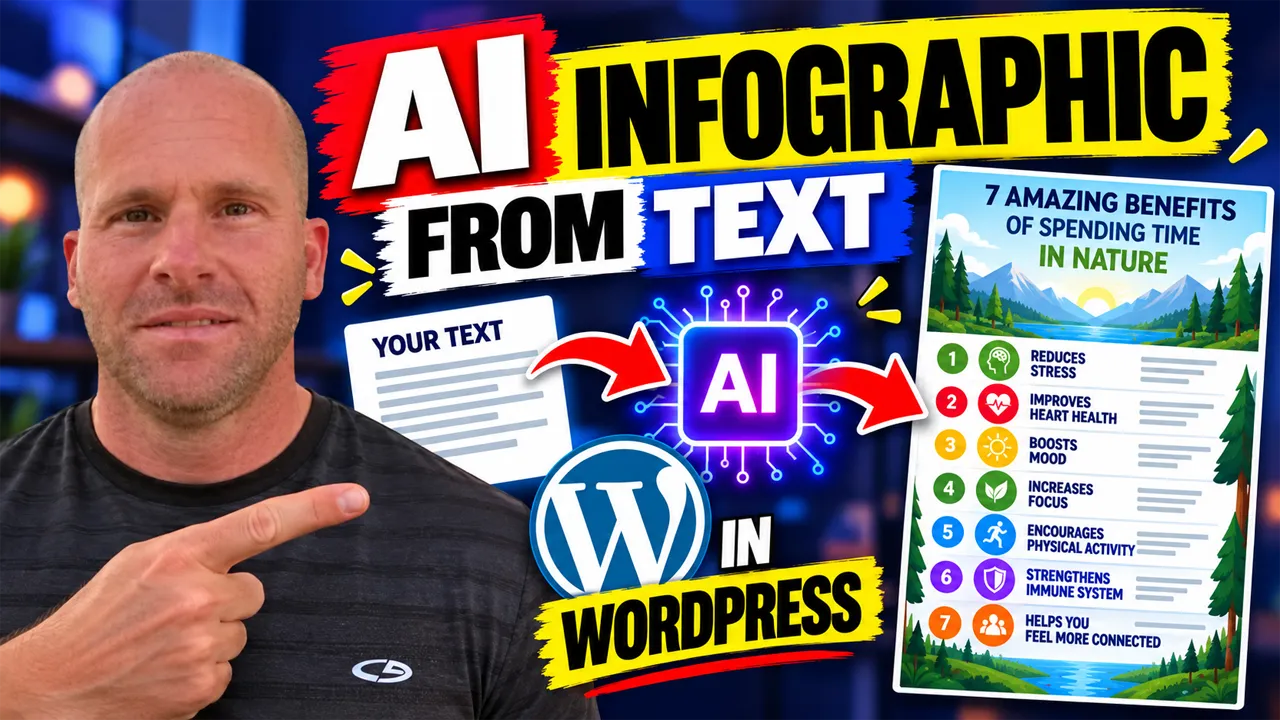
For example, imagine you have written seven benefits of spending time outdoors. Normally, you might create an infographic by opening a graphic design application, choosing a template, finding suitable illustrations, and manually adding each benefit.
With an AI infographic generator, you can use the written information as your starting point and allow the technology to assist with producing the finished visual.
The basic workflow is straightforward:
YOUR TEXT → AI GENERATOR → INFOGRAPHIC
Although the process is simpler, it’s still important to review the finished infographic. Artificial intelligence can occasionally produce incorrect wording, miss important details, or create design elements that need improvement.
The best approach is to combine AI-assisted creation with human review.
Why Use AI to Create Infographics From Text?
One of the biggest advantages of using AI for infographic creation is reducing the amount of manual design work involved. If you regularly create WordPress content, even relatively small improvements to your workflow can save considerable time.
Instead of treating every infographic as a completely separate design project, you can begin with information you already have or quickly prepare a short outline for a new visual.
1. Save Time Creating Visual Content
Traditional infographic design can involve multiple steps, including selecting a layout, organizing text, finding images, adjusting colors, and arranging individual elements. AI can help accelerate parts of that process.
This is particularly useful for bloggers and website owners who want to publish visual content consistently without spending several hours on every design.
2. Turn Existing Information Into Something New
You probably already have information that could work well as an infographic. It might be sitting inside your blog posts, educational resources, product descriptions, tutorials, or marketing materials.
Rather than creating entirely new information, you can use AI to transform existing knowledge into a different content format.
3. Make Information Easier to Scan
Some topics are easier to understand when they’re presented visually. A numbered list, comparison, timeline, or step-by-step process may become more approachable when the information is organized into an infographic.
A well-designed visual can help readers identify important points quickly while your accompanying article provides additional explanation.
4. Create Content for Multiple Platforms
An infographic created for your WordPress website may also be useful on Pinterest, Facebook, LinkedIn, or other platforms, depending on its dimensions and subject matter.
That gives you an opportunity to repurpose one collection of information across multiple channels instead of starting from scratch every time.
How I Create an Infographic From Text Using AI in WordPress
One of the things I appreciate about My Content Creator Pro Elite is having multiple AI content creation tools available within WordPress. Instead of constantly moving between unrelated applications, I can work on different types of content within the same website environment.
The AI Infographic Generator is one of those tools.
Here’s the general process I follow when I want to transform written information into an infographic.
Step 1: Choose the Information You Want to Visualize
The first step is deciding what the infographic should communicate. This is more important than it might initially seem because a clear topic gives the finished visual a specific purpose.
For example, you could create an infographic about seven benefits of walking, five ways to improve website security, or ten important steps when starting a blog.
I recommend choosing a focused subject rather than trying to squeeze too much information into one graphic. An infographic should make information easier to understand, not overwhelm the viewer.
Step 2: Prepare Your Text
Next, prepare the written information that will serve as the foundation for your infographic.
You don’t necessarily need a complete article. A well-organized list, a short explanation, or a collection of important points may provide enough information for the visual you’re trying to create.
For example, if your infographic is about improving WordPress security, your source text might include using strong passwords, keeping plugins updated, enabling backups, limiting unnecessary plugins, and using appropriate security measures.
The more clearly you organize your source information, the easier it becomes to evaluate whether the finished infographic accurately represents your intended message.
Step 3: Open the AI Infographic Generator
With the information prepared, I use the AI Infographic Generator available inside My Content Creator Pro Elite.
This allows me to work on infographic creation as part of my existing WordPress content workflow rather than treating it as a completely separate project.
In the video above, you can see the actual demonstration of how I use the tool.
Step 4: Generate the Infographic
After providing the information, I use the generator to create the infographic.
This is where AI helps transform the written material into a visual presentation. Rather than manually positioning every individual design element, I can use the generated result as the basis for the finished content.
Depending on the information and visual result, the infographic may organize the subject into numbered sections, illustrated points, or another layout appropriate for the topic.
Step 5: Review the Finished Design
I consider this one of the most important steps.
Even when an infographic looks attractive, you should examine the information carefully. Make sure the text is accurate, the sections are organized logically, and the design is readable.
Pay particular attention to numbers, statistics, spelling, and factual claims. If the infographic contains important information, verify it against reliable sources before publishing.
AI should help you work more efficiently, but quality control still matters.
Step 6: Add the Infographic to Your Content
Once the infographic is ready, you can use it wherever it makes sense within your content strategy.
For example, you might include it in a relevant WordPress blog post, use it to illustrate an educational guide, or adapt it for social media.
I especially like combining written articles with useful visuals because visitors can read the detailed explanation and also see a visual summary of the subject.
AI Infographic Generator From Text vs. Blog Post to Infographic
There are two related workflows worth understanding: generating an infographic from standalone text and generating one from an existing blog post.
With a text-to-infographic workflow, you can start with a short collection of written information. You don’t necessarily need a complete article.
With a blog-post-to-infographic workflow, you begin with content you’ve already published and use that material to create a visual summary or related infographic.
Both approaches can be useful, but they solve slightly different problems.
If you already have an extensive library of WordPress articles, converting existing posts into infographics can help you repurpose older content.
If you’re beginning with a new idea or a short list of information, generating an infographic directly from text may be the more convenient approach.
I’ve also created a separate tutorial showing how to turn a WordPress blog post into an infographic with AI. That article demonstrates the related workflow of starting with an existing article rather than standalone text.
Examples of Infographics You Can Create From Text
One of the reasons text-to-infographic tools are useful is their flexibility. Many different industries and website categories contain information that can be presented visually.
Health and Wellness Infographics
A wellness website might create an infographic explaining healthy daily habits, the importance of regular physical activity, or general tips for improving sleep routines.
These subjects often contain lists and practical recommendations that can be organized visually. Any medical or health-related claims should be checked carefully before publication.
WordPress and Technology Infographics
A WordPress tutorial website could create infographics about improving website security, organizing blog categories, understanding basic SEO, or maintaining a WordPress installation.
For example, a graphic titled “7 Essential WordPress Maintenance Tasks” could provide readers with a quick overview of important website management activities.
Business and Marketing Infographics
Business websites can use infographics to explain marketing processes, customer journeys, content planning, or the steps involved in launching a new product.
A digital marketing website might create a visual guide explaining how one blog post can become several different pieces of marketing content.
Travel and Lifestyle Infographics
Travel websites can create packing checklists, destination guides, seasonal travel tips, and visual explanations of planning processes.
These topics often work well because the information is already organized into steps, categories, or practical recommendations.
Educational Infographics
Educational websites can use infographics to summarize lessons, explain concepts, compare ideas, and present information in a format that’s easier to review.
The goal isn’t necessarily to replace the detailed educational material. Instead, the infographic provides another way to reinforce important concepts.
How AI Infographics Can Improve Your WordPress Content
When I create WordPress content, I don’t want every article to consist of nothing but long paragraphs of text. Written explanations are important, but useful images, videos, and other visual elements can help make a page more complete.
An infographic can summarize important information, illustrate a process, or help visitors understand a subject that might otherwise require several paragraphs of explanation.
For example, imagine publishing a detailed article about creating a WordPress content strategy. You might explain keyword research, article planning, internal linking, content optimization, and social media promotion.
An infographic could visually present those same steps as a connected workflow.
The article provides the details, while the infographic gives readers a quick overview.
That’s the approach I prefer: using different types of content together rather than expecting one format to accomplish everything.
Can AI-Generated Infographics Help With SEO?
Infographics can support a strong content strategy, but simply adding an AI-generated image to a page doesn’t guarantee better search rankings.
Google evaluates many aspects of a page, and the usefulness of the overall content matters more than the presence of any individual graphic.
However, relevant infographics can provide additional value when they help explain the subject of an article.
There are also several practical image optimization steps worth following.
Use Descriptive Image Filenames
Before uploading an infographic to WordPress, give the file a descriptive name that reflects its subject.
For example, an infographic explaining WordPress SEO basics might use a filename such as wordpress-seo-tips-infographic.webp.
Descriptive filenames provide useful context and make your media library easier to manage.
Write Meaningful Alternative Text
Alternative text should describe the image in a way that helps people who cannot see it understand its purpose.
For an informative infographic, describe the subject and important information rather than simply repeating keywords.
Avoid stuffing the same keyword into every image attribute.
Place Infographics Near Relevant Content
An infographic about WordPress security belongs near the section discussing website security, not randomly placed in an unrelated article.
Relevant surrounding text helps establish context for readers and search engines.
Optimize Image File Sizes
Large image files can affect page loading performance. When appropriate, use efficient image formats, reasonable dimensions, and image compression.
Because infographics often contain small text, make sure compression doesn’t reduce readability.
Combine Images With Helpful Written Content
Don’t rely on the infographic alone to explain everything. Supporting written content can provide context, additional details, examples, and answers to common questions.
This creates a more useful page for visitors who prefer different ways of consuming information.
Turn AI Infographics Into Social Media Content
Another opportunity is using infographics beyond your WordPress website.
Once you’ve created a useful visual, you may be able to share it on social media platforms where the subject is relevant to your audience.
Pinterest, for example, is particularly well suited to many types of vertical visual content. Other platforms may require different image dimensions or layouts.
The important point is that the same underlying information can support more than one content format.
You might begin with a WordPress article, create an infographic summarizing its main points, and then develop social media posts that encourage people to explore the complete article.
This is closely related to another tutorial I’ve published on how to turn a WordPress blog post into social media posts with AI.
By connecting these workflows, you can make better use of the information you’ve already created.
Why Content Repurposing Matters for WordPress Website Owners
Many website owners spend a significant amount of time researching, writing, and publishing articles. Once those articles are published, however, they often move immediately to the next topic.
That means valuable information can remain buried inside older blog posts without being used in other ways.
Content repurposing gives you an opportunity to revisit that information and present it in different formats.
For example, one useful WordPress article could potentially become an infographic, several social media posts, a short educational video, and a collection of related images.
Each format can serve a different purpose.
The article might answer detailed questions from search visitors. The infographic might provide a quick visual explanation. A video could demonstrate the process, while social media posts introduce the subject to additional audiences.
Instead of treating these as unrelated tasks, you can organize them into a connected content strategy.
Why I Use My Content Creator Pro Elite for AI Content Creation
My Content Creator Pro Elite is designed to bring multiple AI-powered content creation capabilities into WordPress.
The AI Infographic Generator is one part of that larger system.
Other capabilities include AI article creation, WordPress autoblogging, bulk content generation, AI images, social media content creation, content rewriting, internal linking, and SEO and GEO analysis tools.
For me, the advantage is having these capabilities available as part of a broader WordPress workflow.
I can work on written content, explore opportunities to repurpose that content, and create additional visual assets without treating every activity as an entirely separate project.
That doesn’t eliminate the need for editing, fact-checking, or thoughtful content planning. It simply gives me tools that can help make the overall process more efficient.
Best Practices for Creating Better AI Infographics
Although AI makes infographic creation more accessible, there are several things you can do to improve the quality of the finished result.
Start With a Specific Topic
Instead of trying to explain everything about a broad subject, focus on one clear question, process, comparison, or list of important points.
A focused infographic is usually easier to understand than one containing too much unrelated information.
Keep Your Source Text Organized
Use clear headings, numbered points, or logical sections when preparing your information.
Organized source material makes it easier to review whether the finished infographic communicates the intended message.
Prioritize Readability
Make sure headings and important information are large enough to read. An attractive design loses much of its value when the text is difficult to understand.
Consider how the infographic will appear on mobile devices, especially if you plan to share it on social media.
Verify Facts and Statistics
Always verify important claims, particularly when the infographic includes statistics, financial information, health recommendations, or technical instructions.
AI-generated visuals can contain errors, even when they appear polished.
Use Consistent Visual Styling
If you’re creating several infographics for the same website, consider using consistent branding, colors, and visual presentation where practical.
This can help your content feel more recognizable and professionally organized.
Publish the Infographic With Context
Explain why the infographic matters and how it relates to the surrounding content.
A short introduction and supporting explanation can make the visual more useful than publishing the image without additional context.
Frequently Asked Questions About AI Infographic Generators From Text
Can AI generate an infographic from written text?
Yes. AI infographic generators can use written information as the starting point for creating visual content. You provide the subject or source text, and the tool helps transform that information into an infographic.
Can I create infographics directly inside WordPress?
Yes. My Content Creator Pro Elite includes an AI Infographic Generator that allows you to create infographics as part of your WordPress content workflow.
Do I need graphic design experience to create AI infographics?
You don’t need to be a professional graphic designer to use an AI-assisted infographic generator. However, you should still review the final result for readability, accuracy, and visual quality.
Can I turn a list of tips into an infographic?
Absolutely. Lists of tips, benefits, steps, and recommendations are often good candidates for infographics because the information can be organized into clear visual sections.
Can I turn an existing WordPress blog post into an infographic?
Yes. You can use information from an existing article to create an infographic. This is a useful content repurposing strategy, particularly when you have a library of older WordPress posts.
Are AI-generated infographics good for SEO?
They can complement useful, well-optimized content, but they don’t guarantee higher rankings. Focus on creating relevant visuals, descriptive alternative text, efficient image files, and helpful supporting content.
Can I share AI-generated infographics on Pinterest and Facebook?
Yes, provided the content is appropriate for the platform and you have the necessary rights to use it. You may need to adjust image dimensions or presentation for different social media platforms.
What is the difference between an AI image generator and an AI infographic generator?
A general AI image generator focuses on creating visual imagery from instructions. An infographic generator focuses on communicating information visually, often using headings, organized sections, illustrations, and explanatory text.
Should I use an infographic instead of a written article?
In most situations, I recommend using them together. A written article provides detailed explanations and context, while an infographic can summarize important information visually.
What kinds of websites benefit from AI infographics?
Blogs, educational websites, affiliate marketing sites, business websites, technology publications, travel websites, and many other types of WordPress websites can benefit when infographics help communicate useful information.
Final Thoughts: Create AI Infographics From Text Without Complicated Design Work
An AI infographic generator from text gives WordPress website owners another way to transform written information into useful visual content.
Instead of beginning with a blank canvas and manually designing every element, you can start with information you already have and use AI to help create an infographic.
That can be particularly valuable when you’re regularly publishing WordPress articles, creating educational content, or looking for additional ways to repurpose existing information.
My approach is to think beyond the individual infographic. One useful idea can become a written article, an infographic, social media content, and even a video tutorial.
When those pieces of content support one another, you’re building a more connected content strategy rather than continually starting over.
That’s what I’m demonstrating with the AI Infographic Generator inside My Content Creator Pro Elite.
If you’d like to create infographics directly inside WordPress and explore additional AI-powered content creation tools, visit My Content Creator Pro to learn more.
Remember: One piece of text doesn’t have to remain just text. With the right AI tools and content strategy, it can become an infographic and contribute to a much larger WordPress content workflow.