
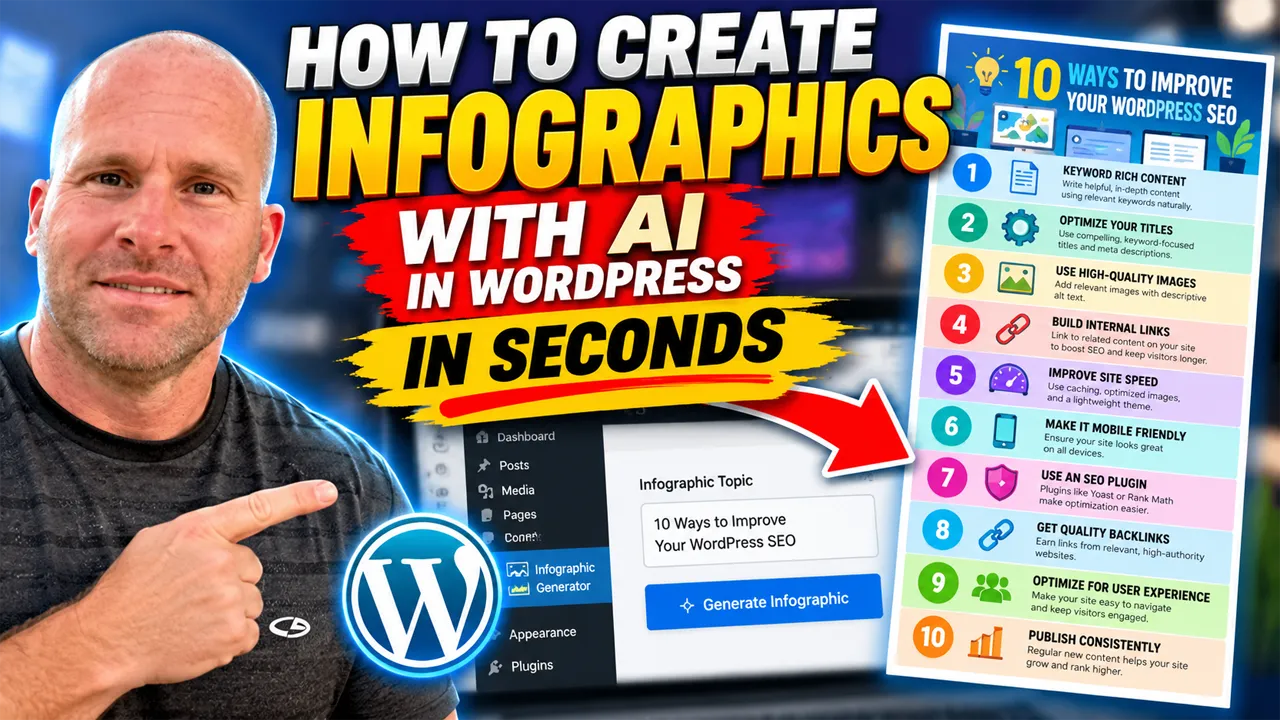
How to Create Infographics With AI in WordPress (In Seconds)
Infographics can turn information that might otherwise be buried inside paragraphs of text into something people can understand visually in seconds.
The problem is that creating a good infographic traditionally takes time. You have to decide what information to include, organize it, create the design, choose colors and graphics, format the text, and then export and upload the finished image to your website.
That is exactly why I added an AI Infographic Generator to My Content Creator Pro Elite.
Instead of leaving WordPress, opening another design platform, building an infographic manually, and then bringing it back to your website, you can create an infographic with AI directly from your WordPress dashboard.
In the video below, I’ll show you how to create infographics with AI in WordPress and just how quickly the entire process can work.
Discover My Content Creator Pro Elite »
Why Create Infographics With AI?
Infographics have been around much longer than generative AI. What AI changes is the amount of work required to get from an idea to a finished visual.
Suppose you’ve just written a detailed article containing ten important tips. You could leave those tips buried inside a 2,000-word article, or you could also turn them into a visual resource that summarizes the information for readers.
Traditionally, that means creating a second piece of content almost from scratch.
You might have to:
- Identify the most important information from the article
- Condense long explanations into shorter points
- Decide how the information should be organized
- Create the visual layout
- Choose appropriate graphics or design elements
- Format headings and supporting text
- Adjust spacing and visual hierarchy
- Export the finished design
- Upload it to WordPress
An AI infographic generator can dramatically shorten that workflow.
Instead of treating an infographic as an entirely separate design project, you can start with the topic you want to explain and let AI help create the visual asset.
How to Create Infographics With AI Directly Inside WordPress
One of my goals when developing My Content Creator Pro has always been to make my own life easier when managing WordPress websites.
I don’t want to jump between a long list of different tools every time I need to create another type of content.
If I’m already working inside WordPress, I want as much of my content workflow as possible to happen there.
That’s the idea behind the Infographic Generator inside My Content Creator Pro Elite.
The basic process is intentionally simple.
Step 1: Decide What Your Infographic Should Explain
Start with a focused topic. The clearer the subject is, the easier it is to create an infographic with a logical structure that people can quickly understand.
For example:
- 10 Ways to Improve WordPress SEO
- 7 Benefits of Content Marketing
- 5 Steps to Start a Blog
- 10 Ways to Improve Website Speed
- 8 Social Media Marketing Tips
- 7 Home Maintenance Tips
- 10 Healthy Meal Planning Ideas
- 6 Ways to Improve Email Marketing
A focused topic gives the AI a clear direction and generally makes it easier to produce an infographic with an understandable structure.
Step 2: Enter Your Infographic Topic
Inside the Infographic Generator, enter the subject you want the infographic to cover.
You don’t need to manually design every section before you begin. The point is to take the idea and dramatically reduce the amount of manual work required to turn it into something visual.
Step 3: Let AI Generate the Infographic
Once you’ve entered the topic, start the generation process.
This is where the workflow becomes very different from manually creating an infographic.
Instead of spending a large amount of time starting with an empty canvas, AI can help turn your topic into a finished visual asset much faster.
You can see this process demonstrated in the video above. The idea is to go from a simple topic to a useful visual without having to leave WordPress and manually build the entire infographic yourself.
Step 4: Review the Finished Infographic
AI can accelerate creation, but you should still review anything you plan to publish.
Look at the finished infographic and check:
- Is the information accurate?
- Does the headline clearly describe the topic?
- Are the individual points easy to understand?
- Is the text readable?
- Does the visual make sense for your audience?
- Does anything need to be changed before publication?
This is an important part of using AI effectively. The goal isn’t to remove human judgment. It’s to remove unnecessary repetitive work while keeping you in control of what gets published.
Use AI Infographics to Make Blog Posts More Visual
One of my favorite uses for an AI infographic generator is enhancing existing blog content.
Imagine you’ve written an article called 10 Ways to Improve Your WordPress SEO.
The article can provide detailed explanations for every recommendation. An infographic can then give readers a visual summary of those same major ideas.
Those two formats serve different purposes.
The written article gives you room for depth, examples, explanations, internal links, external references, and detailed answers to search questions.
The infographic gives readers something they can scan quickly.
You don’t have to choose between visual content and written content. They can complement each other.
Turn Existing WordPress Content Into Infographics
You don’t always need to start with a brand-new topic. One of the most practical ways to use an AI infographic generator for WordPress is to look at content you’ve already created.
For example, you may already have a detailed article containing seven steps, ten tips, five mistakes, a checklist, a process, or a comparison.
That information may already contain the structure for an infographic.
Instead of thinking, “What new infographic should I create?” you can ask, “Which of my existing articles would be easier to understand with a visual summary?”
This approach can help you get more value from content you’ve already spent time creating.
Infographics Can Help You Repurpose Existing Content
Content repurposing is another reason I wanted this capability inside My Content Creator Pro Elite.
Website owners often think they need a completely new idea every time they create something.
That’s not always necessary.
A single useful article can potentially become:
- A detailed WordPress blog post
- An infographic
- Several social media posts
- A Pinterest graphic
- A PDF resource
- An email
- A YouTube video
- Supporting content for another article
The original research and ideas can therefore produce multiple content assets.
That is much more efficient than starting over every time you need something new to publish.
Using AI Infographics for Pinterest and Social Media
Infographics aren’t limited to your WordPress website.
Visual information can also be repurposed for social platforms when the format and dimensions make sense for the platform.
Pinterest is an especially obvious example because the platform is highly visual and favors vertical creative.
If you’re creating an infographic specifically for Pinterest, consider creating or adapting the visual to a tall, mobile-friendly format rather than simply uploading every graphic in exactly the same dimensions.
You can also take information from the infographic and develop additional posts for Facebook, LinkedIn, Instagram, X, and other platforms.
My Content Creator Pro Elite also includes tools for creating social media content, which means the same basic topic can become part of a much larger content workflow.
You can learn more about that workflow in my AI Social Media Content Generator for WordPress guide.
That means an infographic doesn’t necessarily have to be the end of the content workflow. It can become another starting point for repurposing.
Can Infographics Help With SEO?
An infographic by itself isn’t a shortcut to higher Google rankings, and I wouldn’t create visual content simply because someone claims adding an infographic automatically improves SEO.
The better way to think about it is user value.
If a relevant infographic makes your article easier to understand, summarizes complicated information, provides an additional visual resource, or makes the page more useful to the person reading it, then it can improve the overall content experience.
When adding infographics to WordPress, there are also some basic image optimization practices worth following.
Use a Descriptive Image Filename
Instead of uploading something called:
image239847.png
use a filename that actually describes the image.
For example:
how-to-create-infographics-with-ai-wordpress.webp
This keeps your media library organized and gives the file a meaningful name.
Write Useful Alt Text
Alt text should help describe an image when that description is useful to someone who can’t see it.
Don’t turn alt text into a giant list of SEO keywords.
For an infographic in this article, an appropriate description might be:
AI infographic showing how to create infographics with AI in WordPress.
Place the Infographic Near Relevant Content
Images make more sense when they’re surrounded by content that relates to what the image is showing.
If you create an infographic about WordPress SEO, put it inside an article or section discussing WordPress SEO rather than inserting it somewhere unrelated simply because you want another image on the page.
Keep File Size in Mind
Infographics can be large images, especially when they’re tall or contain lots of detail.
Compress images appropriately and use modern image formats where practical so you’re not unnecessarily slowing down the page.
If you’d like to read Google’s own guidance on images in search, see the Google Search Central image SEO documentation.
See My Content Creator Pro Elite »
AI Doesn’t Mean You Should Publish Without Reviewing
The speed of AI is one of its biggest advantages, but speed shouldn’t become an excuse to publish inaccurate or low-quality material.
This applies to written AI content, images, social content, and infographics.
Before publishing an AI-generated infographic, check any factual claims, numbers, statistics, dates, names, instructions, or other information where accuracy matters.
If the infographic covers a sensitive subject such as health, finances, law, safety, or another area where inaccurate information could cause harm, verification becomes even more important.
AI should help you create faster. You should still decide what deserves to be published.
Who Can Use an AI Infographic Generator?
The ability to quickly create visual content can be useful across many types of WordPress websites.
Bloggers
Bloggers can summarize tutorials, lists, comparisons, processes, statistics, and educational articles with visual content.
Affiliate Marketers
Affiliate website owners can create visual buying guides, comparison summaries, checklists, product-selection considerations, and supporting content for informational articles.
Small Businesses
Businesses can create infographics explaining services, processes, frequently asked questions, customer tips, industry information, or educational material.
Agencies
Agencies managing multiple WordPress websites can use AI to reduce some of the repetitive design work involved in producing supporting visual content.
Course Creators and Educators
Educational websites can turn lessons, processes, timelines, checklists, and complicated subjects into easier-to-scan visual summaries.
Content Marketers
Content marketers can take information from long-form articles and create additional visual assets without starting every project from an empty design.
Why I Added Infographic Creation to My Content Workflow
I built My Content Creator Pro because I wanted to make managing my own WordPress websites easier.
Over time, that idea has expanded well beyond simply writing an article.
Running a content-driven website can involve researching topics, writing articles, optimizing SEO, creating images, adding internal links, publishing, updating old content, creating social posts, building PDFs, and producing other marketing assets.
Every time you have to leave WordPress and pay for or learn another tool, the workflow becomes more complicated.
My goal with My Content Creator Pro Elite is to bring more of those jobs into one WordPress content system.
That’s why infographic creation fits naturally with what Elite is becoming.
The Infographic Generator Is Only One Part of My Content Creator Pro Elite
The AI Infographic Generator isn’t a standalone idea disconnected from the rest of the plugin.
It’s part of a larger content workflow.
Depending on the feature you’re using, My Content Creator Pro Elite can help with:
- AI WordPress autoblogging
- Individual AI article generation
- Bulk AI article creation
- Access to more than 1,000,000 niche articles
- SEO and GEO content analysis
- Content improvement tools
- SEO titles and meta descriptions
- Internal linking
- AI image creation
- Pixabay image integration
- YouTube video integration
- Article rewriting
- Social media content creation
- AI infographic generation
- PDF and eBook creation
- Multiple languages, writing styles and tones
- Automatic WordPress publishing
The bigger idea is to reduce the number of repetitive steps involved in taking an idea and turning it into useful content.
You might start by creating an article.
Then you can optimize it, add images, create internal links, publish it, create social content from it, and turn some of the information into an infographic.
That’s the type of workflow I want Elite to make easier.
How AI Infographics Fit Into a Long-Term Content Strategy
Creating one infographic is useful. Building a repeatable system is more valuable.
Imagine publishing a detailed article every week and then selecting the articles that naturally lend themselves to visual summaries.
Over a year, you could build a substantial library of original visual resources alongside your written content.
Some might summarize processes. Others might present checklists. Some could explain complicated ideas. Others could be repurposed for social media or Pinterest.
Instead of treating every infographic as a major design project, AI can make visual content a more practical part of your normal publishing workflow.
Best Practices for Creating Better AI Infographics
AI can do a lot of the work, but the topic you choose and the way you use the finished asset still matter.
Keep the Topic Focused
An infographic trying to explain an entire industry will usually be harder to understand than one addressing a specific question.
Too broad: Everything You Need to Know About SEO
More focused: 10 On-Page SEO Improvements for WordPress
Choose Topics That Benefit From Visualization
Lists, processes, comparisons, timelines, statistics, checklists, steps, and frameworks are often natural candidates for infographic content.
Don’t Overload the Graphic
An infographic doesn’t need to contain every sentence from the original article.
Let the article provide depth and let the infographic communicate the major ideas visually.
Make Sure Text Is Readable
A beautiful design isn’t useful if visitors have to zoom in excessively to read it.
Always preview the infographic at the size visitors are likely to see it.
Check the Mobile Experience
A large percentage of website and social-media consumption happens on phones. Check how your infographic looks on a smaller screen before assuming the desktop version works everywhere.
Keep Human Oversight
Finally, review what AI created.
The best workflow isn’t necessarily AI replacing the website owner. It’s AI handling more of the repetitive production work while the website owner controls the topic, quality, accuracy, and final publishing decision.
Frequently Asked Questions About Creating Infographics With AI
Can AI create an infographic for me?
Yes. AI tools can help turn a topic or set of information into an infographic much faster than manually designing every element from scratch. The exact capabilities depend on the tool you’re using.
Can I create AI infographics inside WordPress?
Yes. My Content Creator Pro Elite includes an AI Infographic Generator designed to let you create infographic content as part of your WordPress workflow.
Do I need graphic design experience to create AI infographics?
That’s one of the major advantages of using an AI infographic generator. You don’t have to begin with the same design experience that would normally be required to manually build every visual element from an empty canvas. You should still review the finished result before publishing.
What can I use AI-generated infographics for?
You can potentially use them in WordPress articles, educational content, social media, Pinterest, marketing campaigns, presentations, supporting resources, and other situations where visual information makes sense.
Are AI infographics good for SEO?
An infographic doesn’t automatically improve rankings simply because it exists. Its value comes from making a page more useful, understandable, visual, or engaging for the intended audience. Images should also be implemented with sensible filenames, relevant surrounding content, appropriate alt text, and reasonable file sizes.
Should every blog post have an infographic?
No. Use infographics where they add value. A tutorial, process, checklist, comparison, timeline, or list may lend itself naturally to an infographic, while another article may not need one at all.
Can I turn an existing blog post into an infographic?
Yes, and that’s one of the most useful ways to approach infographic creation. Take the most important ideas from an existing article and turn them into a visual summary rather than starting with an entirely unrelated topic.
What makes a good infographic topic?
Topics that can be broken into clear steps, tips, comparisons, facts, categories, timelines, or processes generally work well because they give the visual an understandable structure.
Create Your Next AI Infographic in WordPress
Infographics don’t have to mean spending hours manually designing a graphic every time you want to add something visual to an article.
AI can make the process much faster.
With the Infographic Generator inside My Content Creator Pro Elite, my goal is to make creating an infographic another part of the WordPress content workflow rather than another project requiring a completely separate collection of tools.
Choose your topic, generate the infographic, review the result, and then put that visual content to work on your website and across the other platforms where it makes sense.
And if you want to see exactly how quickly the process works, watch the video near the top of this article.