
Key Takeaways
- You can build a 100+ article niche site in under 24 hours by importing ready-made posts into WordPress.
- The My Content Creator Pro (Free Version) gives you access to 1,000,000+ SEO-optimized niche articles.
- You can publish posts manually fast, or use Autoblogging Campaigns to drip-feed content over time.
- The plugin also helps you add copyright-free images and YouTube videos to increase engagement.
- If you don’t see your niche category, you can request it through the support desk and have content added.
🧠 Why Most WordPress Sites Fail
Most WordPress site owners don’t fail because they can’t get traffic.
They fail because they run out of content.
A WordPress site with only 5–10 posts usually can’t compete in Google long-term — especially in niches where competitors are publishing consistently.
That’s why the fastest way to grow a niche website (and eventually rank it) is simple:
✅ Publish more content
✅ Stay consistent
✅ Cover your niche topics deeply
✅ Build topical authority over time
And the easiest way to do that is to start with a large content library you can publish right away.
🔧 What Is My Content Creator Pro?
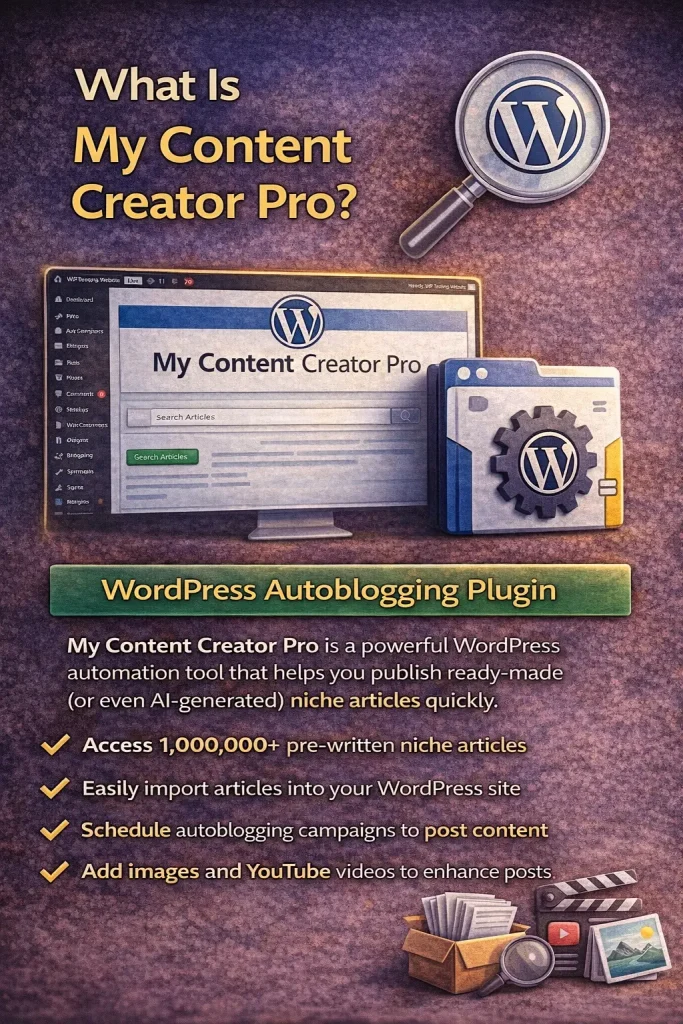
My Content Creator Pro is a WordPress autoblogging plugin that helps you publish niche articles quickly — without hunting around the internet for content.
The free version gives you access to:
- 1,000,000+ ready-made niche articles
- A searchable article database inside WordPress
- One-click importing (Add to Post)
- Tools to add images and videos
- Autoblogging campaigns to schedule posts automatically
This plugin is designed for:
- niche website builders
- affiliate marketers
- bloggers
- content site owners
- WordPress beginners who want fast content
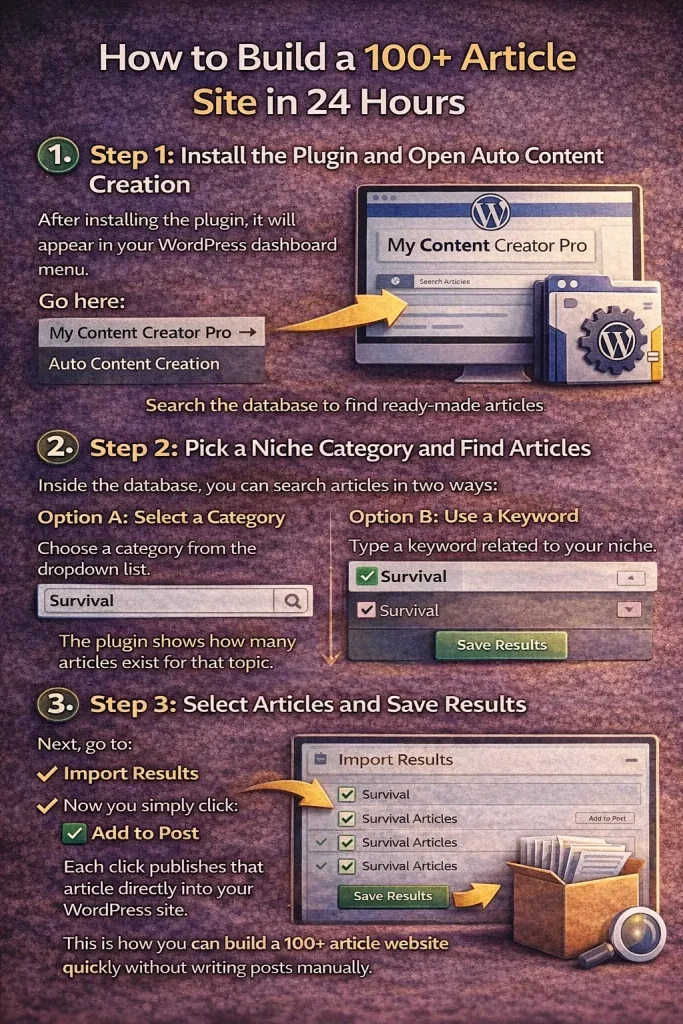
🧩 Step 1: Install the Plugin and Open Auto Content Creation
After installing the plugin, it will appear in your WordPress dashboard menu.
Go here:
My Content Creator Pro → Auto Content Creation
This is where you’ll search for articles and start building your content library fast.
🔍 Step 2: Pick a Niche Category and Find Articles
Inside the database, you can search articles in two ways:
Option A: Select a Category
Choose a category from the dropdown list.
Option B: Use a Keyword
Type a keyword related to your niche.
For example, in the demo, the niche category used was:
✅ Survival
When you search, the plugin shows a list of results — including how many articles exist for that topic.
In the demo, the “Survival” niche showed hundreds of articles available.
✅ Step 3: Select Articles and Save Results
To build a niche site quickly, your goal is to select batches of posts.
For example:
- Select 10 articles
- Click Save Results
- Go to next page
- Select 10 more
- Repeat until you reach 100+
This is how you can build a 100+ article website quickly without writing posts manually.
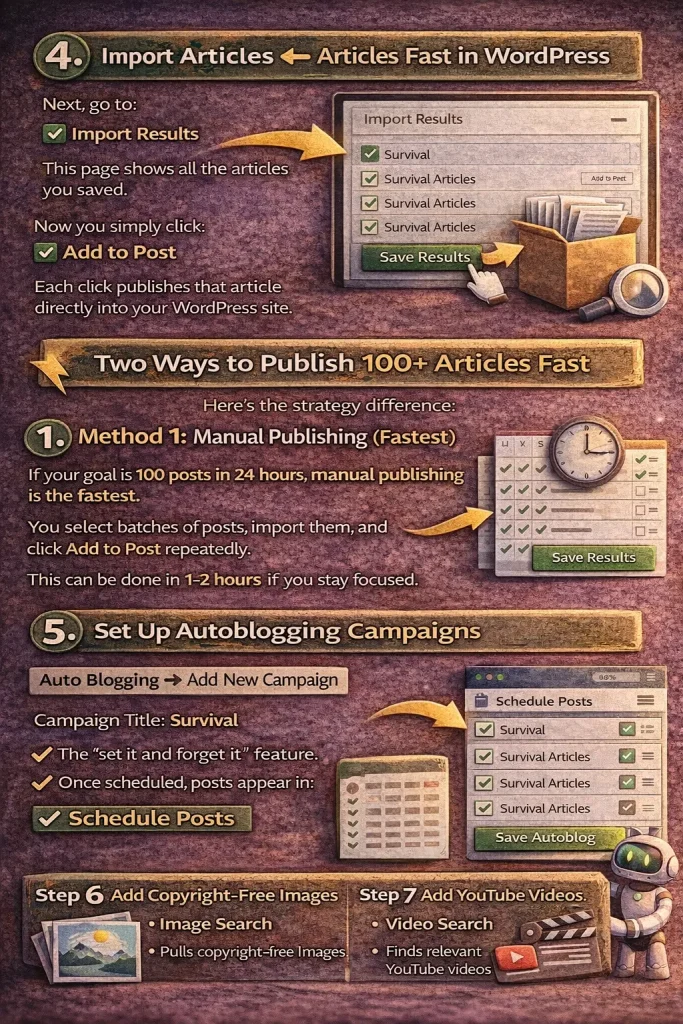
📥 Step 4: Import Articles Into WordPress
Next, go to:
Import Results
This page shows all the articles you saved.
Now you simply click:
✅ Add to Post
Each click publishes that article directly into your WordPress site.
If you do this in batches, you can publish 100 posts extremely fast.
⚡ Two Ways to Publish 100+ Articles Fast
Here’s the strategy difference:
✅ Method 1: Manual Publishing (Fastest)
If your goal is 100 posts in 24 hours, manual publishing is the fastest.
You select batches of posts, import them, and click Add to Post repeatedly.
This can be done in 1–2 hours if you stay focused.
✅ Method 2: Autoblogging Campaign (Most Natural)
If you want the site to look more natural, use scheduled posting.
That way your site grows day-by-day automatically.
This is better if you want:
- posts to drip out daily
- a natural publishing pattern
- less “mass publishing” all at once
🤖 Step 5: Set Up Autoblogging to Schedule Posts Automatically
To schedule posts automatically, go to:
Auto Blogging → Add New Campaign
From there you can choose:
- Campaign title
- Posting frequency (hours or days)
- Image keyword (for related images)
- Video keyword (for related YouTube videos)
- Content category
- Select which articles to schedule
This is the “set it and forget it” feature.
Once scheduled, posts appear in:
✅ Schedule Posts
That page shows exactly when posts will be published.
🖼 Step 6: Add Copyright-Free Images
Images increase:
- time on site
- user experience
- engagement
- visual appeal
Inside the plugin, go to:
Image Search
Type a keyword (example: Survival)
The plugin pulls up copyright-free images (in your demo, it references Pixabay).
Then you:
- select images
- click Save Results
- images are saved into your WordPress media library
🎥 Step 7: Add YouTube Videos to Blog Posts
To add videos, go to:
Video Search
Type your niche keyword (example: Survival)
The plugin finds relevant YouTube videos you can save and embed.
Adding videos helps:
- increase time on page
- boost engagement
- improve content depth
- reduce bounce rate
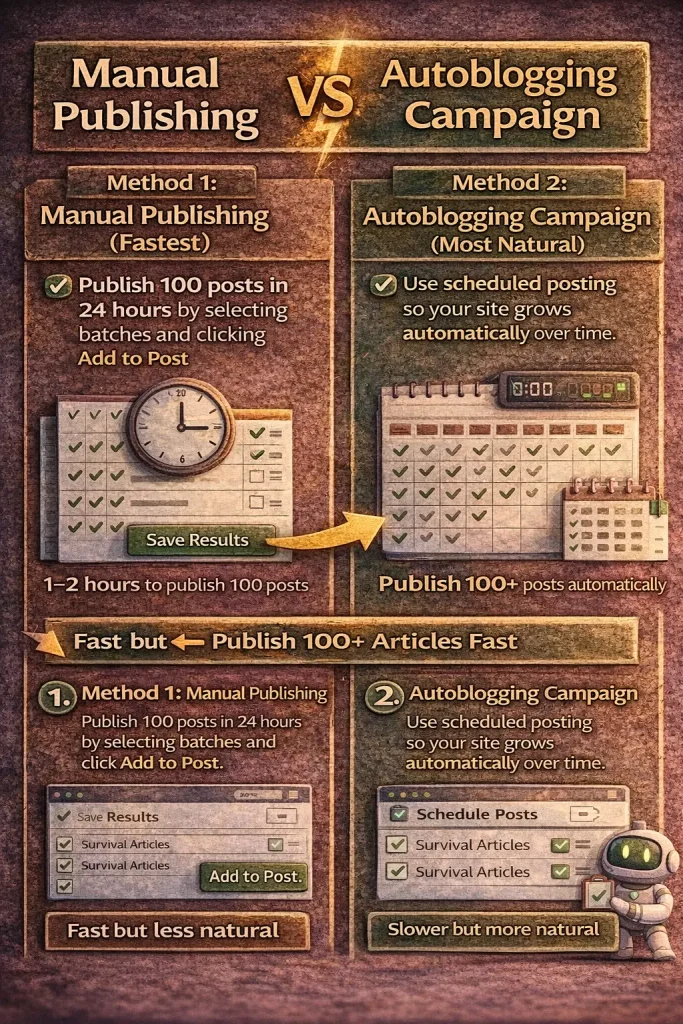
📊 Manual Publishing vs Autoblogging Campaign
Here’s a quick comparison so your readers clearly understand:
| Feature | Manual Publishing | Autoblogging Campaign |
|---|---|---|
| Speed | Fastest | Slower but automatic |
| Best for | 100 posts in 24 hours | Natural drip publishing |
| Effort | Requires clicking | Set it once |
| Looks natural | Not always | Yes |
| Great for SEO strategy | Yes | Yes (better long-term pattern) |
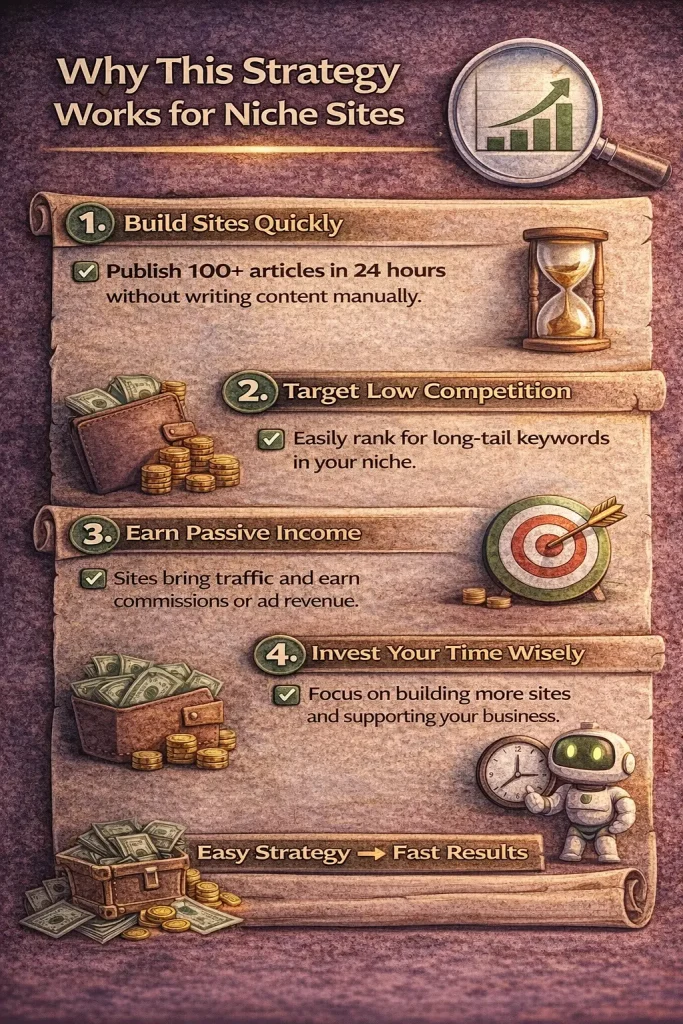
🧠 Why This Strategy Works for Niche Sites
A niche site wins when it becomes the best “topic hub” online.
If you publish 100+ articles in a single niche, you build:
✅ topical authority
✅ more keyword coverage
✅ more internal link opportunities
✅ higher chance to rank for long-tail searches
This is why content volume matters when it’s organized around a niche.
🆘 What If You Don’t See Your Niche Category?
If you don’t see your topic inside the database, the plugin includes a support desk option.
You can submit a ticket and request:
- a niche category added
- a fresh batch of articles created for your topic
This makes it easier to build sites in unusual or newer niches.
Frequently Asked Questions
Can I Really Build a 100+ Article Niche Site in 24 Hours?
Yes — if you publish manually.
The fastest method is:
- Select batches of posts (10 at a time)
- Save Results
- Import Results
- Click Add to Post repeatedly
That’s how you can publish 100 posts quickly without writing.
Is It Better to Publish 100 Posts at Once or Schedule Them?
If your goal is speed: publish them fast.
If your goal is natural growth: schedule them over time.
A good approach is a hybrid:
- publish 20–30 posts immediately
- schedule the remaining posts daily
Does Adding Images and Videos Matter?
Yes.
Images help make the posts more engaging and visually appealing.
Videos increase time on page, improve engagement, and can make the content feel more “complete” to visitors.
✅ What Is the Elite Version of My Content Creator Pro?
The Elite version of My Content Creator Pro is an advanced upgrade that is AI powered by ChatGPT.
While the free version gives you access to a massive database of ready-made niche articles, the Elite version goes further by allowing you to generate new content using AI.
With the Elite version, you can:
- generate AI-written blog posts using ChatGPT
- create fresh content for any niche
- scale content faster with automation
- build larger sites with more flexibility
This is ideal for users who want AI-powered content creation and more automation features beyond the ready-made database.
Is This Plugin Good for Affiliate Marketing?
Yes.
Affiliate sites need consistent content to rank and attract traffic.
This plugin helps affiliate marketers publish content at scale so they can build:
- niche authority
- informational content
- product-related posts
- monetized traffic pages
✅ Final Step: How to Get Free Access
To get the free plugin, use the link in your video description and follow the signup steps on your website.
After signup, you can install the plugin and begin searching, importing, and scheduling posts immediately.