
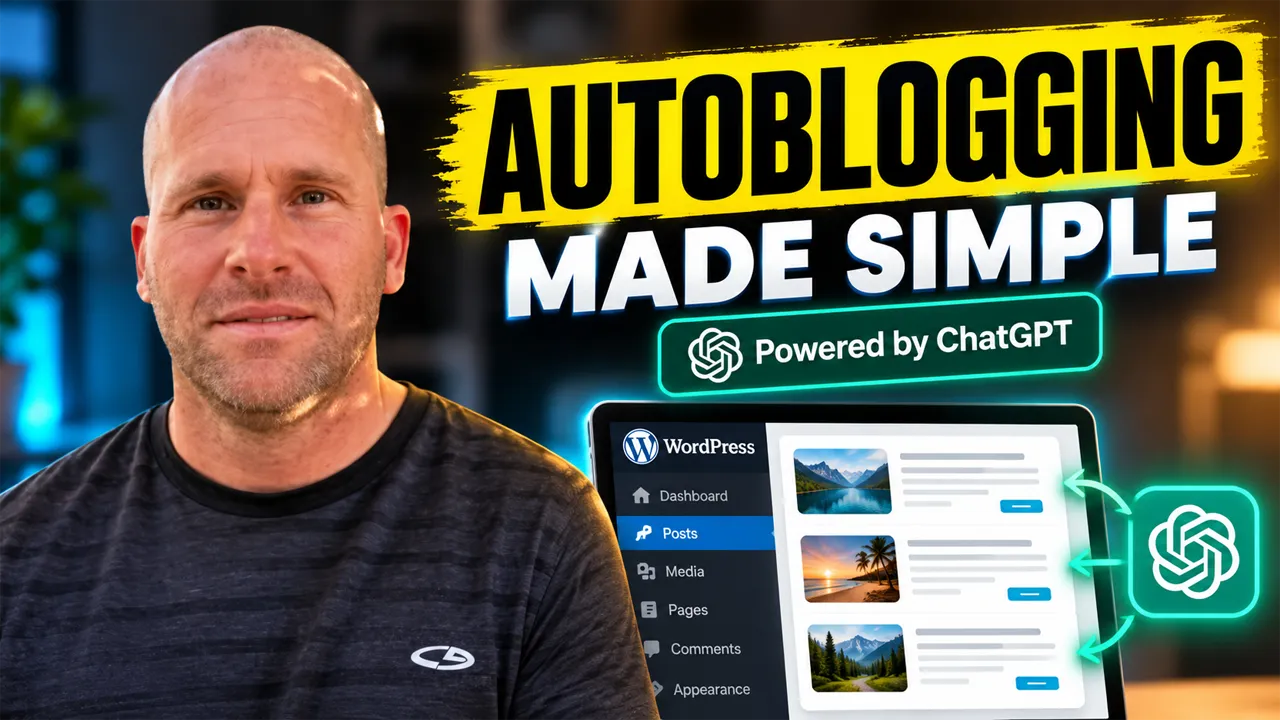
WordPress Autoblogging Made Simple—Powered by ChatGPT
WordPress autoblogging does not have to mean juggling a pile of tools, copying AI content from one screen to another, or manually rebuilding the same publishing process every week. In this tutorial, I show how I simplify the entire workflow inside WordPress by using ChatGPT with My Content Creator Pro Elite.
The idea is straightforward: decide what you want your website to publish, configure the campaign once, choose how often it should run, and let the system handle much of the repetitive work. Instead of treating AI as a separate writing tool, I use it as part of a complete WordPress content workflow.
In the video, I demonstrate this on one of my own dog-training websites. I create a campaign around a Healthy Dog Diet topic, assign it to the Dog Diet Plans category, use ChatGPT as the AI provider, schedule the campaign to run once a week on Saturday, and set the article length to approximately 2,500 words.
I also show how the campaign can include SEO optimization, FAQs, a conclusion, Smart automatic internal linking, Google Preferred Sources, and multiple ChatGPT-generated images. The point is not simply to generate text. The point is to create a repeatable system that can turn a topic into a finished WordPress article with far less manual work.
Want to simplify your WordPress content workflow with ChatGPT?
See My Content Creator Pro Elite →
What WordPress Autoblogging Really Means
When people hear the word autoblogging, they sometimes imagine a tool that simply throws random AI text onto a website. That is not how I approach it. A useful autoblogging workflow starts with control. You decide the topic, the WordPress category, the publishing schedule, the article length, the writing style, the tone, the SEO options, the linking behavior, and the visual content.
The automation then follows the rules you already created.
That distinction matters because good automation should remove repetitive steps without removing your strategy. I still decide what the website is about. I still decide which categories deserve new content. I still choose how often each campaign runs. I am simply using ChatGPT and WordPress automation to reduce the number of times I have to repeat the same setup manually.
Step 1: Start With a Topic You Actually Want to Build Around
The campaign begins with the subject of the article. In my demonstration, I work with a Healthy Dog Diet topic. That gives the AI a clear direction and keeps the campaign aligned with the type of content already published on the dog-training website.
This is much better than asking AI to create something random. A focused topic lets you build around a real category on your site and can eventually become part of a larger topical cluster.
If you need help finding ideas before you create the campaign, I also show how to find blog topics with AI and automatically write the articles. That workflow can help turn a broad niche into specific article ideas you can actually use.
Step 2: Set the WordPress Post Status
In the video, the post status is set to Publish. This means the finished article can go live on the WordPress website instead of stopping as a draft that still requires another manual step.
If you prefer to review every new article before publishing, using Draft can make sense. But once you have tested a campaign and know that the settings are producing the type of content you want, automatic publishing can remove another repetitive task.
I cover this part in more depth in how to automatically publish blog posts in WordPress with AI.
Step 3: Use ChatGPT as the AI Provider
For this campaign, I use ChatGPT as the AI provider. ChatGPT is responsible for creating the written content based on the instructions and settings I configure inside the campaign.
The important point is that ChatGPT is not working in isolation. It is being used inside a WordPress workflow. The topic, category, length, style, tone, SEO settings, internal linking, image settings, and publishing schedule all help guide the final output.
That is what makes the process different from simply opening a chatbot and asking it to write an article. The AI becomes one part of a complete publishing system.
Step 4: Put the Article in the Right WordPress Category
In my example, I assign the campaign to the Dog Diet Plans category. This makes sure the new article goes into the correct section of the site instead of being published without organization.
Step 5: Schedule the Campaign to Run Once a Week
The campaign in the video is set to run once a week, and I choose Saturday as the publishing day.
This is where autoblogging starts to feel like a real system instead of a one-time AI writing task. The campaign already knows the topic, category, and schedule. I do not need to wake up every Saturday and remember that I am supposed to create another article for that section of the website.
If you want to see the scheduling process in more detail, read how to schedule AI blog posts in WordPress automatically.
Step 6: Choose a 2,500-Word Content Length
For the demonstration, I set the article length to approximately 2,500 words. That gives the system enough room to cover a topic in more depth rather than creating a short paragraph or thin page.
Not every article needs the same word count, and longer does not automatically mean better. The goal should always be to answer the reader’s question thoroughly. But for detailed educational topics, a longer format can give you space for explanations, subtopics, examples, FAQs, and supporting sections.
Because the length is saved as part of the campaign, I do not need to type a new prompt every time telling ChatGPT how long the next article should be.
Step 7: Set the Language, Writing Style, and Tone
In the video, I use English, a persuasive writing style, and an educational tone.
These controls help shape how the finished article communicates with the reader. A dog-health article should not necessarily sound like a technical software manual, and a tutorial may need a different tone from a sales-focused page.
Step 8: Turn On SEO Optimization
I enable the SEO optimization option so search considerations become part of the article-generation process. That does not mean pressing one switch guarantees a Google ranking. No plugin or AI tool can guarantee that.
What it does mean is that I am not treating SEO as a completely separate step that I have to remember after every article is written.
The article still needs to satisfy search intent, provide useful information, fit the website, and compete with other pages in the search results. But building SEO into the workflow can make the process more consistent.
You can also see my related guide on how to write SEO-optimized autoblogging posts with ChatGPT in WordPress.
Step 9: Add FAQs and a Conclusion Automatically
During the setup, I turn on Generate FAQ and Generate Conclusion.
The FAQ section gives the article another opportunity to answer closely related questions. The conclusion gives the finished post a more natural ending and lets the article summarize the most important ideas instead of stopping abruptly.
These may seem like small tasks, but that is exactly why they are useful to automate. If you manually create one article every few months, adding an FAQ or conclusion is not a major burden. If you are publishing consistently across several websites or categories, those repeated steps add up.
Step 10: Use Smart Automatic Internal Linking
I also enable internal links and use the Smart / Automatic option. The interface lets me choose fixed link targets as well, but Smart / Automatic allows the system to scale the linking behavior with the article rather than forcing irrelevant links just to hit a number.
Internal linking is important because new articles should not sit by themselves. Related content can support each other, help readers continue exploring the website, and make relationships between topics clearer.
On a small site, manually finding links is easy. On a site with hundreds of posts, it becomes increasingly time-consuming. Smart internal linking is one of the features that can save more time as the content library grows.
Step 11: Use Google Preferred Sources
Google Preferred Sources is also enabled in the workflow I demonstrate. The feature is designed to display Google’s Preferred Sources call-to-action after normal posts and pages and use Google’s official publisher flow.
I also show the feature on the live site so you can see how it appears as part of the finished content experience.
Step 12: Add Four ChatGPT-Generated Images
For the campaign in the video, I select four images and choose ChatGPT as the image-generation source.
The interface makes an important distinction: the number of images selected refers to images placed inside the article, while the featured image is created separately.
That means the finished post can contain visual content throughout the article rather than being one long wall of text.
From Campaign Setup to a Finished WordPress Article
One of the things I make a point of showing in the video is the finished website. I do not want to demonstrate only a settings page and expect people to imagine the result.
I open actual published dog-related articles so you can see the structure, images, headings, internal links, conclusion, and other elements on the live site.
That is the outcome that matters.
The goal is not to say, “Look, ChatGPT created some words.” The goal is to go from an idea and campaign settings to a WordPress article that is part of the website.
Why This Is Simpler Than a Manual ChatGPT Workflow
You might open ChatGPT, create a prompt, generate the article, copy the text, open WordPress, create a post, paste the content, format the headings, add images, insert internal links, choose a category, configure SEO, and then publish or schedule the post.
That is better than writing everything from scratch, but it is still a manual workflow.
With autoblogging, the goal is to connect more of those steps:
Topic → Campaign → ChatGPT → WordPress article → SEO → Links → Images → Publish
The more of those repetitive steps you can configure once, the less time you spend rebuilding the same process for every article.
How This Fits Into the Rest of My WordPress AI Workflow
This video is part of a larger series showing the different pieces of the content system.
If you want to start with the foundation, see how to set up AI autoblogging in WordPress step by step.
Then see how to automatically write blog posts in WordPress with AI.
You can also learn how to find blog topics with AI, how to schedule the posts automatically, and how to automatically publish the finished articles.
Together, those pieces form a much more complete content workflow than simply having an AI text generator.
Autoblogging Is About the Outcome, Not Just the Features
The individual settings are useful, but the reason I care about them is the outcome they produce.
I do not want to spend my entire day creating content manually.
I want to create videos, work on products, send emails, improve the website, build traffic, and handle the rest of the business. At the same time, I want my content campaigns to keep following the schedules and instructions I have already created.
That is why I think of autoblogging as a system rather than a feature.
The value is not the button that says “Schedule Article.” The value is being able to configure the system and then spend more of your time on higher-level work.
Should You Still Review AI Autoblogging Content?
Yes. Automation should reduce repetitive work, not eliminate oversight.
I recommend monitoring your campaigns, reviewing the finished articles, checking that the content still matches the topic, verifying important facts, looking at the images, and making sure the internal links make sense.
You should also periodically review the publishing frequency. A campaign that made sense once a week when you created it may need to be adjusted later as your content library grows.
You remain responsible for the strategy. The software handles the repetition.
Frequently Asked Questions About WordPress Autoblogging With ChatGPT
Can ChatGPT automatically write WordPress blog posts?
Yes. In the workflow shown in the video, ChatGPT is selected as the AI provider inside a WordPress autoblogging campaign and is used to generate the article according to the settings you choose.
Can I automatically publish the articles?
Yes. The post status can be set to Publish so the finished article can go live automatically rather than remaining a draft.
Can I choose a recurring schedule?
Yes. In my demonstration, the Dog Diet Plans campaign runs once a week on Saturday.
Can I control article length?
Yes. The example campaign is configured for approximately 2,500 words.
Can WordPress autoblogging include SEO?
Yes. SEO optimization can be enabled as part of the campaign so search considerations are included in the content workflow.
Can it add internal links automatically?
Yes. I use the Smart / Automatic internal-linking option in the video. The system can also use fixed link targets if you prefer more specific limits.
Can it create images for the article?
Yes. In this campaign, I select four article images and use ChatGPT as the image-generation source. The featured image is handled separately.
Does autoblogging guarantee Google rankings?
No. Autoblogging can help you publish more consistently and automate parts of the SEO workflow, but rankings still depend on content quality, search intent, competition, authority, technical SEO, user experience, and many other factors.
Final Thoughts: Make WordPress Autoblogging Simpler
The reason I call this WordPress Autoblogging Made Simple is that the workflow brings together tasks that would otherwise require many separate steps.
In one campaign, I can choose the topic, set the post status to Publish, use ChatGPT, assign the Dog Diet Plans category, schedule the campaign once a week on Saturday, set the article length to 2,500 words, choose a persuasive style and educational tone, turn on SEO optimization, generate FAQs and a conclusion, enable Smart internal links, use Google Preferred Sources, and add four AI-generated images.
Then I can let the campaign follow those instructions instead of rebuilding the same process manually every time.
That is the real benefit for me: less repetitive work and more time to focus on growing the website and the business.
If you want to see the process in action, watch the video near the top of this article. I walk through the setup inside WordPress and show examples of the finished content on the live site.
And if you want to use the same WordPress AI tools I am demonstrating, visit My Content Creator Pro Elite.
Choose the topic. Set the campaign. Let ChatGPT handle more of the repetitive work—and keep your WordPress content moving.