

How to Set Up AI Autoblogging in WordPress Step by Step
If you want your WordPress website to keep receiving new blog content without manually starting every article from scratch, AI autoblogging can turn your normal writing process into a repeatable automated system.
In this tutorial, I am going to show you how I set up AI autoblogging directly inside WordPress using My Content Creator Pro Elite. Instead of simply asking AI to write one article, I can create an autoblogging campaign, choose the topic, decide which WordPress category the articles belong in, choose a publishing schedule, control the article length, select the AI provider, set the writing style and tone, enable SEO features, add internal links and images, and then let the campaign continue working from those settings.
That is the real difference between simply using an AI writer and building an AI autoblogging system.
I am the Owner & Developer of My Content Creator Pro Elite, and this is the type of workflow I use because I do not want to manually repeat the same content-creation steps every time my websites need another article.
Want to put your WordPress blog on autopilot?
See My Content Creator Pro Elite →
What Is AI Autoblogging in WordPress?
AI autoblogging is the process of using artificial intelligence and automation to create WordPress blog posts based on instructions and a schedule you configure ahead of time.
Traditional AI writing usually begins with you manually opening an AI tool and asking it to write something. When that article is finished, you may still have to copy it into WordPress, format it, add images, create SEO information, add internal links, choose the right category, and publish or schedule the post.
AI autoblogging changes that workflow.
Instead of beginning again every time you want another article, you create a campaign that already knows what kind of content you want and how you want it created.
Think of it this way:
Choose the topic → configure the campaign → choose the schedule → let the system continue working.
If you want to see the broader outcome of this system, I also created a tutorial on how to automatically write blog posts in WordPress with AI. This article focuses much more specifically on how I actually set up the autoblogging campaign.
Step 1: Open the ChatGPT Autoblogging Setup Inside WordPress
The first thing I do is open the autoblogging section inside My Content Creator Pro Elite.
This keeps the entire setup inside my WordPress dashboard. I do not have to build the campaign somewhere else and then figure out how to move everything back into WordPress afterward.
From the setup screen, I can define the campaign and configure the individual settings that control how future articles will be created.
This is important because automation is only useful when you still have control over what is being automated.
I do not simply want to press a button that says “write random articles.” I want to determine the subject, publishing behavior, content style, optimization settings, images, internal linking and other details before the campaign starts running.
Step 2: Give Your Autoblogging Campaign a Clear Title
The campaign title is primarily there to help you identify the campaign inside WordPress.
If you eventually have several campaigns running, clear names make them much easier to manage.
For example, a dog-related website might eventually have separate campaigns for:
- Dog diet plans
- Dog training tips
- Puppy behavior
- Dog exercise
- Service dog training
- Dog anxiety
Each campaign can serve a different content category while still being part of one overall website strategy.
This is much better than creating one extremely broad campaign and expecting the AI to randomly cover every possible topic on the site.
Step 3: Decide Whether the Articles Should Be Published or Saved as Drafts
One of the settings I can control is the WordPress post status.
You may want articles to publish automatically, or you may prefer to have the system create drafts that you review first.
Both approaches have a purpose.
If you are setting up a new campaign, using drafts at first can be a useful way to review the output and make sure the instructions are producing the kind of articles you want.
Once you are comfortable with the campaign, automatic publishing can remove another manual step from the workflow.
The important thing is that autoblogging does not have to mean giving up control. You can configure the publishing behavior to fit the way you want to manage your site.
Step 4: Choose ChatGPT as the AI Provider
In the setup shown in my video, I use ChatGPT as the AI provider.
The AI provider is responsible for helping create the article based on the campaign instructions.
But choosing the AI provider is only one part of the setup. The quality and usefulness of the resulting content also depend on the topic, instructions, length, style, tone and other settings you give the system.
That is why I think of AI as part of the content workflow rather than the entire strategy.
Step 5: Choose the WordPress Category
Next, I select the WordPress category where the campaign’s posts should be placed.
This may seem like a small setting, but it becomes very important when you start automating larger amounts of content.
If your website covers several subjects, you want each article to appear in the appropriate category instead of creating an unorganized collection of posts.
For example, a website about dogs might contain categories for diet, obedience, puppy training, exercise, behavior and service dogs.
When you build individual campaigns around those categories, your automated publishing system can help create a much cleaner topical structure.
Step 6: Choose the Autoblogging Interval and Publishing Schedule
This is one of the settings that turns AI writing into true autoblogging.
I can decide how often I want the campaign to create a new article.
Depending on your content strategy, you might want a campaign to run weekly, several times per week or on another schedule that makes sense for your website.
The goal is consistency.
Instead of remembering every Monday that you need another article for a specific category, you can configure that schedule ahead of time.
That means the publishing plan can continue even when you are busy working on something else.
For me, that is one of the biggest benefits of WordPress content automation.
Step 7: Set the Article Length
The autoblogging setup also lets me determine approximately how long I want the content to be.
This gives me more control than simply asking AI to “write a blog post” and accepting whatever length it decides to produce.
The right article length depends on the subject.
Some topics can be answered thoroughly in 1,000 words. Others may justify 2,000, 2,500 or more.
Longer is not automatically better. The goal should be to provide enough useful information to properly satisfy the topic without padding an article simply to reach a particular word count.
Step 8: Choose the Language, Writing Style and Tone
I can also tell the campaign how I want the articles to sound.
The setup includes controls for language, writing style and tone.
This matters because the writing style for a technical tutorial may be very different from the style used for a lifestyle blog, business website or educational article.
Instead of every AI-generated post sounding identical, these options give you another level of control over the finished content.
For example, you may want a persuasive writing style combined with an educational tone, or you may prefer something more formal, conversational or instructional depending on the website.
Step 9: Enable SEO Optimization
Creating content automatically is useful, but simply generating more words does not guarantee search traffic.
That is why I also pay attention to the SEO options inside the campaign.
The setup allows me to enable SEO-related features so the article is created with optimization in mind instead of treating SEO as a completely separate task afterward.
If you want to go deeper into this part of the workflow, see my guide on how to write SEO-optimized autoblogging posts with ChatGPT in WordPress.
No plugin or AI tool can guarantee rankings. Google still evaluates usefulness, relevance, search intent, competition, authority and many other signals.
The advantage is that you can make SEO part of the publishing workflow from the beginning.
Step 10: Generate SEO Meta Information
The campaign can also generate SEO-related metadata.
This is another repetitive part of publishing that can add up when you are producing content consistently.
If you manually create dozens of articles, writing the article is only part of the workload. You may also need a search-focused title, description, tags and other supporting information.
By incorporating these steps into the automation process, you reduce the number of separate jobs you have to complete after every article is written.
Step 11: Automatically Add Internal Links
Internal linking is another feature I enable in the autoblogging setup.
This allows relevant posts on the website to connect to one another instead of every new article becoming an isolated page.
Internal links can help visitors discover related information and can help search engines understand the relationships between different pages and topics on your website.
The benefit becomes even greater as your content library grows.
If you have hundreds of posts, manually finding the best related articles every time you publish something new can become another time-consuming task.
Step 12: Configure Google Preferred Sources
Another option shown in the setup is Google Preferred Sources.
The broader goal is to give the system additional guidance while creating the content instead of relying on a completely uncontrolled generation process.
I like having these options available directly inside the same autoblogging setup because it keeps the workflow connected.
I would rather configure the content once inside WordPress than build a long chain of unrelated tools and manually transfer information between them.
Step 13: Choose How Many Images You Want in the Article
Blog content is not only about text.
In the setup, I can determine how many images I want associated with the article and select the image-generation or image-source options I want to use.
The images shown in the finished posts in my video help break up longer articles and make the pages more visually useful.
This saves another step that would otherwise require opening another website, searching for images, downloading them, uploading them into WordPress and inserting them into the article manually.
Step 14: Choose Your Image Source and Featured Image Options
I can also configure how images are obtained and whether a featured image should be added.
This matters because the featured image is often what appears on blog archive pages, social shares and other parts of the WordPress website.
The goal is to have the automated article look like a complete WordPress post rather than a large block of unformatted AI text.
Images, headings, internal links and SEO elements all contribute to making the final post more usable.
Step 15: Save the Campaign
Once the settings are configured, I save the campaign.
That campaign then appears inside the ChatGPT Autoblogging Campaigns section, where I can see and manage the different automated content campaigns on the website.
This is where the system becomes much easier to scale.
You might eventually have one campaign publishing content for dog diet plans, another covering dog exercise, another covering obedience training and another covering puppy behavior.
Each campaign can have its own topic and schedule.
What Happens After You Set Up the Autoblogging Campaign?
After the setup is finished, the campaign can begin creating content according to the instructions you provided.
In the video, I show examples of finished articles on the website, including posts with relevant images, structured sections and full written content.
This is an important part of understanding AI autoblogging.
The goal is not to generate text that sits inside an AI interface.
The goal is to turn the automated process into actual WordPress content.
That is why I like thinking of this as a publishing system rather than simply an AI writer.
Why Set Up Multiple Autoblogging Campaigns?
If your site covers several closely related topics, separate campaigns can help you build deeper coverage across the site.
For example, instead of publishing 50 unrelated articles, you can intentionally build clusters around important subjects.
A dog website could build a collection of articles around:
- Nutrition
- Exercise
- Behavior
- Training
- Anxiety
- Puppies
- Service dogs
That gives you a much more organized content strategy.
If you want a broader explanation of how automated blogging can help create a self-updating website, you can also read my WordPress autoblogging guide.
The Real Outcome: A Blog That Keeps Moving Without You Starting Every Post
This is the part I think matters more than the individual settings.
The settings are features.
The outcome is what people actually want.
You want to stop logging into WordPress every day wondering what you need to write next.
You want a content plan that already knows which topics need coverage.
You want the system to know where the article belongs.
You want it to know how long the article should be, how it should sound, whether SEO should be added, whether internal links should be included and how images should be handled.
Then you want that process to repeat on the schedule you selected.
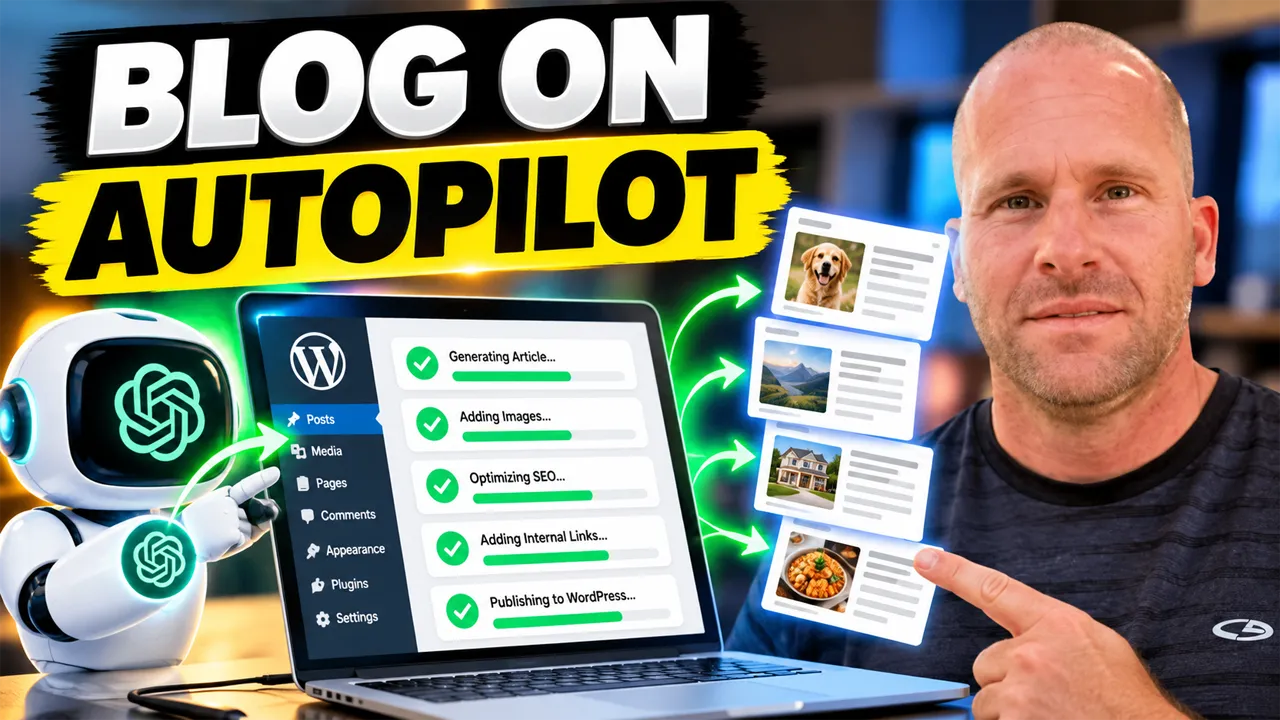
That is why the thumbnail for this video says “BLOG ON AUTOPILOT.”
You still create the strategy and configure the system. The automation handles much of the repetitive execution.
What Can You Do With the Article After It Is Published?
An automated WordPress article can become the starting point for even more content.
You can turn it into social posts. I show that workflow in my guide on how to repurpose old blog posts into social media content with AI.
You can also create visual content from it. See how to create social media images from WordPress blog posts with AI.
That creates a larger system:
AI autoblogging → WordPress article → SEO → internal linking → social content → social images → more opportunities for discovery.
Instead of every piece of content being created separately, one workflow can feed another.
Should You Review AI Autoblogging Content?
Yes.
Automation can save time, but that does not mean you should ignore what is being published on your website.
Review your campaigns and periodically inspect the finished articles.
Make sure the information is accurate.
Check that images fit the topic.
Make sure the internal links make sense.
Look for outdated information or claims that need human verification.
The best use of AI automation is not “turn it on and never look at your website again.”
It is using automation to eliminate repetitive work while you remain in control of the overall content strategy.
Frequently Asked Questions About Setting Up AI Autoblogging in WordPress
What do I need to set up AI autoblogging in WordPress?
You need a WordPress website and an autoblogging system that can create or schedule content. In this tutorial, I use My Content Creator Pro Elite and its ChatGPT-powered autoblogging campaign system.
Can I choose which category the AI posts go into?
Yes. You can select the WordPress category while configuring the campaign so the generated articles remain organized with related content.
Can I choose how often AI creates new articles?
Yes. The publishing interval can be configured as part of the campaign, allowing you to build a recurring content schedule.
Can AI autoblogging create SEO information?
The campaign includes SEO-related settings and a meta-generation option so optimization can become part of the automated workflow.
Can internal links be added automatically?
Yes. My Content Creator Pro Elite includes an internal-linking option that can be enabled as part of the autoblogging campaign.
Can the automated articles include images?
Yes. The campaign provides image options, including controls for the number of images, image source and featured-image behavior.
Can I save AI-generated posts as drafts instead of automatically publishing?
Yes. Using draft mode can be a good option when you first create a campaign and want to review the output before allowing the articles to publish automatically.
Does autoblogging guarantee that my website will rank in Google?
No. Automation can help you create and publish content consistently, but search rankings still depend on usefulness, relevance, competition, website authority, user intent, technical SEO and many other factors.
Final Thoughts: Set Up the System Once and Let Your Blog Keep Moving
Setting up AI autoblogging in WordPress is not just about getting AI to write an article.
The real power comes from configuring a complete repeatable workflow.
You choose the topic.
You choose the WordPress category.
You choose whether posts publish automatically or remain drafts.
You choose the AI provider, schedule, article length, language, style and tone.
You decide whether SEO, meta information, internal linking, preferred sources and images should be included.
Then you save the campaign and let the system continue working from those instructions.
That is how you move from manually writing individual AI articles to building an actual WordPress autoblogging system.
If you have not already watched the video above, watch it and follow along as I go through the setup inside WordPress step by step.
And if you want to use the same WordPress AI autoblogging tools I am demonstrating, visit My Content Creator Pro Elite.
Set up the strategy. Set the schedule. Let AI handle more of the repetitive work — and keep your WordPress blog moving even when you are busy doing something else.