
How to Automatically Publish Blog Posts in WordPress With AI
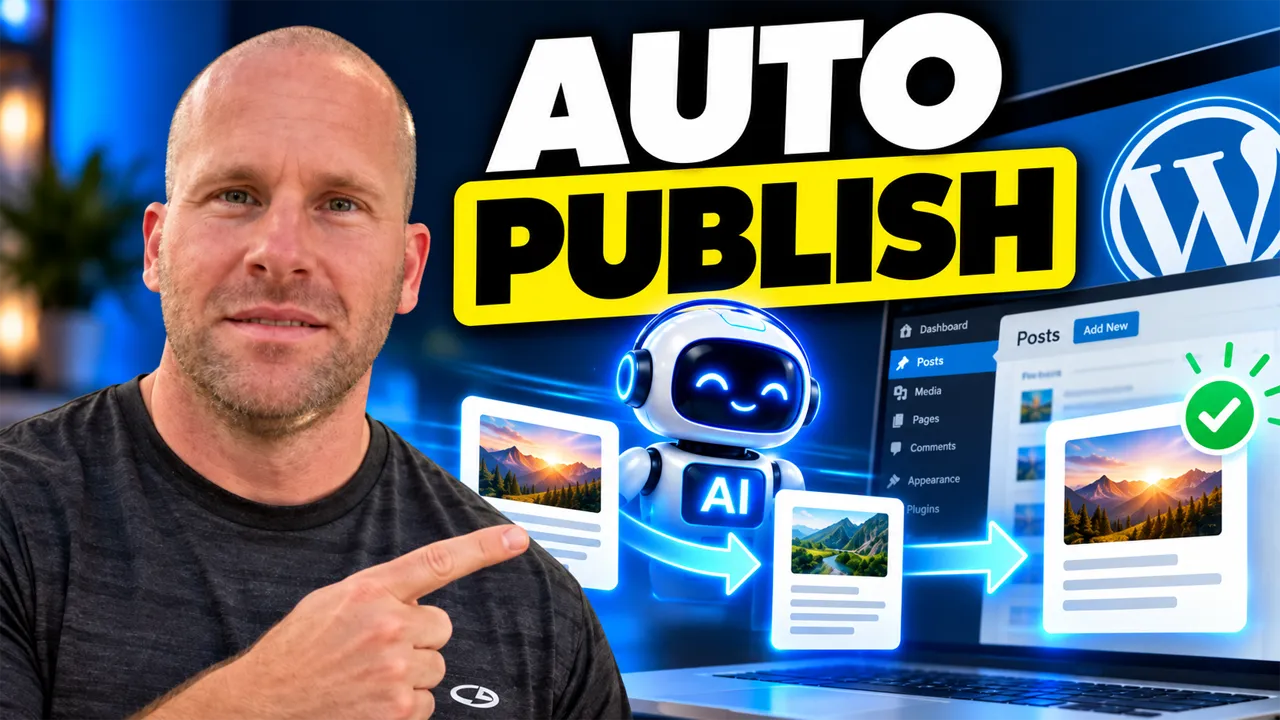
What if your WordPress website could create a new article, add the supporting content, and publish the finished post without you having to manually log in and press the Publish button every time?
That is exactly what I am demonstrating in this tutorial. I use the autoblogging system inside My Content Creator Pro Elite to create an automated WordPress publishing campaign where I control what the AI writes, how the article is structured, what additional features are included, how often the campaign runs, and whether the finished post should remain a draft or automatically go live on the website.
The important part is the last step: automatic publishing.
Instead of using AI to generate an article somewhere else and then manually moving that article into WordPress, this workflow keeps the process inside WordPress from beginning to end.
I am the Owner & Developer of My Content Creator Pro Elite, and I built this kind of automation because I wanted my own websites to continue publishing content without requiring me to personally start and finish every article.
Want to automate your WordPress content workflow?
See My Content Creator Pro Elite →
What Does It Mean to Automatically Publish WordPress Blog Posts With AI?
Automatically publishing WordPress blog posts with AI means more than simply asking ChatGPT to write an article.
A complete automated publishing workflow can handle several stages of the process before the article finally goes live.
That can include choosing the topic, generating the content, assigning the WordPress category, creating SEO information, adding FAQs, generating a conclusion, inserting internal links, selecting images, creating a featured image, and then publishing the finished article according to the settings you configured.
The traditional workflow often looks something like this:
Generate article → copy article → open WordPress → paste article → format it → add SEO → add links → find images → upload images → choose category → press Publish.
What I am showing here is much closer to:
Configure campaign → let AI create the article → automatically publish to WordPress.
The Difference Between AI Writing and AI Publishing
This distinction is important.
An AI writer can save time by creating text. But if you still have to manually complete everything after the text is generated, only one part of the content process has actually been automated.
Automatic publishing takes the workflow another step.
The system is not simply helping you write. It is helping move the content through the WordPress publishing process.
If you have not seen the previous tutorial in this series, I recommend reading how to automatically write blog posts in WordPress with AI. That article explains the broader AI-writing workflow.
I also created a separate walkthrough showing how to set up AI autoblogging in WordPress step by step.
This tutorial focuses specifically on what happens when we take the next step and tell WordPress to publish the AI-generated articles automatically.
Step 1: Create an AI Autoblogging Campaign
In the video, I begin inside the ChatGPT Autoblogging Setup screen in My Content Creator Pro Elite.
This is where I configure the instructions the campaign will follow.
For the demonstration, I use the campaign topic “Common Dog Health Issues.”
This gives the AI a specific subject to work with instead of simply asking it to create random content.
The same approach could be used for practically any niche.
You might build campaigns around:
- WordPress tutorials
- Home improvement
- Gardening
- Travel
- Dog training
- Nutrition
- Real estate
- Marketing
- Technology
- Product reviews
The important thing is that your campaigns support the actual subject of your website.
Step 2: Set the WordPress Post Status to Publish
This is one of the most important settings in this particular tutorial.
Inside the campaign setup, I set the Post Status to Publish.
That tells the system that when the article is ready, it should become a published WordPress post rather than remaining in the dashboard as a draft.
If you prefer to manually review every article first, you can use a draft workflow instead.
But when the goal is true WordPress autoblogging, the Publish setting removes the manual step of logging into WordPress and clicking the Publish button yourself.
Draft vs. Automatic Publishing: Which Should You Use?
There is no single answer that is right for every website.
If you are creating a brand-new campaign, saving the first few articles as drafts can be useful because it lets you evaluate how well your instructions are working.
You can check the formatting, topic relevance, images, internal links, factual accuracy and overall quality before allowing the campaign to publish automatically.
Once you know the campaign is producing the type of content you want, changing the post status to Publish can eliminate another repetitive task.
Automation should give you control, not take control away from you.
Step 3: Choose ChatGPT as the AI Provider
In my demonstration, I use ChatGPT as the AI provider.
The provider creates the article according to the instructions configured inside the campaign.
However, choosing ChatGPT is only part of the process.
The topic, article length, writing style, tone, SEO settings and other options also influence what the finished post looks like.
This is why I do not look at AI as a magic button.
The better approach is to build a structured system around the AI.
Step 4: Choose the WordPress Category
The autoblogging setup also lets me decide which WordPress category should receive the generated post.
This becomes especially valuable when a website contains several content areas.
For example, a dog website might have separate categories for training, health, nutrition, behavior, exercise and puppy care.
Instead of automatically dumping every AI-generated article into one place, each campaign can be built around a specific area of the site.
That creates a more organized content library and can also help build stronger topical clusters.
Step 5: Choose How Often Articles Should Be Published
The campaign interval controls how frequently the automation runs.
In the video, I temporarily use a very short interval while demonstrating the feature so you can see the process working without waiting days for the next article.
For a real ongoing campaign, I can configure a more normal publishing schedule, such as once per week.
That gives me the ability to decide how aggressively each topic should be covered.
One category might need a new article every week.
Another might only need two posts per month.
The important part is that once the schedule is configured, I do not have to manually remember each publication date.
Step 6: Control the Article Length
The campaign also includes a content-length setting.
For a quick demonstration, I may use a shorter article length so the example can be generated faster.
For actual website content, I can configure longer articles when the subject requires more depth.
There is no universal word count that guarantees better SEO.
A useful article should be as long as necessary to properly answer the reader’s question.
Some topics may need 1,000 words. Others may justify 2,000, 2,500 or more.
Step 7: Choose the Language, Writing Style and Tone
In the setup shown in the video, I use English as the language and demonstrate controls for writing style and tone.
For example, a campaign can use a persuasive writing style with an educational tone.
This matters because different websites should not all sound exactly the same.
An educational blog needs a different presentation from a sales-oriented product article or a highly technical tutorial.
These settings let me guide how the AI communicates rather than simply accepting one generic voice.
Step 8: Turn On SEO Optimization
I also enable SEO optimization inside the campaign.
This does not mean pressing an SEO switch automatically guarantees Google rankings.
No tool can guarantee that.
But if I am automating the publishing process, I want search optimization considered during the creation workflow instead of treating it as something I have to manually add afterward.
The goal is to reduce repetitive work while still creating content that is structured around the topic being targeted.
Step 9: Generate SEO Meta Information
The campaign also includes an SEO Meta Generator.
When you are publishing regularly, metadata becomes another repetitive task that can take time.
For one article, manually writing SEO information is not difficult.
But when you manage many articles, categories or websites, those extra steps accumulate.
Combining metadata generation with the content workflow helps move the post closer to being publish-ready automatically.
Step 10: Automatically Generate FAQs and Conclusions
In the video, I also demonstrate controls for generating an FAQ section and article conclusion.
FAQs can be useful because they let an article answer additional questions related to the main topic.
A conclusion can help summarize the key ideas and give the article a more complete ending.
Again, the value is not that these are simply more features.
The value is that the system can handle more of the structure you would otherwise have to add manually after the article was generated.
Step 11: Add Internal Links Automatically
Internal linking is one of the features I especially like in an automated content workflow.
In the video, I turn on Enable Internal Links and use the Smart / Automatic option.
The interface also gives me control over the number of internal links if I want to specify a particular amount.
Internal links help connect new posts with existing content on your website.
That can help readers discover related articles and can help search engines understand relationships between topics.
As a website grows to hundreds or thousands of articles, manually identifying appropriate internal links every time becomes increasingly time-consuming.
Step 12: Use Google Preferred Sources
The campaign shown in the video also includes the Google Preferred Sources feature.
You can see the preferred-sources element on the finished article after it is published.
This is another example of why I wanted these tools connected inside WordPress rather than forcing website owners to assemble a different service for every part of the content workflow.
Step 13: Add Images to the Article
I can also tell the campaign how many images I want included.
In the demonstration, the setup shows controls for multiple images and different image-generation sources.
I demonstrate image options such as Pixabay and AI-generated imagery.
The finished articles on the website show how the images become part of the published post rather than requiring me to manually find, download, upload and insert each image afterward.
If you are interested in repurposing WordPress content visually after it is published, I also created a tutorial on how to create social media images from WordPress blog posts with AI.
Step 14: Optionally Add a YouTube Video
The autoblogging setup also contains an option for adding a YouTube video to the article.
When enabled, I can control where the video appears, such as near the top of the page.
This is useful when video content can add another layer of value to the article.
It also shows how the automated publishing system can build something more complete than a simple block of AI text.
Step 15: Schedule the Article Campaign
Once everything is configured, I schedule the campaign.
The system confirms that the request has been received and that the articles will begin appearing in the WordPress posts section.
At that point, the publishing workflow can begin operating according to the campaign settings.
This is where the real time-saving benefit starts.
I am no longer manually starting each article individually.
From Campaign Setup to a Live WordPress Post
One thing I specifically show in the video is the finished result.
The example campaign uses the subject Common Dog Health Issues.
After the campaign runs, I show the WordPress website containing an article titled “Common Dog Health Issues Every Owner Should Know.”
The article is not sitting in some separate AI application waiting for me to move it.
It is actually on the WordPress website.
The post contains full written content, headings and relevant imagery.
I also scroll through the article so you can see what the finished publication looks like.
That is the result I care about: not simply generating words, but turning the automation into a live piece of website content.
Why Automatic Publishing Can Save So Much Time
Think about everything involved in publishing just one normal blog post.
- Choose the topic
- Research the subject
- Write the content
- Create the title
- Format the article
- Add headings
- Create SEO information
- Add internal links
- Find or create images
- Upload images
- Choose the category
- Write FAQs
- Create a conclusion
- Schedule or publish the post
Now multiply that by 50 or 100 articles.
That is why the benefit of automation becomes much easier to understand when you are publishing consistently.
Automatic Publishing Is About the Outcome, Not Just the Features
The individual settings are useful, but they are not the reason I built the system.
The outcome is the important part.
I want my WordPress websites to continue publishing useful content while I am doing something else.
I might be creating YouTube videos.
I might be working on another website.
I might be building a product.
I might be sending emails or working on traffic.
Meanwhile, the content campaign can continue following the schedule I already created.
That is much more valuable to me than simply having another AI writing button.
Build a Complete AI Autoblogging Workflow
This video fits into a larger workflow I have been demonstrating.
First, I showed how to automatically write blog posts in WordPress with AI.
Then I showed how to set up AI autoblogging in WordPress step by step.
Now we are taking the next step and showing how the finished content can be automatically published.
Together, those workflows create a much more complete WordPress content automation system.
Repurpose the Published Articles Into More Content
Automatic publishing does not have to be the end of the process.
Once the new article is live, it can become the source material for other marketing content.
You can turn the article into Facebook posts, Instagram content, LinkedIn posts, Pinterest content, social images and infographics.
I show that broader strategy in my guide on how to repurpose old blog posts into social media content with AI.
That creates a larger workflow:
AI topic → article creation → SEO → images → internal links → automatic WordPress publishing → social content → additional promotion.
Should You Review Automatically Published AI Content?
Yes.
Automation should reduce repetitive work, but it should not mean completely ignoring your website.
I recommend monitoring the campaigns and reviewing the finished posts.
Check that the information is accurate.
Make sure the images match the topic.
Review internal links.
Make sure the content continues to fit your audience.
Some topics require more human review than others, especially information that changes frequently or involves sensitive subjects.
The goal is not to remove human judgment.
The goal is to stop manually repeating work that software can perform efficiently.
Frequently Asked Questions
Can AI automatically publish blog posts directly to WordPress?
Yes. With a WordPress AI autoblogging system configured for automatic publishing, generated posts can be sent directly to the WordPress website instead of remaining as drafts.
Can I choose between Draft and Publish?
Yes. In My Content Creator Pro Elite, the post-status setting lets you determine whether the generated content should remain a draft or be published automatically.
Can I schedule how often posts are published?
Yes. The autoblogging campaign includes scheduling controls so you can decide how often the campaign should create content.
Can the system add SEO information automatically?
The campaign includes SEO optimization and SEO meta-generation options so those elements can become part of the automated publishing workflow.
Can AI-generated posts include images?
Yes. The campaign includes controls for multiple images and different image sources, including AI-generated image options.
Can internal links be created automatically?
Yes. The internal-linking feature includes a Smart / Automatic option as well as controls for choosing a specific number of links.
Can the article include FAQs and a conclusion?
Yes. The autoblogging setup includes options for generating FAQs and a conclusion as part of the finished article.
Does automatically publishing more articles guarantee Google traffic?
No. Publishing frequency alone does not guarantee rankings or traffic. The content still needs to be useful, relevant, accurate, properly targeted and competitive for the search terms you want to reach.
Final Thoughts: Let AI Handle More of the Publishing Work
The biggest benefit of automatically publishing WordPress blog posts with AI is not simply avoiding one click on the Publish button.
It is the entire workflow leading up to that button.
I can configure the topic, publishing status, category, AI provider, schedule, article length, language, writing style, tone, SEO settings, metadata, FAQs, conclusion, internal links, preferred sources, images and other options.
Then I can allow the campaign to continue working from those instructions.
Instead of manually starting every article from scratch, I can build a content system that keeps moving even when I am working on something else.
If you want to see exactly how I do it, watch the video near the top of this article. I walk through the campaign setup and then show the finished article actually published on the WordPress website.
And if you want to use the same WordPress AI publishing tools I am demonstrating, visit My Content Creator Pro Elite.
Set the campaign. Choose Publish. Let AI handle more of the repetitive work — and keep your WordPress website moving forward.