
How to Schedule AI Blog Posts in WordPress Automatically
What if you could tell WordPress exactly what type of article you want, choose the day you want new content created, and then let AI continue following that schedule automatically?
That is exactly what I am showing in this tutorial. Instead of manually logging into WordPress every week, deciding what to write, creating the article, adding SEO information, inserting links and images, and then publishing everything yourself, you can build an AI autoblogging campaign that already knows what you want and when you want it created.
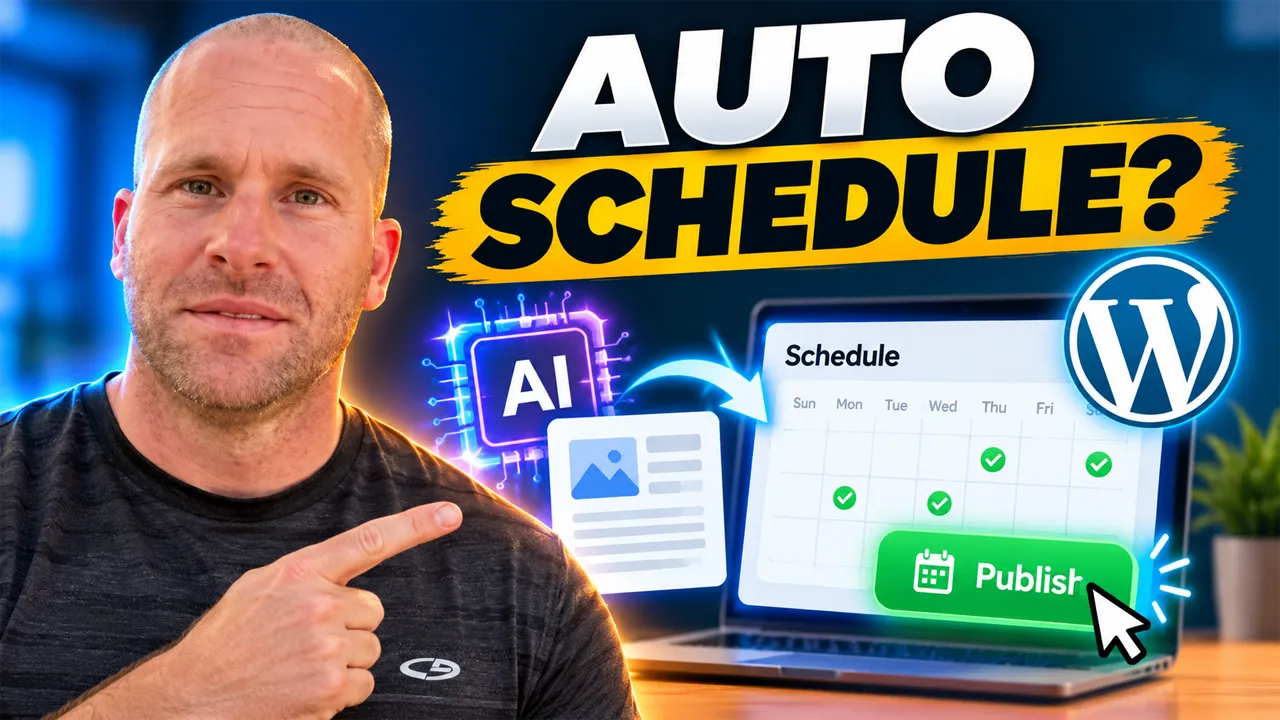
In my video, I demonstrate this by creating an automated Dog Agility Training content campaign inside My Content Creator Pro Elite. I choose the appropriate WordPress category, tell the system to create content once a week, and select Thursday as the day I want that campaign to run.
That is the key idea behind scheduling AI blog posts automatically: you create the publishing plan ahead of time instead of manually starting every article from scratch.
I am the Owner & Developer of My Content Creator Pro Elite, and this kind of automation is something I wanted for my own websites. I would rather spend my time working on products, videos, email marketing, traffic and other parts of the business while my content campaigns continue following the schedules I already created.
Want to put your WordPress content schedule on autopilot?
See My Content Creator Pro Elite →
What Does It Mean to Schedule AI Blog Posts Automatically?
Scheduling AI blog posts automatically means creating a recurring content campaign rather than scheduling one finished article at a time.
WordPress already lets you manually schedule a completed post for a future date. That can be useful, but it still requires you to create the article first.
The workflow I am showing is different.
I can tell the AI what subject the campaign should cover, which WordPress category the content belongs in, how often the campaign should run, which day it should run, how the article should be written, and which additional content and optimization features should be included.
Then the system can continue following those instructions.
Instead of:
Write article → schedule article → repeat next week
the workflow becomes:
Configure campaign → choose schedule → let the campaign keep creating content
That is a much more powerful form of WordPress content automation.
Why Schedule AI Blog Posts Instead of Creating Them Manually?
The biggest benefit is consistency.
Most website owners know that they should continue publishing useful content, but life gets in the way.
You have products to work on.
You have customers.
You have videos to create.
You have email campaigns.
You have social media.
You may even have several different websites competing for your time.
It is easy to tell yourself, “I’ll publish that article Thursday,” and then realize Sunday that you never got around to it.
An automated schedule removes that dependency on memory.
The campaign already knows that Thursday is the day.
Step 1: Choose the Topic for Your AI Blogging Campaign
The first thing I do is decide what the campaign should be about.
In the video, I use Dog Agility Training.
This is important because I do not want AI randomly generating unrelated articles across the website.
The campaign should support the larger content strategy.
For example, a dog website could have separate campaigns for:
- Dog agility training
- Dog nutrition
- Puppy behavior
- Obedience training
- Dog exercise
- Dog anxiety
- Service dog training
Each campaign could have its own schedule.
That gives you much more control over how different parts of your website grow over time.
Step 2: Choose the Correct WordPress Category
After choosing the campaign topic, I assign it to the appropriate WordPress category.
For the demonstration, the Dog Agility Training campaign belongs in the Dog Agility Training category.
This keeps automatically generated content organized instead of putting every article into one generic category.
Categories also help create clear topic areas for visitors.
As the number of articles on your site grows, organization becomes increasingly important.
If you are building dozens or hundreds of articles, having separate campaigns tied to relevant categories can create a much cleaner content structure.
Step 3: Choose ChatGPT as the AI Provider
In the video, I use ChatGPT as the AI provider for the autoblogging campaign.
The AI provider helps create the content, but the instructions surrounding it are equally important.
The AI needs to know what topic it should cover, which writing settings to follow and what supporting elements should be included.
This is why I think of AI as one part of a larger WordPress publishing system.
Simply having access to ChatGPT is not the same thing as having an automated content workflow.
Step 4: Set the Campaign Interval to Once a Week
This is where the scheduling part becomes especially important.
Inside the campaign setup, I can choose how often I want the campaign to run.
In this demonstration, I select once a week.
That means I am not telling the system to generate a one-time article.
I am creating a recurring instruction.
Every week, this campaign has another opportunity to create content around Dog Agility Training according to the settings I selected.
Depending on your website, you could use different frequencies for different categories.
A major topic could receive more frequent content while a smaller topic might only need a new article occasionally.
Step 5: Choose Thursday as the Publishing Day
After selecting the weekly interval, I choose the specific day.
For this campaign, I select Thursday.
That gives the system a clear recurring schedule:
Dog Agility Training → Once a week → Thursday
That is much easier than relying on myself to remember every Thursday that another article should be created.
This is also where you can begin building a real content calendar directly into your automated campaigns.
Imagine having one campaign assigned to Monday, another to Wednesday and another to Friday.
Your website can have a planned flow of new content without requiring you to manually manage each individual article.
Step 6: Choose the Article Length
The campaign also lets me control approximately how long the generated articles should be.
This gives me the ability to match content depth to the topic.
Not every article needs to be the same length.
A simple question may only need a relatively short answer, while an in-depth tutorial may require 2,000 words or more.
The important thing is that I can decide what makes sense for the campaign instead of accepting one generic output length for everything.
If you want to see more about the AI article-generation side of this process, I also created a tutorial showing how to automatically write blog posts in WordPress with AI.
Step 7: Set the Writing Language, Style and Tone
I can also control how I want the content written.
The autoblogging setup includes options for language, writing style and writing tone.
That means a campaign can be tailored to the type of site and audience I am targeting.
A professional business article may need a different tone from an educational pet article.
A product-focused article may use a different style from an informational tutorial.
Giving the AI these instructions helps create more consistent content across a campaign.
Step 8: Turn On SEO Optimization
Once the basic content settings are configured, I can enable SEO optimization.
This is important because publishing more articles does not automatically mean those articles will perform well in search.
The content still needs to clearly address a topic, satisfy the reader’s intent and be structured in a way that search engines can understand.
SEO optimization does not guarantee rankings, but it allows search considerations to become part of the automated workflow rather than something I have to remember to add manually afterward.
Step 9: Generate SEO Meta Information Automatically
In the video, I also enable the SEO Meta Generator.
SEO metadata is another small task that becomes a much larger workload when multiplied across dozens or hundreds of articles.
If I am building an automated content system, I want supporting SEO elements to be part of that system whenever possible.
That lets the workflow go beyond simply creating the article body.
Step 10: Add FAQs to the Scheduled AI Articles
I also enable FAQ generation.
An FAQ section can help answer additional questions closely related to the main article topic.
This can make the article more useful for visitors and expand the range of related questions the page answers.
The important part from an automation perspective is that this additional structure can be configured ahead of time.
I do not have to remember to manually create an FAQ section for every new article in the campaign.
Step 11: Automatically Generate the Conclusion
The campaign can also generate an article conclusion.
This helps give the finished post a complete structure instead of simply stopping after the final informational section.
Again, the benefit is not one isolated feature.
The benefit is combining many normally separate steps into one repeatable workflow.
Step 12: Enable Smart Automatic Internal Linking
Internal linking is another important part of the workflow shown in the video.
I enable internal links and use the Smart / Automatic option.
That allows relevant articles on the website to connect to one another without requiring me to manually search through the entire content library every time a new article is created.
This becomes especially valuable as a website grows.
A site with 20 posts is fairly easy to manage manually.
A site with hundreds or thousands of articles creates a much larger linking challenge.
Automatic internal linking can help reduce that repetitive work.
Step 13: Enable Google Preferred Sources
The campaign shown in the video also uses Google Preferred Sources.
This provides another level of control over the content-generation workflow.
The bigger point is that I can configure these options as part of the campaign once rather than rebuilding the content process from scratch for every article.
Step 14: Configure AI Images
Blog posts also need visual content.
In my demonstration, I configure the campaign to include images and use ChatGPT for AI image generation.
This means the automated workflow can create more than text alone.
Images can help make longer articles easier to consume and can give the finished WordPress post a more complete appearance.
The goal is to reduce the number of tasks I need to complete manually after the article has been created.
Step 15: Schedule the Campaign
Once the campaign settings are ready, I can save and schedule the campaign.
At that point, the system has the information it needs:
- What subject to write about
- Which WordPress category to use
- Which AI provider to use
- How often the campaign should run
- Which day it should run
- How the content should be written
- Which SEO options to use
- Whether to create FAQs and conclusions
- How to handle internal links
- How images should be created
That is much more than simply scheduling one finished WordPress post.
I am scheduling an ongoing content-production system.
Scheduling vs. Automatic Publishing: What Is the Difference?
Scheduling and publishing are closely related, but they are not exactly the same thing.
Scheduling determines when the campaign should run.
Automatic publishing determines whether the resulting post can go live without you manually pressing Publish.
I covered that second part in detail in my tutorial on how to automatically publish blog posts in WordPress with AI.
Together, the two features create a powerful workflow:
Choose schedule → AI creates article → WordPress publishes article → repeat according to schedule
Why a Consistent Content Schedule Matters
One of the hardest parts of blogging is not writing one article.
It is continuing to publish month after month.
A lot of websites begin with enthusiasm and publish several posts quickly.
Then other responsibilities take over.
The blog slows down.
Weeks pass without new content.
An automated schedule gives you a system for maintaining consistency.
You still decide what should be created.
You still review the strategy.
You still monitor quality.
But you no longer have to personally initiate every single article.
Create Different Schedules for Different Content Categories
This is where scheduling becomes even more powerful.
You do not have to run every campaign on the same day.
Imagine a WordPress site with three important categories.
You could create:
- A Monday campaign for one topic
- A Wednesday campaign for another topic
- A Thursday campaign for Dog Agility Training
Now your content calendar is being executed automatically throughout the week.
You can also adjust schedules as you learn which categories deserve more attention.
This lets your content strategy become much more deliberate.
Use Scheduled Articles as the Beginning of a Larger Content Workflow
The value of the article does not stop when WordPress publishes it.
Once the AI blog post exists, I can repurpose it into other formats.
I can create social content from it. I show that process in how to repurpose old blog posts into social media content with AI.
I can also create visual content from the article. See my guide on how to create social media images from WordPress blog posts with AI.
That means one scheduled article can feed an even larger marketing system.
The workflow can become:
Scheduled AI blog post → SEO → internal links → images → WordPress publishing → social posts → social images → additional promotion
How This Fits Into My Complete AI Autoblogging Strategy
This scheduling tutorial is part of a larger WordPress AI autoblogging workflow I have been demonstrating.
First, you can learn how to automatically write blog posts in WordPress with AI.
Then you can follow my guide on how to set up AI autoblogging in WordPress step by step.
After that, you can see how to automatically publish those AI blog posts.
And now this tutorial shows how to put those campaigns onto recurring schedules.
Together, those steps create a much more complete content automation system.
The Real Outcome: Your Content Calendar Keeps Moving
The individual settings are useful, but they are not the main reason I use the system.
The outcome is what matters.
I want to be able to decide that Dog Agility Training needs a new article every Thursday and then stop having to personally remember that task every Thursday.
I want the system to already know the plan.
That gives me more time to work on everything else involved in growing the website and business.
The blog does not depend entirely on me sitting in front of WordPress every publishing day.
That is the real value of scheduling AI blog posts automatically.
Should You Still Review Scheduled AI Content?
Yes.
Automation should reduce repetitive work, not eliminate quality control.
I recommend checking the campaigns and reviewing the content the system creates.
Make sure the article stays relevant to the campaign topic.
Check the information for accuracy.
Make sure images match the article.
Review internal links.
Check that the publishing frequency still makes sense for the site.
If a campaign starts producing results you do not like, adjust the settings.
You are still in control of the strategy.
Frequently Asked Questions About Scheduling AI Blog Posts in WordPress
Can I schedule AI blog posts automatically in WordPress?
Yes. With an AI autoblogging system such as My Content Creator Pro Elite, you can create a campaign, choose a publishing interval and select a recurring day for content creation.
Can I choose a specific day of the week?
Yes. In the video demonstration, I set the Dog Agility Training campaign to run once per week and select Thursday.
Can different WordPress categories have different schedules?
Yes. Separate campaigns can be configured for different categories, allowing you to build a broader weekly content calendar.
Can ChatGPT create the scheduled articles?
Yes. ChatGPT is the AI provider I use in the campaign shown in this tutorial.
Can scheduled AI blog posts include SEO information?
Yes. The campaign setup shown in the video includes SEO optimization and SEO meta-generation options.
Can internal links be added to scheduled posts automatically?
Yes. My Content Creator Pro Elite includes Smart / Automatic internal linking as part of the autoblogging workflow.
Can scheduled AI articles include images?
Yes. The campaign can be configured to include multiple images, and the video demonstrates using ChatGPT for AI image generation.
Does scheduling more articles guarantee better Google rankings?
No. Publishing consistently creates more opportunities for useful content to be discovered, but rankings depend on search intent, content quality, relevance, competition, site authority, technical SEO and other factors.
Final Thoughts: Set Your Schedule and Let Your WordPress Blog Keep Moving
Scheduling AI blog posts automatically is about more than choosing a future publication date.
It is about creating a repeatable content system.
I can choose the topic.
I can assign the WordPress category.
I can use ChatGPT to create the content.
I can choose how frequently the campaign runs.
I can select Thursday—or another day—as the recurring publishing day.
I can enable SEO optimization, meta generation, FAQs, conclusions, Smart internal links, preferred sources and AI images.
Then the campaign can keep following the plan I already created.
That means I spend less time trying to remember what I am supposed to publish next and more time working on the larger business.
If you want to see exactly how I configure the campaign, watch the video near the top of this article. I walk through the WordPress autoblogging setup and show how I schedule the campaign step by step.
And if you want to use the same WordPress AI tools I am demonstrating, visit My Content Creator Pro Elite.
Choose the topic. Pick the day. Set the schedule. Then let AI help keep your WordPress content calendar moving automatically.