
How to Turn a WordPress Blog Post Into a LinkedIn Post With AI: Step-by-Step Tutorial
Want to turn a WordPress blog post into a LinkedIn post with AI? The process is straightforward. Start with an existing WordPress article, identify the strongest idea or takeaway, use AI to adapt that information into a professional LinkedIn-style post, review the result, personalize the wording, and publish it for your audience. Instead of creating every LinkedIn update from scratch, you can repurpose information you have already researched and written.
That is exactly what I am going to show you in this tutorial.
I am Chad Portnova, Owner and Developer of My Content Creator Pro Elite. One reason I developed the AI Social Content Generator inside the plugin was to make it easier to get more value from content that is already published on a WordPress website.
Think about the work that goes into a good blog post. You research the topic, organize the information, write the article, add images, optimize the content, and finally publish it.
But publishing the article does not have to be the end of the process.
That same article can become the starting point for LinkedIn content, Facebook posts, Instagram posts, Pinterest graphics, infographics, videos, and other marketing assets.
That is where AI content repurposing becomes especially useful.
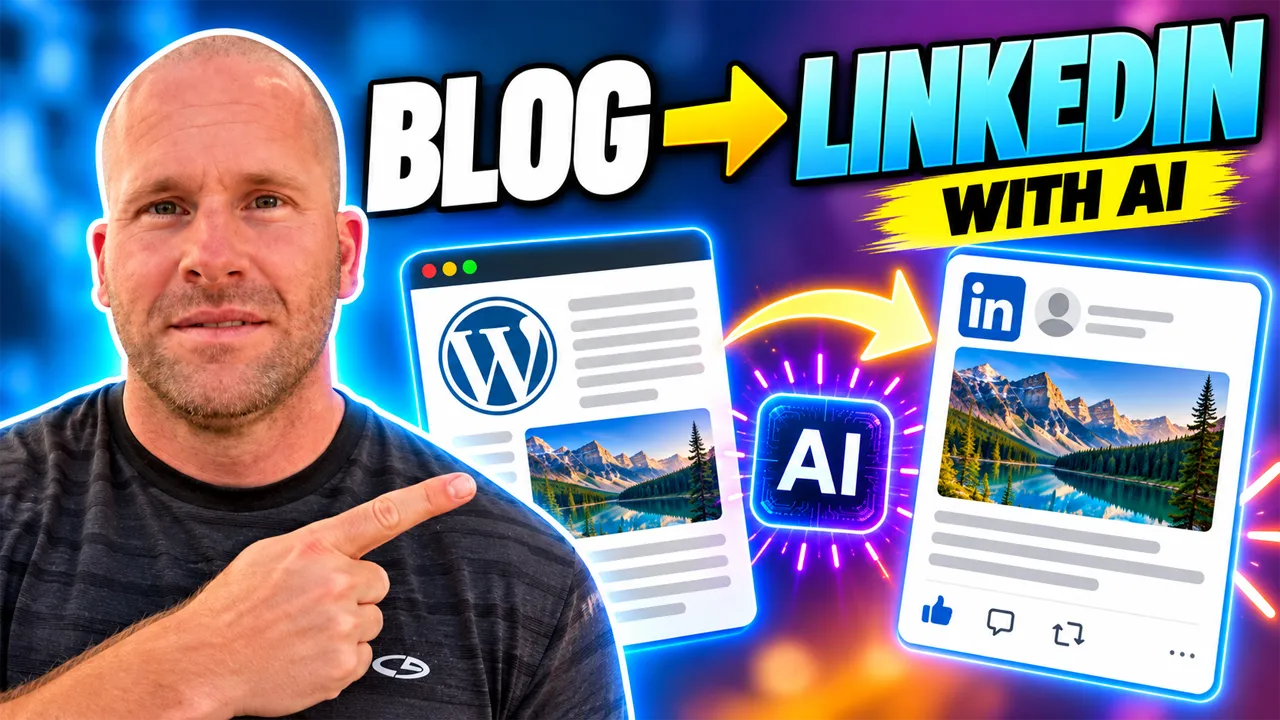
Watch My Video: Turn a WordPress Blog Post Into a LinkedIn Post With AI
In the video above, I show you how I take information from an existing WordPress article and use AI to help transform it into LinkedIn content.
I am using the AI Social Content Generator I developed inside My Content Creator Pro Elite so you can see the actual workflow rather than simply reading about it.
Want to explore the WordPress plugin I am using? Visit My Content Creator Pro Elite to learn more about its AI content creation and content repurposing tools.
What Does It Mean to Turn a Blog Post Into a LinkedIn Post?
Turning a blog post into a LinkedIn post means taking useful information from a longer article and adapting it into a shorter, more focused format that fits LinkedIn better.
That does not mean copying a 2,500-word blog post and pasting the whole thing into LinkedIn.
Instead, you choose a useful idea, lesson, tip, opinion, example, or question from the article and turn it into a post that can stand on its own.
For example, imagine you published a WordPress article titled “10 Ways to Improve Your Website.”
That article might discuss website speed, SEO, usability, internal linking, image optimization, content quality, and conversion improvements.
For LinkedIn, you could take one of those ideas and turn it into a more professional discussion.
You might open with something like:
“One of the easiest ways to improve a website is also one of the most overlooked: making existing content easier to find and use.”
Then you could explain the idea, add your own perspective, and end with a question that invites discussion.
That is content repurposing: the information stays useful, but the format changes for the platform and audience.
Why Turn WordPress Blog Posts Into LinkedIn Content?
If you have been publishing WordPress content for a while, you may already have a large library of ideas that could work on LinkedIn.
Your articles contain information you have already researched, organized, and explained. Instead of constantly trying to think of something new to post, you can go back to your own content library and look for useful ideas worth sharing again.
Get More Value From Existing Articles
A detailed WordPress article often contains several separate ideas.
If one article includes eight useful tips, you may be able to turn those tips into several distinct LinkedIn posts over time.
You do not have to summarize the entire article in every post. In fact, focusing on one strong idea usually gives you a clearer message.
Build a More Consistent Content Workflow
One of the best things about repurposing content is that it connects your different marketing channels.
You can publish a WordPress article, create a YouTube video about the same topic, turn one idea into a LinkedIn post, create a Facebook version, and adapt another part for Instagram.
Now your content is not being created in isolation. Each piece supports the others.
How to Turn a WordPress Blog Post Into a LinkedIn Post With AI
Here is the step-by-step process I recommend.
Step 1: Choose a Strong WordPress Article
Start with an article that contains clear, useful information.
Good candidates often include:
- How-to tutorials.
- Industry observations.
- Lists of tips or mistakes.
- Case studies or examples.
- Problem-and-solution articles.
- Educational explanations.
- Answers to common questions.
- Lessons learned from experience.
Older content can work just as well as new content as long as the information is still accurate and relevant.
For example, if you have an article about “7 WordPress SEO Mistakes,” you could create individual LinkedIn posts about internal linking, title tags, outdated content, or image optimization.
Step 2: Identify the Main Idea You Want to Share
Before asking AI to create anything, decide what the LinkedIn post should actually be about.
Ask yourself:
What is the strongest takeaway from this article?
What part of the article would be useful to a professional audience?
Is there a lesson, opinion, or example that could create a good discussion?
Can this idea stand on its own without someone reading the entire blog post first?
Choosing one main idea gives your LinkedIn post a clearer direction.
Step 3: Use AI to Adapt the Article
Once you know which idea you want to use, AI can help transform the original information into a LinkedIn-style post.
In my own workflow, I use the AI Social Content Generator inside My Content Creator Pro Elite.
I am not asking AI to invent a random subject. I am starting with information that already exists on my WordPress website.
The original article provides the substance. AI helps adapt the wording, structure, and length for social media.
That difference matters because the final LinkedIn post is still connected to content you already created.
Step 4: Write a Strong LinkedIn Opening
The first few lines of a LinkedIn post need to give readers a reason to continue.
You can do that without using exaggerated clickbait.
For example:
“One blog post can give you a lot more content than most people realize.”
Or:
“I stopped looking at my WordPress articles as one-time pieces of content.”
Or:
“If you already have a library of blog posts, you may already have months of LinkedIn ideas.”
Each opening creates curiosity while staying connected to the topic.
Step 5: Make the Post Useful Before Making It Promotional
This is something I think is especially important on LinkedIn.
If every post immediately turns into a sales pitch, readers have less reason to pay attention.
Lead with something useful.
Explain the idea.
Share a practical example.
Offer a perspective.
Then, if your product or service naturally relates to the topic, mention it.
That is also the approach I use in my videos. I prefer showing people what I am doing before telling them which tool I am using.
Step 6: Make the Writing More Conversational
A WordPress article can be detailed and structured, while a LinkedIn post usually benefits from a more conversational style.
For example, the blog article might say:
“Content repurposing can increase the value of existing digital assets by adapting them for additional distribution channels.”
A LinkedIn version could say:
“You may not need more content ideas. You may just need to use the content you already have in more places.”
The idea is similar, but the second version sounds more natural in a social feed.
Step 7: Review and Personalize the AI-Generated Content
AI can give you a useful draft, but you should still review it before publishing.
Check the accuracy.
Remove wording that sounds unnatural.
Make sure the tone matches how you actually communicate.
Add your own experience when it is relevant and truthful.
For example, you might add:
“This is one of the ways I have started getting more value from the WordPress content I already publish.”
That makes the post feel more personal because you are adding your own perspective.
Step 8: End With a Relevant Question or Call to Action
A good LinkedIn post does not always need a sales call to action.
You can end with a question that encourages discussion.
For example:
“How many blog posts do you already have that could become LinkedIn content?”
Or:
“Do you repurpose older articles, or do you usually create every social post from scratch?”
Or:
“Which one of your existing articles would you turn into a LinkedIn post first?”
These questions are directly related to the topic and give readers something meaningful to respond to.
Can One WordPress Article Become Multiple LinkedIn Posts?
Yes. One detailed WordPress article can often provide enough material for several distinct LinkedIn posts.
Suppose you publish an article titled “10 Ways to Improve WordPress SEO.”
One LinkedIn post could focus on internal linking.
Another could discuss updating older content.
Another could explain why page titles matter.
Another could discuss the relationship between content quality and search visibility.
Another could focus on image optimization.
You do not need to publish all of those posts at once.
Spread them out. Mix them with other subjects. Give each post its own angle.
That allows one article to keep producing useful social media ideas over time.
Turn One WordPress Blog Post Into Content for Multiple Platforms
LinkedIn is only one part of the larger content repurposing strategy.
The same original article can become content for several platforms.
- Facebook: Turn one idea into a conversational discussion.
- Instagram: Adapt the idea into a caption, image, carousel, or visual tip.
- LinkedIn: Turn the idea into a professional observation, lesson, or discussion.
- Pinterest: Transform educational information into a graphic or infographic.
- YouTube: Demonstrate or explain the topic in video form.
I have already created a tutorial showing how to turn a WordPress blog post into a Facebook post with AI.
You can also see my tutorial on how to turn a WordPress blog post into an Instagram post with AI.
And for the broader strategy, see how to turn a WordPress blog post into social media posts with AI.
The main idea is simple: one article does not have to remain one piece of content.
How My Content Creator Pro Elite Helps With LinkedIn Content
As the Owner and Developer of My Content Creator Pro Elite, I built the AI Social Content Generator around this exact type of workflow.
I wanted an easier way to take information already published on my WordPress websites and transform it into social media content without starting from a blank page every time.
The original article gives me the information.
AI helps adapt it.
Then I can review the result, personalize it, and decide how I want to use it.
My Content Creator Pro Elite also includes tools for AI article creation, autoblogging, bulk content generation, AI images, infographic creation, SEO analysis, GEO analysis, internal linking, article rewriting, and other WordPress content workflows.
What makes this useful to me is that the tools can work together.
You can create an article, optimize it, and then continue getting value from that article by turning parts of it into additional content.
If you would like to explore the AI Social Content Generator I am using in the video, visit My Content Creator Pro Elite.
Common Mistakes When Turning Blog Posts Into LinkedIn Posts
Copying the Entire Article
A LinkedIn post usually works better when it focuses on one useful idea rather than trying to reproduce an entire long-form article.
Publishing AI Content Without Reviewing It
AI can make mistakes, use awkward wording, or create a tone that does not sound like you.
Always review and edit the content before publishing.
Making Every Post a Sales Pitch
Give people a reason to follow your content beyond promotions.
Teach something, explain something, share an observation, or offer a useful perspective.
Using the Same Post on Every Platform Without Adapting It
Facebook, Instagram, LinkedIn, and Pinterest are different environments.
The same core idea can work across several platforms, but the wording and presentation should be adapted for each one.
Repurposing Outdated Information
If you are using an older blog post, review the source article first.
Make sure the facts, recommendations, screenshots, links, and examples are still accurate before turning the information into new content.
Frequently Asked Questions About Turning WordPress Blog Posts Into LinkedIn Posts With AI
Can AI turn a WordPress blog post into a LinkedIn post?
Yes. AI can help take information from an existing WordPress article and adapt it into a shorter, more conversational or professional format suitable for a LinkedIn post.
Should I copy my entire blog post into LinkedIn?
Usually not. It is generally better to choose one strong idea from the article and adapt it specifically for LinkedIn.
Do I need to review AI-generated LinkedIn content?
Yes. You should verify the information, remove awkward wording, and make sure the final post reflects your actual voice and perspective.
Can My Content Creator Pro Elite help create LinkedIn content?
My Content Creator Pro Elite includes an AI Social Content Generator designed to help transform existing WordPress content into social media content. In the video included in this article, I demonstrate how I use that workflow for LinkedIn.
Can the same article become Facebook, Instagram, and LinkedIn posts?
Yes. The same source article can provide ideas for several platforms. The important part is adapting the presentation for each audience instead of publishing the exact same message everywhere.
Can content repurposing save time?
It can. Starting with an existing article means much of the research and foundational work is already complete. You still need to review and adapt the material, but you do not always have to begin with a completely new topic.
Final Thoughts: Turn Your WordPress Blog Posts Into LinkedIn Content With AI
If you have been publishing WordPress articles for months or years, you may already have a large collection of LinkedIn ideas sitting on your website.
You do not always need another topic.
You do not always need to begin with a blank screen.
Sometimes the best place to find your next LinkedIn post is inside content you already created.
A tutorial can become a professional tip.
A list can become several individual posts.
A case study can become a lesson.
A frequently asked question can become a discussion.
A detailed explanation can become a short professional observation.
That is what makes AI content repurposing so useful.
You are not simply creating more content for the sake of creating more content.
You are finding additional ways to use information you already researched and published.
Your WordPress article does not have to be the end of the content creation process. It can be the beginning.
One article can potentially become LinkedIn content, Facebook posts, Instagram posts, Pinterest graphics, infographics, videos, and other useful marketing assets.
If you would like to see exactly how I turn a WordPress blog post into LinkedIn content, watch the video near the beginning of this article.
I show you the actual process I use with the AI Social Content Generator I developed inside My Content Creator Pro Elite.
Want to use the same WordPress AI tools I am demonstrating?
Visit My Content Creator Pro Elite to learn more about the AI Social Content Generator and the other content creation tools available inside the plugin.