
How to Create Pinterest Infographics From WordPress Blog Posts With AI: Step-by-Step Tutorial
Want to create Pinterest infographics from WordPress blog posts with AI? You can take information from an existing article, identify its most useful tips or steps, and use an AI infographic generator to transform that information into visual content. After reviewing the design, you can prepare it for Pinterest, add a relevant description, and link the Pin back to your original blog post.
That’s the process I’m going to explain in this tutorial.
I’m Chad Portnova, Owner and Developer of My Content Creator Pro Elite. One of the reasons I developed an AI Infographic Generator for WordPress was to make it easier to turn existing website content into something useful without starting every new project from scratch.
Think about all the blog posts you’ve already published. Some might contain lists, tutorials, helpful tips, educational information, or step-by-step instructions. Those articles may already contain everything you need to create useful infographics for Pinterest.
Instead of writing another article just to create something new, you can give your existing content a second purpose.
Here’s how I approach turning WordPress articles into Pinterest infographic content using AI.
Watch My Video: How I Create Pinterest Infographics With AI
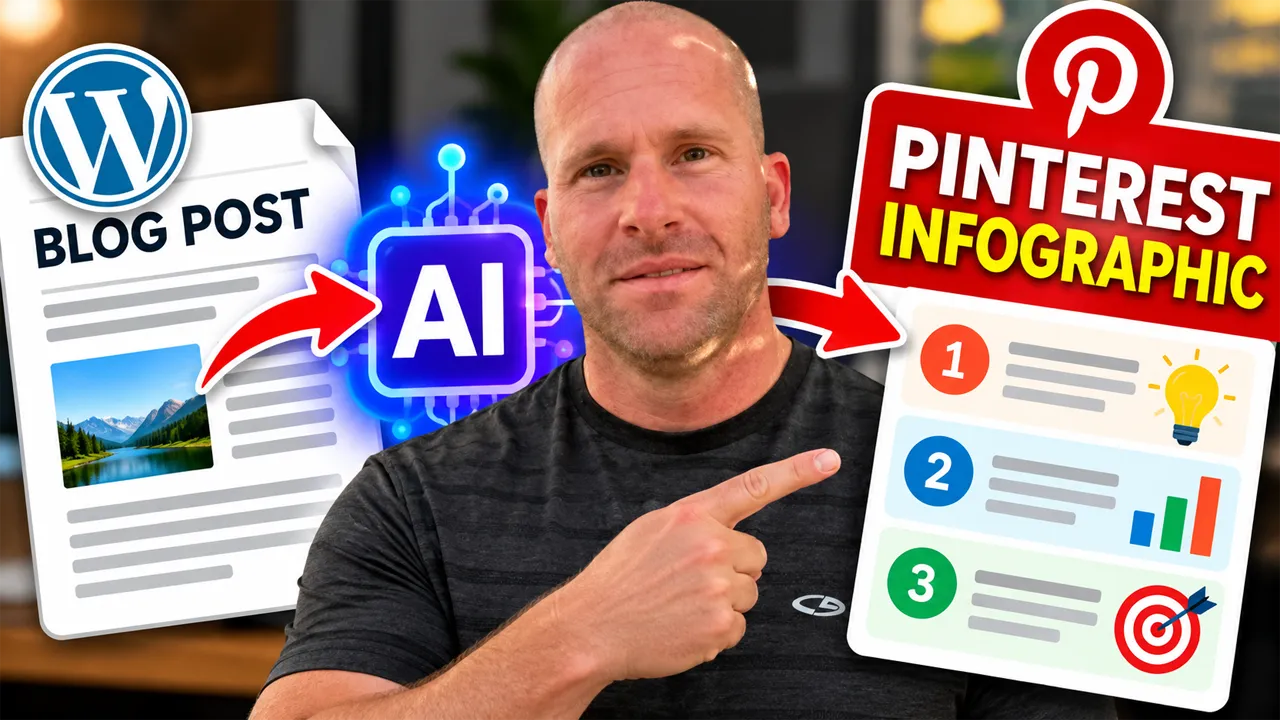
In the video above, I demonstrate how I use AI to turn information from a WordPress blog post into infographic content. You can follow along with the process and see how the AI Infographic Generator works inside WordPress.
Want to explore the AI tool I’m using? Visit My Content Creator Pro Elite to learn more about the WordPress plugin I developed.
What Is a Pinterest Infographic?
A Pinterest infographic is a visual presentation of information designed to communicate ideas, facts, tips, or instructions in an easy-to-understand format. Instead of relying on long paragraphs, infographics combine shorter pieces of text with visual elements such as icons, illustrations, numbers, charts, and graphics.
For example, imagine you published a WordPress article titled “10 Ways to Improve Your Website.”
That article might contain 2,000 words explaining different website improvements. Each recommendation could include several paragraphs of detailed information.
An infographic could summarize those same recommendations into 10 numbered sections, each containing a short explanation and a relevant visual element.
The infographic gives someone a quick overview, while the original article provides the complete explanation.
That relationship is especially useful for Pinterest because the platform emphasizes visual discovery. People frequently explore ideas, tutorials, inspiration, and educational content through images.
However, an infographic should do more than simply look attractive. It should communicate something useful, accurately represent the original information, and give viewers a reason to explore the topic further.
Why Turn WordPress Blog Posts Into Pinterest Infographics?
Creating quality website content takes time. You research a topic, organize information, write the article, optimize it for search engines, and publish it.
Afterward, you might share the article on social media or include it in an email newsletter.
But what happens after that?
For many website owners, the article simply remains on their website while they move on to the next topic.
That’s where content repurposing becomes interesting.
1. Get More Value From Existing Articles
You’ve already completed much of the difficult work when you publish an informative blog post. The research, ideas, and explanations are available.
Creating an infographic allows you to reuse selected information in a different format rather than developing an entirely new topic.
2. Make Information Easier to Understand
Some readers prefer detailed written explanations. Others find visual summaries easier to follow.
An infographic can help people understand the main points of an article without reading every paragraph first.
It can also help organize complicated information into smaller, more manageable sections.
3. Create Additional Pinterest Content
One substantial article may contain several infographic opportunities.
For example, an article about WordPress SEO could potentially become a technical SEO checklist, an internal linking guide, an image optimization infographic, or a visual summary of common SEO mistakes.
Each infographic should provide a distinct takeaway rather than repeating the same design with minor changes.
4. Give Readers Another Way to Discover Your Website
A Pinterest Pin can link directly to a relevant article on your website.
When someone finds your infographic interesting, they can follow the link to learn more.
That doesn’t guarantee traffic or rankings, but it creates another opportunity for people to discover your existing content.
How to Create Pinterest Infographics From WordPress Blog Posts With AI
Now let’s walk through the process I recommend.
You don’t need to be an experienced graphic designer to get started. What matters most is choosing useful information, organizing it properly, and reviewing the finished infographic before publishing it.
Step 1: Choose an Existing WordPress Blog Post
Start by looking through the articles you’ve already published.
Rather than selecting a random post, choose something that contains information people could benefit from seeing visually.
Good candidates include articles containing:
- Numbered tips or recommendations.
- Step-by-step instructions.
- Checklists and planning guides.
- Educational facts and explanations.
- Comparisons between different options.
- Common mistakes and solutions.
- Processes that can be explained visually.
For example, suppose you published an article titled “7 Ways to Speed Up Your WordPress Website.”
That article might explain image compression, caching, hosting performance, plugin management, database optimization, and other important subjects.
Those recommendations could become the foundation of a Pinterest infographic.
Choose a post with a clear central topic. An article covering too many unrelated subjects may be difficult to summarize into one effective visual.
Step 2: Identify the Most Important Information
Before generating an infographic, think about what you want someone to learn from it.
Not every paragraph belongs in the finished design.
Instead, identify the main points that communicate the article’s value.
For a seven-tip article, you might extract seven headings and one short explanation for each heading.
For a tutorial, you might identify the five or six essential steps someone needs to follow.
For an educational article, you might select the most important definitions, facts, or recommendations.
Try to keep each section focused on one idea.
Remember, the goal isn’t to reproduce your entire article inside an image. The goal is to make the most useful information easier to understand.
Step 3: Open Your AI Infographic Generator in WordPress
Once you’ve selected your article, you’re ready to use AI to help create the visual content.
In my own workflow, I use the AI Infographic Generator I developed inside My Content Creator Pro Elite.
The purpose of this feature is to help WordPress website owners transform written information into infographic-style content without manually designing every element from the beginning.
I wanted the infographic creation process to fit naturally into the WordPress content workflow.
That way, when I’m working with an article, I can also think about how its information could be reused for visual content.
If you’re following along with my video, you’ll see how I demonstrate the process using the plugin.
Step 4: Turn Your Article Information Into an Infographic
Next, use the relevant information from your WordPress article as the foundation for your infographic.
The AI can help organize the information into a visual presentation using headings, shorter descriptions, and supporting design elements.
For example, information from a blog post about improving website performance might become an infographic with sections such as:
- Optimize website images.
- Enable appropriate caching.
- Choose reliable hosting.
- Remove unnecessary plugins.
- Keep WordPress updated.
- Reduce unnecessary scripts.
- Monitor website performance.
Each section could include a relevant icon and a brief explanation.
The finished design should communicate the overall message quickly while still giving viewers useful information.
One important consideration is accuracy. AI-generated visuals can sometimes contain misspelled words, awkward sentences, or incorrect details.
Always review the infographic carefully instead of assuming every element is correct.
Step 5: Review the Infographic for Pinterest
Before publishing anything, examine the finished infographic from the perspective of someone viewing Pinterest on a phone.
Can you read the headline?
Are the main points easy to understand?
Does the design contain too much information?
Are the colors and graphics helping communicate the message?
If the infographic looks crowded on a desktop monitor, it may become even more difficult to read on a smaller screen.
For Pinterest, a vertical design is generally preferable to a wide horizontal graphic.
Pinterest recommends a 2:3 aspect ratio for standard image Pins, such as 1000 by 1500 pixels.
If your infographic generator produces a different shape, you may need to resize or adapt the finished design before uploading it.
Also check whether any important text might become too small when the image is displayed in the Pinterest feed.
Step 6: Create a Pinterest Pin
After reviewing your infographic, prepare it for publication on Pinterest.
Upload the finished image using your Pinterest account’s Pin creation tools.
Give the Pin a descriptive title that clearly explains the information someone will find.
For example:
Pinterest Title: 7 Ways to Speed Up Your WordPress Website
Pinterest Description: Discover seven practical ways to improve WordPress website performance, including image optimization, caching, hosting, and plugin management. Explore the complete guide for additional explanations and helpful tips.
Use a title and description that accurately match the infographic.
Then add the URL of the original WordPress article as the destination link.
Choose a relevant Pinterest board and publish the Pin.
This creates a connection between your visual summary and the detailed information on your website.
Step 7: Link the Infographic to the Original Blog Post
One of the most important parts of this strategy is making sure your infographic leads people somewhere useful.
For example, if your infographic summarizes seven WordPress performance tips, the destination should ideally be the article explaining those seven tips.
Avoid sending visitors to an unrelated homepage when a relevant article would better answer their questions.
The Pinterest infographic introduces the information.
The WordPress article provides the deeper explanation.
This approach can create a more useful experience for visitors because the content they discover on Pinterest matches what they find after clicking.
How to Optimize Pinterest Infographics for Better Visibility
Creating an attractive infographic is only one part of the process.
You also want Pinterest to understand what your content is about and help interested users discover it.
Use Relevant Keywords Naturally
Think about the words someone might search for when looking for your information.
For example, someone interested in improving their website might search for “WordPress speed tips,” “WordPress optimization checklist,” or “how to make WordPress faster.”
Use the most relevant phrases naturally in your Pin title and description.
Don’t repeat the same keyword unnecessarily or add unrelated search terms simply to attract attention.
The title should accurately describe the infographic.
Create a Clear, Readable Headline
Your infographic headline should tell viewers what they’re going to learn.
Compare these two examples:
Weak: Website Information
Better: 7 Ways to Improve WordPress Speed
The second headline communicates a specific benefit and makes the subject immediately understandable.
Whenever possible, use straightforward language rather than complicated marketing phrases.
Choose the Right Image Dimensions
For standard Pinterest image Pins, a 2:3 vertical aspect ratio is a useful starting point.
A common size is 1000 by 1500 pixels.
However, longer infographics sometimes require additional design decisions. If an infographic becomes extremely tall, it may not display completely in the Pinterest feed.
Rather than forcing a large amount of information into one image, consider creating a shorter infographic focused on the most important points.
You can always create another infographic covering a different part of the article.
Use Descriptive Image Filenames
Before uploading the infographic to your website, give the image a meaningful filename.
For example:
wordpress-website-speed-tips-infographic.webp
That’s more descriptive than a generic filename such as image123.webp.
When you use the infographic inside WordPress, also include accurate alternative text describing the image.
Alternative text helps communicate image information to people using screen readers and can provide useful context for search engines.
Connect the Infographic to Helpful Content
A good infographic should provide value on its own, but the destination article should offer additional information.
If your Pin promises a complete guide, make sure the linked article actually delivers that guide.
This consistency helps build trust with readers and makes your content more useful.
How AI Makes WordPress Content Repurposing Easier
One of the things I find most interesting about AI is that it changes how we can think about existing website content.
Traditionally, creating a blog post, infographic, social media graphic, and Pinterest image could involve several different tools and separate workflows.
You might write the article in WordPress, copy information into a design application, arrange the graphics, and then prepare everything for social media.
AI can help reduce some of that repetitive work.
Instead of starting with an empty design, you can begin with information you’ve already researched and organized.
The important part is remembering that AI is assisting with the transformation. You’re still responsible for choosing accurate information, reviewing the design, and deciding whether the finished content is useful.
That’s how I prefer to approach AI content creation.
Use the technology to make the workflow easier, but keep the quality of the finished content as the priority.
If you’re interested in other ways to repurpose existing articles, I’ve also put together a tutorial explaining how to turn a WordPress blog post into an infographic with AI.
You can also explore my guide to using an AI infographic generator from text directly inside WordPress.
How Many Pinterest Infographics Can You Create From One Blog Post?
There isn’t a fixed number of infographics you should create from each article.
The answer depends on how much useful information the article contains and whether that information can support multiple distinct visuals.
For example, imagine you’ve written a detailed article about WordPress SEO.
That single article might contain enough information for several different infographics:
- A beginner’s WordPress SEO checklist.
- Common WordPress SEO mistakes.
- How to optimize blog post titles.
- Image optimization recommendations.
- Internal linking best practices.
Each infographic could focus on a different section of the original article.
However, creating more images isn’t automatically better.
If two infographics communicate essentially the same information, they may not offer much additional value.
I’d rather create a smaller number of useful, clearly differentiated infographics than produce numerous repetitive designs.
The goal is to make the original information more accessible, not simply increase the number of Pins you publish.
Common Mistakes to Avoid When Creating Pinterest Infographics With AI
Putting Too Much Text Into the Infographic
An infographic shouldn’t look like an entire blog article squeezed into an image.
Use short explanations and clear headings. Let the original article handle the detailed discussion.
Publishing AI-Generated Text Without Reviewing It
AI can produce incorrect statements, spelling mistakes, or confusing explanations.
Check every important claim and make sure the visual accurately reflects your article.
Using Images That Are Difficult to Read
Small text, low contrast, and overly complicated backgrounds can make an infographic difficult to understand.
Remember that many Pinterest users browse on mobile devices.
Choosing an Unrelated Destination Link
If your infographic is about WordPress SEO, link it to an article that explains WordPress SEO.
Don’t send visitors to unrelated content that doesn’t fulfill the expectations created by the Pin.
Assuming Pinterest Traffic Is Guaranteed
Publishing an infographic doesn’t guarantee that it will receive impressions, saves, clicks, or website traffic.
Results depend on factors such as relevance, visual quality, audience interest, competition, and how people interact with the content.
Review your Pinterest analytics over time and use what you learn to improve future designs.
My Content Creator Pro Elite: Create Infographics and Repurpose WordPress Content With AI
As the Owner and Developer of My Content Creator Pro Elite, I’ve spent a great deal of time thinking about how WordPress website owners can make better use of AI.
One of my goals has been to bring different content creation and optimization tools into a single WordPress workflow.
That’s why My Content Creator Pro Elite includes more than traditional AI article generation.
Depending on the feature you’re using, the plugin can help with AI autoblogging, individual and bulk article creation, SEO and GEO analysis, internal linking, article rewriting, social media content, and infographic generation.
The AI Infographic Generator is particularly useful when you already have written information that could work well as visual content.
For example, you might have a WordPress article containing ten practical recommendations. Rather than manually recreating those recommendations in a separate design application, you can use the infographic generator to help turn the information into a visual presentation.
You can then review the finished infographic and decide how to use it in your broader content strategy.
If you’d like to explore the WordPress plugin I’m demonstrating in my video, visit My Content Creator Pro Elite.
Can Pinterest Infographics Help Your WordPress SEO?
Pinterest infographics can support your broader content marketing strategy, but it’s important to understand what they do and don’t accomplish.
Publishing a Pinterest infographic doesn’t automatically improve your Google rankings.
However, useful infographics can create additional opportunities for people to discover your articles and visit your website.
They can also make your existing content more useful to readers who prefer visual explanations.
For your WordPress website itself, continue focusing on helpful information, descriptive headings, relevant internal links, readable formatting, and a good user experience.
Google emphasizes content that provides genuine value to readers rather than content created primarily to manipulate search rankings.
That principle applies whether you’re writing an article manually, using AI assistance, or creating visual content.
For additional guidance, see Google’s recommendations for creating helpful, reliable, people-first content.
And if you want to expand your content repurposing strategy beyond Pinterest, check out my tutorial on turning WordPress blog posts into social media posts with AI.
Frequently Asked Questions About Creating Pinterest Infographics With AI
Can AI create Pinterest infographics from existing WordPress blog posts?
Yes. AI infographic tools can help transform information from an existing WordPress article into visual content. The process generally involves selecting the relevant information, generating the infographic, reviewing its accuracy and readability, and preparing the finished design for Pinterest.
Do I need graphic design experience to create Pinterest infographics?
No. AI infographic generators can help with the initial design and organization of information. However, you should still review the finished result to ensure the text is accurate, the design is readable, and the information is presented clearly.
What is the best size for a Pinterest infographic?
Pinterest recommends a 2:3 aspect ratio for standard image Pins. A commonly recommended size is 1000 by 1500 pixels. Taller images may be cropped in the feed, so it’s important to consider how your infographic will appear on mobile devices.
Can I use the same infographic on my WordPress website and Pinterest?
Yes. You can use an infographic inside a relevant WordPress article and also publish it as a Pinterest Pin, provided you have the rights to use the visual content. You may need to adjust the image dimensions or layout for different placements.
Will Pinterest infographics automatically bring traffic to my website?
No. Pinterest traffic isn’t guaranteed. However, publishing useful visual content with relevant titles, descriptions, and destination links can create additional opportunities for people to discover your website.
What types of WordPress articles work best for infographics?
Articles containing numbered lists, step-by-step tutorials, checklists, comparisons, educational facts, and practical recommendations are often good candidates. The best articles have information that can be summarized accurately without losing important context.
Can I create multiple Pinterest infographics from one article?
Yes. A detailed article may contain several distinct topics that can become separate infographics. Focus on giving each infographic a useful purpose instead of publishing numerous nearly identical designs.
Can I create Pinterest infographics without leaving WordPress?
With a WordPress-based AI infographic generator, you can create infographic content as part of your WordPress workflow. Publishing the finished infographic as a Pin is a separate step unless your chosen tools also support Pinterest publishing.
Should I link my Pinterest infographic to my homepage or blog post?
In most cases, linking to the relevant blog post is more useful because visitors can immediately access the detailed information promised by the infographic. Your homepage may be appropriate when it is genuinely the most relevant destination.
Is AI-generated infographic content good for SEO?
AI-generated infographics can complement useful website content, but AI generation alone doesn’t provide an SEO advantage. Focus on accuracy, relevance, accessibility, descriptive image information, and the overall usefulness of the page.
Final Thoughts: Turn Your WordPress Blog Posts Into Pinterest Infographics With AI
If you’ve been publishing WordPress articles for a while, you may already have a valuable collection of information that could be repurposed into Pinterest infographics.
You don’t always need to start with a completely new idea.
Sometimes the better approach is to look at what you’ve already created and ask how that information could become something different.
A detailed tutorial could become a visual step-by-step guide. A list of helpful recommendations could become a numbered infographic. An educational article could become a visual summary that introduces people to the subject.
AI can make that transformation easier by helping organize written information into a visual format.
But remember that the most important part isn’t the technology itself. It’s whether the finished infographic communicates useful, accurate information that people can understand.
That’s how I approach creating visual content from existing WordPress articles.
One blog post can become more than one piece of content.
And when you start thinking about your website that way, you may discover opportunities to reuse information you’ve already spent time researching and writing.
If you’d like to see the process in action, watch my video at the top of this article. I demonstrate how I use AI to turn WordPress blog content into infographic content.
Ready to explore the AI Infographic Generator I developed for WordPress?
Visit My Content Creator Pro Elite to learn more about the tools I use for AI content creation, infographic generation, autoblogging, SEO, GEO, and content repurposing.