
How to Find and Fix SEO Problems in WordPress With AI
You have a WordPress article written. It has a title, headings, images, and maybe even a YouTube video. At first glance, it looks finished.
But what should you check before moving on?
Does the introduction explain what the reader will learn? Are the SEO title and meta description filled in? Does the article connect to other useful posts on your website? Would a quick answer or a short list make part of the explanation easier to understand?
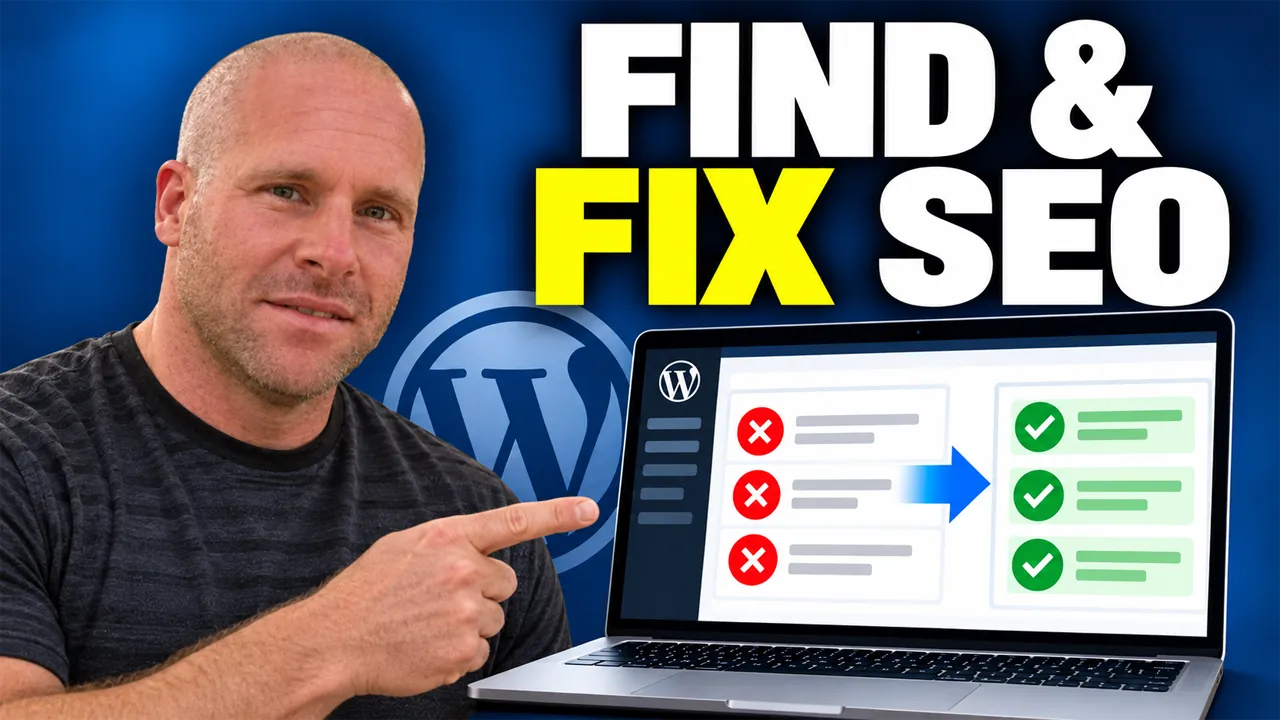
In this video, I show you how I use My Content Creator Pro Elite to find and fix SEO problems in WordPress with AI. The demonstration focuses on content and on-page checks inside the WordPress editor, with improvement options beside the article.
I use a real post on my dog-training website called “Mastering Behavioral Dog Training: A Transformative Guide.” You can follow the process as I inspect the checks, work through available actions, and open the article on the website.
Watch the video below, then follow the numbered walkthrough for a closer explanation of the process.
The workflow: analyze the article, identify the gaps, use the appropriate improvement tools, and review the result.
As the Owner & Developer of My Content Creator Pro Elite, I want the next step to be easier to see when you are working on a post. A useful review should help you understand what deserves attention and give you a practical way to work on it.
Why an Article Can Look Finished and Still Need Work
A long article can contain plenty of information and still leave a reader unsure where to begin. An attractive page can have images and video while missing useful connections to other articles.
That is one reason this demonstration starts with an existing post. The article already has substantial content. I am reviewing what is there and looking for opportunities to improve it.
This is a different task from starting with a blank page. When you already have an article, the question becomes: which changes would make this page more complete, clearer, or easier to use?
Without a review process, you may read the post, make a few small edits, and overlook something straightforward. A sidebar check can draw your attention to a missing item while the content is still open in front of you.
For example, a missing internal link is a specific issue you can inspect. An unclear introduction gives you a particular passage to reconsider. Those are manageable tasks.
If you are still working on the initial content creation process, my guide to writing SEO blog posts with AI in WordPress covers that earlier stage.
Step 1: Open an Existing Post in the WordPress Editor
In the video, I open “Mastering Behavioral Dog Training: A Transformative Guide” inside WordPress. You can see the article title, the content area, an embedded YouTube video, and the tools beside the post.
Using an existing article makes the demonstration concrete. You can see the content being reviewed rather than imagining how the checks might apply to a hypothetical page.
For your first review, choose a post you know reasonably well. That makes it easier to judge whether a suggested change preserves the meaning of the article.
You might start with a useful tutorial that has been on your website for a while, or a recent article that you want to inspect before promoting it.
Read the opening and scan the headings before making changes. Remind yourself who the article serves and what it promises to explain.
That context matters throughout the process. An improvement should support the purpose of the page. You want the final article to remain coherent, with each section contributing to the same subject.
Step 2: Run the Content Analysis and Review the Checks
The video shows the MCCP SEO + AEO Analyzer and its Analyze Content control. The panel displays content scores and a series of checks within the editor.
The checks shown during the demonstration include:
- A clear page title.
- An SEO title and meta description.
- Useful content depth.
- Descriptive H2 and H3 headings.
- A direct introduction.
- Internal linking.
- Supporting references.
- Image accessibility.
- Scannable paragraphs.
- Question-and-answer coverage.
- Lists or tables.
- A useful conclusion.
Some checks pass, while others draw attention to an area that needs review. This gives you a starting point for working through the article.
The scores are the plugin’s content-readiness assessments. They are not Google rankings or scores supplied by Google.
Use them as feedback within the editing process. The practical value comes from understanding the individual checks and deciding what to do about them.
Before clicking an improvement action, read the explanation attached to the check. That helps you connect the suggested task with the content currently on the page.
Step 3: Review the Page Title and SEO Metadata
One of the areas shown in the video is the page title. Another is the SEO title and meta description, with controls for creating or improving the metadata.
These fields deserve a separate review because they serve different purposes within your publishing workflow. The article’s visible title introduces the page, while the SEO metadata provides additional information used by search-related tools and systems.
During the walkthrough, you can see the Yoast SEO area below the editor. Later, the content panel identifies the SEO title and meta description and displays their character counts.
This gives you something concrete to inspect. You can check whether the fields are present and whether the wording accurately describes the article.
When reviewing suggested metadata, read it as a promise to a potential visitor. Does it describe what the page actually covers? Is the main subject easy to understand? Would someone clicking through find the explanation they expected?
A title can be concise without becoming vague. A description can be persuasive while staying faithful to the content. Keep the topic clear and remove wording that makes the article sound broader than it is.
Step 4: Give Readers a Useful Quick Answer
The demonstration includes an Add Quick Answer action. After that part of the process, the panel displays a confirmation that the Quick Answer has been added.
This is a useful feature to examine when your article covers a question or process that can be introduced with a short explanation.
A quick answer can orient the reader before they move into the details. It gives them a concise starting point, while the rest of the article explains the reasoning, examples, and steps.
For this tutorial, a simple opening answer would explain that the workflow involves analyzing an existing post, reviewing its content checks, and using the relevant improvement actions inside WordPress.
That is enough to establish the direction without trying to summarize every paragraph.
After adding a quick answer, read it alongside the introduction. Make sure the two sections work together and do not repeat the same message unnecessarily.
Also check that the answer is supported by the body of the article. If the summary mentions a feature or outcome that the page never explains, revise it so the opening accurately reflects the content.
Step 5: Improve an Introduction That Does Not Get to the Point
The video shows a Direct introduction check and an Improve Introduction action. The explanation calls attention to opening with a concise passage that tells the reader what they will learn.
This is an area where an article can benefit from a small, focused change.
A visitor arrives with a question. They want to know whether your page can help. If the opening spends too long discussing the topic in general, they may have to work to find the purpose of the article.
A useful introduction establishes the problem, explains the scope, and gives the reader a reason to continue.
In your own review, look at the first few paragraphs and ask whether they answer three basic questions: what is this page about, who is it for, and what will it help someone do?
Use the available action as a starting point, then check the wording. Keep your own voice and remove any promises that go beyond the article.
The goal is an opening that sounds natural and makes the rest of the page easier to follow.
Step 6: Find Missing Internal Links and Review Related Posts
Internal linking is one of the clearest examples in this walkthrough. At one point, the panel reports zero internal links detected and provides an Add Internal Links action.
I open the options, and you can see existing posts available to select. This connects a specific detected gap with a practical editing task.
For a growing website, this is useful because you may already have supporting material that a reader would benefit from finding.
For example, this article discusses several parts of improving WordPress content. When you want a more detailed explanation of the linking workflow itself, my tutorial on automatically adding internal links to WordPress blog posts provides that next step.
When reviewing link options, consider the destination and the surrounding paragraph together. Would the linked article help explain something mentioned at that point?
Open the destination if you are unsure. Check that it loads and still contains useful information.
You are building a connection for the reader. The link should have a clear purpose within the article, and the clickable wording should make that purpose understandable.
Step 7: Review Supporting References Where They Are Useful
The sidebar also includes a Supporting references check and a Suggest Sources action. This highlights another part of reviewing an article: deciding where outside information would help support the discussion.
A reference is useful when it provides evidence, clarifies a factual point, or directs readers to an authoritative explanation.
For example, an article explaining a software feature might benefit from linking to the relevant official documentation. A claim about a study should point to the study or another appropriate source that actually supports it.
When reviewing a suggested source, open it and read the relevant material. Check that the page says what the article implies it says.
Also consider whether the source is appropriate for the subject. A convenient link is not automatically a strong reference.
The action shown in the video gives you a place to begin looking at supporting material. Your review determines whether that material belongs in the final article.
Keep references close to the statements they support so readers can understand why you included them.
Step 8: Check Headings, Content Depth, and Image Accessibility
The demonstration shows checks for content depth and descriptive H2/H3 structure. It also includes an image accessibility check that reports whether images have non-empty ALT text.
These checks examine different aspects of the page. A content-depth check describes the amount of material present, while a heading check looks at part of the article’s structure.
Use that information alongside your own reading. A substantial word count does not tell you whether every paragraph is useful, and the presence of headings does not prove that the sections follow a sensible order.
Scan the headings as if you were seeing the article for the first time. Can you understand the progression? Do the headings describe the sections beneath them?
For images, check both the visual and its description. Non-empty ALT text is a starting check; it still needs to describe the image appropriately.
If you want to explore the image-generation side of the workflow, see my guide to adding AI images to WordPress blog posts automatically.
The useful question is how each element helps someone understand the article.
Step 9: Make Dense Information Easier to Scan
Further down the sidebar, the video shows checks for scannable paragraphs, question-and-answer coverage, and lists or tables. You can also see the list and table options being built during the demonstration.
Different kinds of information work better in different formats. A sequence of actions may be easier to follow as a numbered list. Several comparable items may be clearer in a table.
A paragraph remains useful when you need to explain a connection, develop an idea, or provide context.
In the website view, you can see a section called “Behavior Clues and Likely Needs” presented as a list. That gives you a concrete example of information organized for scanning within the article.
For your own content, look for passages where readers have to keep several separate points in mind. Consider whether a list would help distinguish those points.
After making a formatting change, read the surrounding text again. Make sure the section still has enough context and that the new format has not removed an important qualification.
A clear layout should make the explanation easier to use.
Step 10: Review the AI Improvement Plan Option
The video also shows a Get AI Improvement Plan button in the review area. This is another available action within the same editing workflow.
When working through recommendations, keep the article’s purpose in view. A plan is most useful when it helps you decide which changes deserve attention and how they relate to the page.
You do not have to make every possible change at once. Start with a specific missing or unclear element, review the result, and continue from there.
For example, metadata that has not been filled in gives you a defined task. An introduction that fails to explain the article’s purpose gives you another. Missing links to relevant supporting posts may be a sensible next step.
Working in smaller stages makes it easier to notice what changed and whether the result improved the page.
It also helps preserve your own message. You remain responsible for deciding what the article should say, while the available tools help you work through the editing tasks.
Step 11: Recheck the Content and Open the Website View
After working through improvements, return to the content checks and inspect the updated assessment. The video shows the analyzer again later in the process, as well as the article on the actual website.
Both views are useful. The analyzer summarizes its checks, while the website view shows the page as a visitor encounters it.
Read the opening again. Scroll through the headings. Look at the images, lists, links, and video. Check whether the page feels consistent from beginning to end.
In the demonstration, you can see the dog-training content beyond the editor, including sections about behavior and the relationship between a dog’s health and behavior.
That lets you examine the result in context instead of stopping at the sidebar.
If your article includes a video, check its placement as part of this review. My walkthrough on automatically adding YouTube videos to WordPress posts explains that part of the publishing workflow.
Finish by saving the changes you want to keep and checking the final page.
How This Fits Into a Larger WordPress Content Routine
Creating a post and improving a post are connected parts of maintaining a website. You need a way to produce content, and you also need a way to review what you publish.
This video focuses on the second part: opening an existing article and working through the checks and improvement options.
You can use that process after creating a new post or when revisiting an older one. Starting with one article gives you a manageable way to become familiar with the tools.
For the broader creation workflow, my guide to WordPress autoblogging powered by ChatGPT provides related context.
If you are interested in connecting content creation with a repeatable publishing routine, you can also read how to put a WordPress website on autopilot.
The practical aim is to give each stage a clear purpose: create the material, inspect the result, make useful improvements, and publish something you are comfortable putting in front of readers.
A Practical Review Checklist for Your Next Article
When you try this workflow, keep the review focused. The following questions can help you evaluate the article after using the available actions.
- Does the title clearly describe the page?
- Does the introduction explain what the reader will learn?
- Are the SEO metadata fields accurate and relevant?
- Does the quick answer agree with the detailed explanation?
- Do the headings follow a sensible sequence?
- Do internal links lead to useful related content?
- Have you checked any suggested supporting sources?
- Do image descriptions fit the actual images?
- Would a list or table make a section easier to follow?
- Does the conclusion give the reader a useful next step?
You can work through these questions on one page at a time. A consistent review routine is easier to maintain when the tasks are clear and the results are visible.
Frequently Asked Questions
How can I find and fix SEO problems in WordPress with AI?
In the workflow demonstrated here, I open an existing article in WordPress, use the MCCP SEO + AEO Analyzer, review its content checks, and work through relevant improvement actions. These include options related to metadata, quick answers, introductions, internal links, supporting sources, and content formatting.
Does this video use a real article?
Yes. The demonstration uses “Mastering Behavioral Dog Training: A Transformative Guide” on my dog-training website. You can see the article in the editor and on the website, along with the checks and available actions shown during the review.
Are the scores Google SEO scores?
No. The panel describes them as content-readiness assessments rather than Google rankings or Google-provided scores. They summarize checks within the plugin. Use the individual findings to guide your editing rather than treating a score as a prediction of search performance.
Does the workflow include Yoast SEO metadata?
The demonstration shows the Yoast SEO area in the WordPress editor. During the walkthrough, the content panel identifies the SEO title and meta description and displays character counts. You can also see metadata-related improvement controls.
Can I improve an article I already published?
This walkthrough centers on reviewing an existing article rather than generating a new one from scratch. Open the post you want to work on, inspect the available checks, and review any changes before saving them. Confirm the final result on the website.
Does AI fix every possible WordPress SEO issue?
This video demonstrates content and on-page checks. It does not establish that the tool diagnoses every technical issue involving hosting, crawling, indexing, speed, or site configuration. Match the scope of the review to the problem you are trying to solve.
Should I review the AI-generated improvements?
Yes. Check that each change remains accurate, fits the topic, and preserves the meaning you want to communicate. Open suggested links and sources, read rewritten passages, and inspect the page layout. The finished article should make sense as a whole.
Where should I start if several checks need attention?
Start with a clear, manageable task. Missing metadata, an unclear opening, or absent links to relevant supporting posts gives you something specific to inspect. Work through changes in stages so you can evaluate each result without losing track of the article’s purpose.
Conclusion: Turn Content Checks Into Useful Improvements
Reviewing a WordPress article becomes easier when you can see specific areas that deserve attention.
In this demonstration, I use My Content Creator Pro Elite to inspect a real dog-training post and work through the available improvement options. You can see the content checks, metadata controls, Quick Answer feature, introduction action, internal link options, and other tools beside the article.
The next step is to try the process with one post on your own website. Analyze the content, choose a relevant improvement, and inspect the result before continuing.
That is the outcome I want from this workflow: a clearer way to review a page and practical actions that help you improve the content already on your website.
Watch “How to Find and Fix SEO Problems in WordPress With AI” on YouTube to follow the demonstration.
To explore the plugin used in the walkthrough, visit My Content Creator Pro Elite.