
Canva Can’t Do THIS Inside WordPress: Create Social Posts and Images Without Leaving Your Website
If you create content with WordPress and regularly use Canva for social media graphics, you probably know the routine. You write your article or social post in one place, open Canva in another tab, create the image, download it, go back to WordPress, upload the image, organize everything, and then repeat the process again for another social platform.
That workflow works, but it can involve a lot of switching back and forth.
What I wanted was something different: a way to start with content that is already inside WordPress and turn it into platform-specific social media posts and matching AI-generated images without making a separate design platform a required part of the process.
That is what I am showing in this tutorial.
Inside My Content Creator Pro Elite, I can start with a topic, website URL, or existing WordPress article, choose the social networks I want content for, control how the content is written, generate unique images for those platforms, and keep the finished content organized inside WordPress.
I am the Owner & Developer of My Content Creator Pro Elite, and I built this workflow because I wanted to save time in my own content creation process.
Want to see the WordPress AI tools I use?
Learn more about My Content Creator Pro Elite →
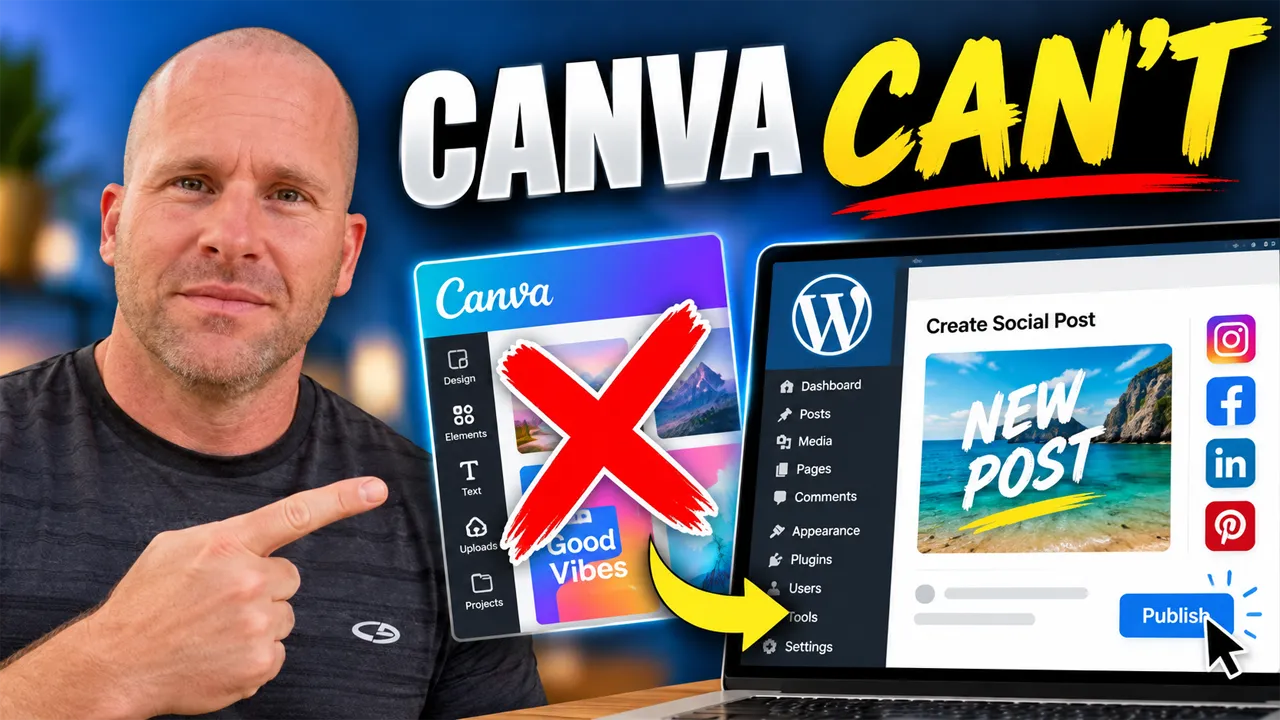
What Do I Mean When I Say “Canva Can’t Do This Inside WordPress”?
The point of the title is not that Canva is a bad tool. Canva is a powerful design platform and can be useful for custom graphics, presentations, social media designs, marketing assets, and many other visual projects.
What Canva does not give me is the exact WordPress-native workflow I am demonstrating in this video.
I want to be able to begin with content that already exists on my WordPress website, create social media copy from that content, generate matching images, organize the results, and continue working without turning the process into a chain of separate tasks across different tools.
For my everyday social content, that makes a big difference.
I recently explained why I stopped using Canva for most of my everyday social media posts. This tutorial takes that idea further by showing the specific workflow I can now perform directly from WordPress.
Start With Content That Is Already Inside WordPress
One of the biggest advantages of this workflow is that I do not have to begin from a blank screen every time.
If I already have a useful article published on my WordPress website, that article may contain everything I need to create multiple social media posts.
An article may contain:
- Useful tips
- Lists
- Questions
- Step-by-step instructions
- Examples
- Common mistakes
- Statistics
- Short explanations
- Strong takeaways
Any one of those ideas may be useful on social media.
Instead of manually copying pieces of the article into another tool and figuring out what to create, I can use the WordPress content itself as the source for the next stage of the workflow.
That fits naturally with the content-repurposing strategy I showed in my tutorial on how to repurpose old blog posts into social media content with AI.
Create Social Media Content for Five Different Platforms
Inside the Social Content Generator, I can create content for:
- X
The important part is that I do not have to treat every platform exactly the same.
Facebook may work well with conversational content and questions. X often benefits from more concise messaging. Instagram is heavily visual. LinkedIn may need a more professional or business-focused angle. Pinterest can work especially well with ideas, tutorials, lists, solutions, and visual concepts.
So rather than writing one generic post and blindly pasting it everywhere, the same source content can be adapted for different platforms.
I have also created individual tutorials showing how to turn a WordPress blog post into a Facebook post with AI, how to turn a WordPress blog post into an Instagram post with AI, and how to turn a WordPress blog post into a LinkedIn post with AI.
Control the Tone, Instructions, and Call to Action
Another reason I like having this workflow inside WordPress is that I am not limited to one generic style of AI-generated content.
I can give the AI additional instructions before generating the social posts.
That gives me more control over things such as:
- The tone of the post
- The angle I want to emphasize
- The type of call to action
- Extra instructions for the written content
- Instructions for the image
- The type of message I want to communicate
This matters because useful AI content should not feel like random text generated from a button click.
The source content gives the AI context, and the additional instructions help guide the result toward what I actually want.
Create the Written Social Post and Matching Image Together
This is where the workflow becomes especially useful for me.
Normally, creating the written social media post and creating the graphic can feel like two separate jobs.
You might write the Facebook post first, then open Canva and ask yourself what kind of graphic should go with it. Then you repeat that process for another platform.
I would rather treat the written content and the image as parts of the same project.
Inside My Content Creator Pro Elite, I can generate the social content and create a matching AI image as part of the same workflow.
I covered this idea in detail in my tutorial on how to create social media images from WordPress blog posts with AI.
The article provides the source idea. The AI helps create the social copy. Then the visual can support that same message.
Create a Different AI Image for Each Social Platform
One image does not always make sense everywhere.
A platform-specific workflow can allow the same core topic to be presented differently depending on where the image will be used.
For example, the same WordPress article might become:
- A Facebook post with a landscape-style visual
- An X post with a focused image and short message
- An Instagram post with a square visual
- A LinkedIn post with a business-focused image
- A Pinterest post with a vertical visual
That is much more useful than assuming one image should simply be reused everywhere without considering how the platform works.
Add Attention-Grabbing Text to Social Images
Another part of the workflow I demonstrate is the ability to use attention-grabbing text with the generated image.
The image does not need to contain the full social media post. In most cases, it should not.
The image can communicate the main hook, while the written social post provides the additional explanation.
That means the visual may contain a short phrase, headline, question, or takeaway designed to help someone quickly understand what the content is about.
The goal is simple: make the image easier to notice and understand without stuffing it with too much text.
Why This Can Save So Much Time
The biggest benefit of this workflow is not that it creates more buttons for me to click.
It is that it removes unnecessary switching.
The older workflow might look like this:
WordPress → social writing tool → Canva → download image → WordPress → upload image → repeat
The workflow I prefer looks more like this:
WordPress content → AI social post → AI image → review → organize
When you do this occasionally, the difference may not seem enormous.
But when you are publishing regularly across several platforms, those extra steps add up quickly.
That is especially true if you already manage a large website with dozens or hundreds of articles.
Your Existing Blog Posts Can Become a Social Content Library
Imagine you have 100 WordPress articles.
If each article contains only five useful social ideas, you potentially have 500 starting points for social content.
Some articles will contain even more.
A detailed tutorial might include ten separate tips. A list post might contain fifteen ideas. A frequently asked questions article may contain multiple questions that can each become their own social post.
The point is not that every article automatically creates hundreds of posts.
The point is that the content you already spent time researching and writing can continue working for you.
That is why I like treating WordPress as the center of the workflow.
Save Everything to the Social Content Library
Creating the content is only part of the process.
You also need a way to organize what has been created.
Inside My Content Creator Pro Elite, the Social Content Library gives me a place to keep the generated social content organized inside WordPress.
From there, I can review what I created, work with the text and images, make changes, download images, copy content, and keep track of the posts I am working with.
That means I do not have to treat every generated post as something disposable that disappears after I create it.
The content becomes part of an organized workflow.
Canva Still Has a Place — I Just Don’t Need It for Every Social Post
I want to make this distinction clear because the title is intentionally designed to create curiosity.
I am not saying Canva is useless.
If I need a highly customized graphic, a specific branded layout, a presentation, or a design that requires detailed manual control, a dedicated design platform can still make sense.
But I do not want to automatically open Canva every single time I need an everyday social media post or image.
For that kind of content, I would rather begin with the information already on my website and create the social content from there.
That is why the video title is “Canva Can’t Do THIS Inside WordPress.”
The “THIS” is the connected workflow.
How This Fits Into My Larger WordPress Content Strategy
Social content is only one part of what I am doing.
My larger strategy is to get more value from each piece of content I create.
One WordPress article can become social media posts.
The same article can become social media images.
It can become Pinterest content. You can see that process in my guide on how to turn a WordPress blog post into Pinterest content with AI.
It can also become an infographic. I have a tutorial on how to turn a WordPress blog post into an infographic with AI, along with another guide showing how to create an infographic from a blog post with AI.
The idea is not simply to create more content.
It is to stop treating every new content format as something that has to begin from zero.
How My Content Creator Pro Elite Fits Into the Workflow
I built My Content Creator Pro Elite around the idea of doing more of my content work directly inside WordPress.
The Social Content Generator is one part of that system.
My Content Creator Pro Elite also includes tools for AI content creation, autoblogging, bulk article generation, SEO analysis, GEO analysis, internal linking, AI images, infographics, rewriting, and other WordPress content workflows.
Instead of having one disconnected tool for every individual step, I wanted a system where the different parts of the content workflow could work together.
If you want to see the plugin and the tools I am demonstrating, visit My Content Creator Pro Elite.
Best Practices When Creating Social Content With AI
Start With Good Source Content
AI works better when the source material gives it something useful to work from. Start with accurate, relevant content that contains real information.
Give Clear Instructions
If you want a specific angle, tone, call to action, or visual style, tell the AI what you want rather than expecting it to guess.
Keep Image Text Short
A social image should usually communicate one main idea. Avoid trying to fit an entire paragraph onto the visual.
Review Everything Before Publishing
Check the written content and the image. Look for inaccurate information, spelling problems, awkward text, strange AI-generated objects, or anything else that needs correcting.
Adapt Content to the Platform
Facebook, X, Instagram, LinkedIn, and Pinterest are different platforms. Use the same source idea, but make sure the final content fits the place where it will appear.
Frequently Asked Questions
Is My Content Creator Pro Elite a Canva replacement?
It depends on what you are trying to do. My Content Creator Pro Elite is not designed to replace every possible design function inside Canva. The advantage shown in this tutorial is the ability to create WordPress-connected AI social posts and images as part of a larger content workflow.
Can I create social posts directly from an existing WordPress article?
Yes. Existing WordPress content can be used as the starting point for creating new social media content.
Which social platforms does the Social Content Generator support?
The Social Content Generator supports content creation for Facebook, X, Instagram, LinkedIn, and Pinterest.
Can it create images as well as written social posts?
Yes. The workflow can generate written social content as well as AI images to go with the content.
Can one WordPress article create multiple social media posts?
Yes. A detailed article may contain many individual tips, ideas, lists, questions, examples, and takeaways that can each become separate pieces of social content.
Do I still need to review AI-generated content?
Yes. AI can save a lot of time, but the final text and image should still be reviewed for accuracy, quality, and relevance before publishing.
Final Thoughts: Keep More of Your Social Content Workflow Inside WordPress
The biggest reason I like this workflow is that it keeps more of the content creation process connected.
If my articles, ideas, images, and website content are already inside WordPress, I want to use that information instead of constantly starting over somewhere else.
I can take an existing article, create platform-specific social posts, generate related AI images, control the instructions and call to action, and keep the finished social content organized as part of the same WordPress workflow.
That does not mean Canva suddenly has no value.
It means I no longer need Canva to be a required step every time I want to create an ordinary social media post and image.
For me, that means less switching between tools, less repetitive work, and more value from the WordPress content I have already created.
If you want to see exactly what I mean, watch the video near the top of this article.
And if you want to use the WordPress AI tools I am demonstrating, visit My Content Creator Pro Elite.
Instead of creating every social post and image from scratch, start with the content you already have and let WordPress become the center of your AI content workflow.