
Key Takeaways
• More content equals more traffic. Publishing more articles increases your chances of ranking in search engines.
• My Content Creator Pro helps automate content creation. The plugin allows you to quickly search, import, and publish articles directly inside WordPress.
• You can import articles with one click. Select articles, save results, and use Add to Post to publish them instantly.
• Images and videos can be added automatically. The plugin allows you to search copyright-free images and YouTube videos to improve engagement.
• Autoblogging campaigns automate publishing. Schedule posts to publish daily or hourly so your site grows automatically.
• New niche topics can be requested. If your niche category isn’t available, you can request it and new articles will be added to the database.
Creating consistent content is one of the biggest challenges for bloggers and website owners. If you want more traffic from Google and other search engines, you need more content.
But writing dozens—or even hundreds—of blog posts manually can take months.
The good news is that there is a way to automate much of the process.
In this guide, you’ll learn how to use a free WordPress autoblogging plugin that gives you access to over 1,000,000 niche articles and allows you to publish content on your website quickly.
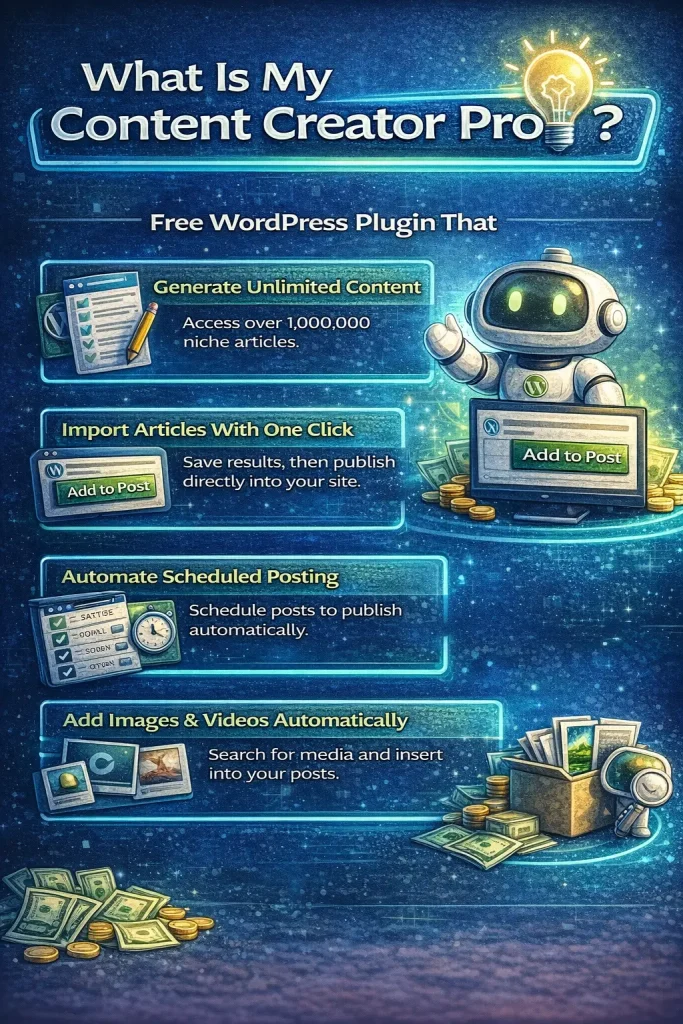
What Is My Content Creator Pro?
My Content Creator Pro is a free WordPress plugin that helps website owners generate and publish blog content quickly.
It provides access to a large database of niche articles and tools that allow you to:
- Search for articles by topic
- Import articles into WordPress
- Add copyright-free images
- Embed YouTube videos
- Schedule posts automatically with autoblogging
The goal of the plugin is simple:
help website owners publish more content faster.
More content means more opportunities to rank in search engines and attract visitors to your website.
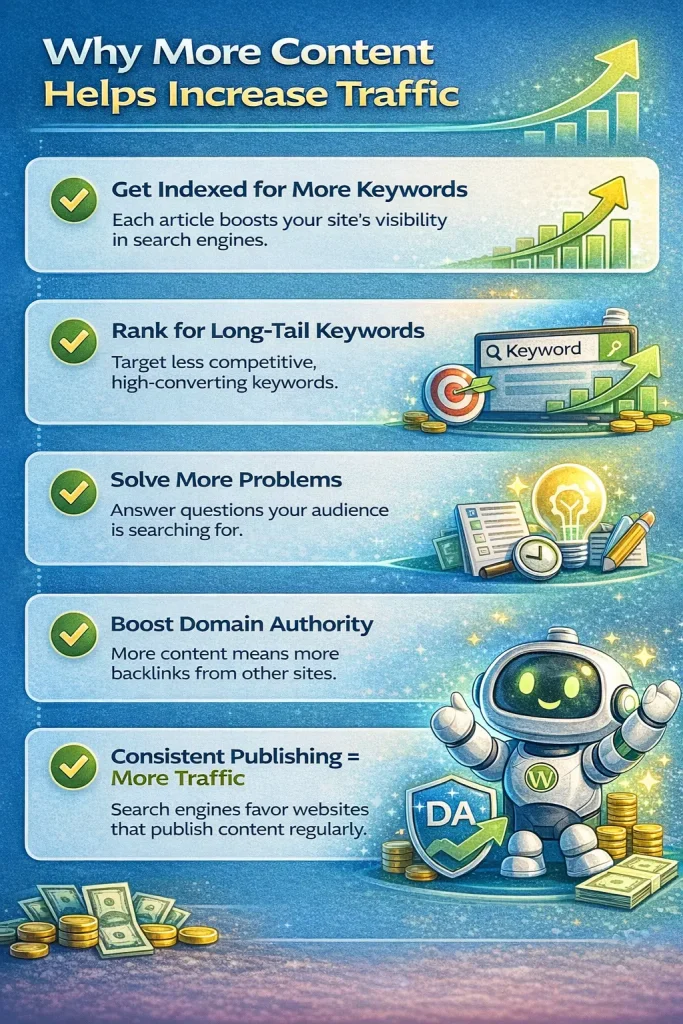
Why More Content Helps Increase Traffic
One of the most common questions new website owners ask is:
“How do I get more traffic?”
The answer is usually the same:
➡️ Publish more useful content.
Every article you publish is another page that can appear in search results. When you consistently add new content to your website, you increase the chances of ranking for more keywords.
However, coming up with ideas and writing every article manually can be time-consuming. That’s why automation tools can be extremely helpful.
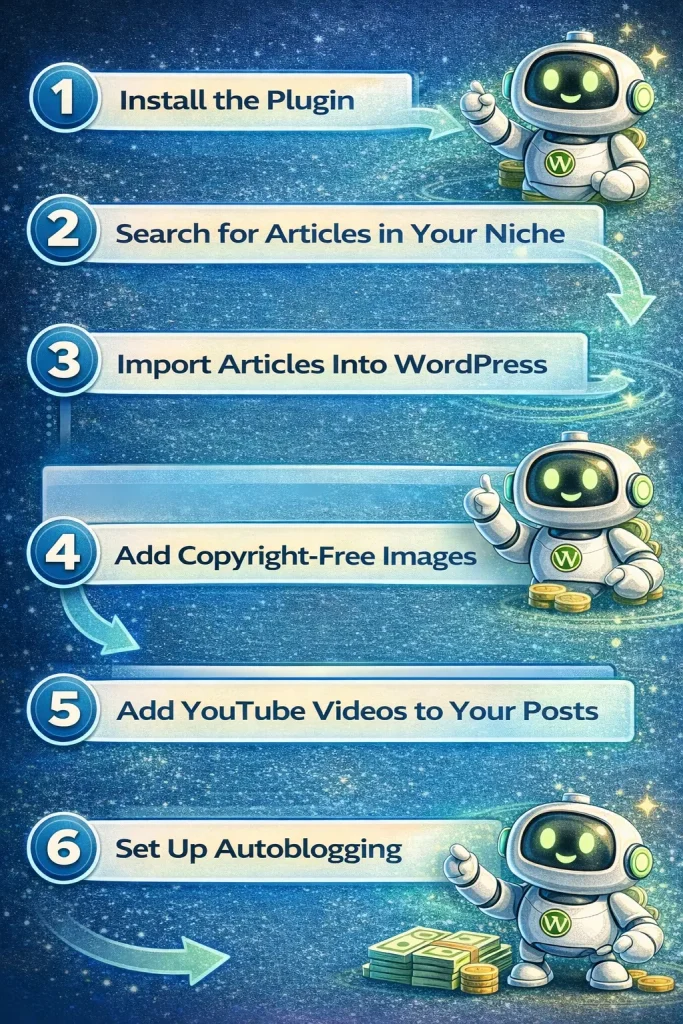
Step 1: Install the Plugin
After installing My Content Creator Pro, it will appear inside your WordPress dashboard menu.
Navigate to:
My Content Creator Pro → Auto Content Creation
This is where you can begin searching for articles related to your niche.
Step 2: Search for Articles in Your Niche
Inside the plugin, you can search for content by selecting a category or entering a keyword.
For example, if your website is about copywriting, you can search for:
Copywriting
The system will display a list of articles related to that topic.
You can browse through the available titles and select the articles you want to use.
Once you’ve selected them, click:
Save Results
Step 3: Import Articles Into WordPress
After saving the articles, go to the:
Import Results
section.
Here you will see the articles you previously selected.
To publish them, simply click:
Add to Post
Each article will automatically be added to your WordPress website as a new blog post.
You can edit the article later if you’d like to customize it or add your own insights.
Step 4: Add Copyright-Free Images
Images improve user experience and make blog posts more engaging.
Inside the plugin, you can search for copyright-free images using keywords.
For example:
Copywriting
The plugin will display images related to that topic that you can safely use on your website.
To save them:
- Select the images
- Click Save Results
The images will then be added to your WordPress media library so you can easily insert them into your posts.
Step 5: Add YouTube Videos to Your Posts
Videos can significantly increase engagement and time on page.
With the plugin, you can search for YouTube videos related to your niche and embed them into your posts.
Simply:
- Go to Video Search
- Enter your keyword
- Select the videos you want
- Click Save Results
You can then add these videos to your blog posts to make your content more interactive.
Step 6: Set Up Autoblogging
The plugin also allows you to automate publishing with autoblogging campaigns.
To set up a campaign, go to:
Autoblogging → Add New Campaign
Here you can choose:
- Campaign title
- Posting frequency
- Image keyword
- Video keyword
- Content category
- Articles to schedule
For example, you could schedule your site to publish:
➡️ One new article every day.
Once the campaign is active, WordPress will automatically publish posts on the schedule you set.
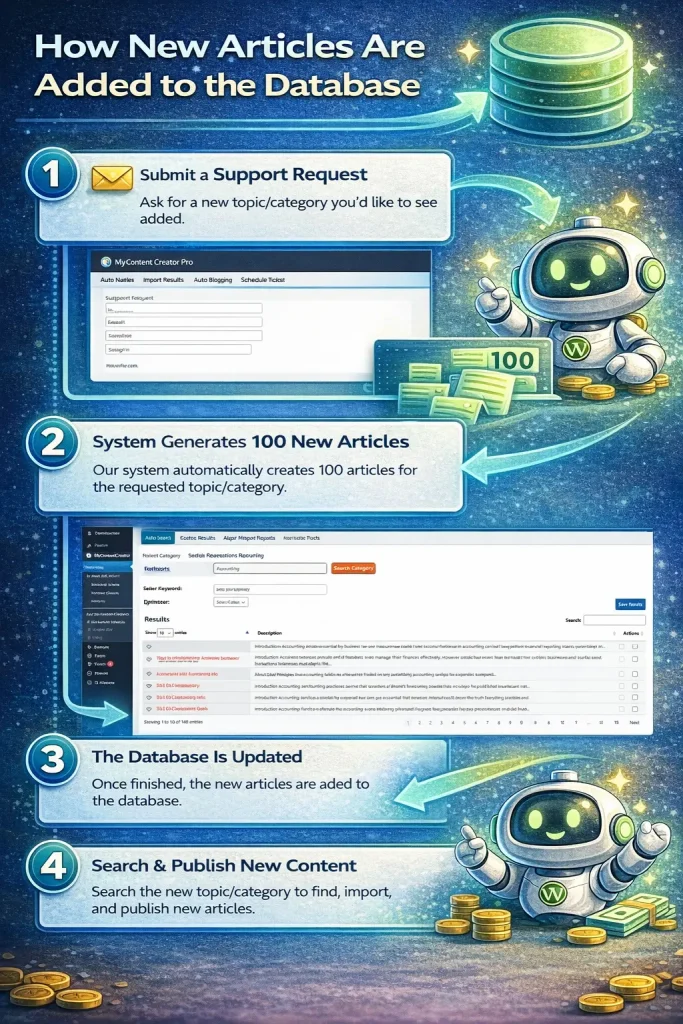
How New Articles Are Added to the Database
If you don’t see a topic you want in the database, you can request it.
Simply submit a support ticket and request a new category.
When this happens, the system generates 100 new articles for that topic using AI-assisted prompts and SEO-optimized structures.
These articles are then added to the database so you can access them inside the plugin.
Benefits of Using an Autoblogging Plugin
Using a tool like My Content Creator Pro can help you:
✔ Publish content faster
✔ Build niche websites quickly
✔ Increase search engine traffic
✔ Save time on content creation
✔ Keep your website updated with new posts
For website owners managing multiple niche sites, this type of automation can be extremely helpful.
Frequently Asked Questions
Is My Content Creator Pro really free?
Yes. The free version of the plugin allows users to access the article database and publish content to their WordPress website.
Can I edit the articles after importing them?
Yes. After an article is added to your WordPress site, you can edit it just like any other post.
You can add your own content, images, links, and formatting.
Can I add images and videos to posts?
Yes. The plugin includes built-in tools that allow you to search for copyright-free images and relevant YouTube videos.
These can be saved and added to your posts to improve engagement.
What if I don’t see my niche category?
If your niche category isn’t available, you can submit a support request.
New article sets are regularly created for requested topics.
Is there a premium or AI-powered version?
Yes. In addition to the free version, there is an Elite version of My Content Creator Pro.
The Elite version includes advanced AI features powered by ChatGPT that can help generate additional content, expand articles, and assist with content creation workflows.
Final Thoughts
Creating consistent blog content is one of the most important factors in building a successful website.
With tools like My Content Creator Pro, website owners can simplify the process by:
- Accessing large content libraries
- Automating publishing
- Enhancing posts with images and videos
If you’re looking for a faster way to build and grow your WordPress blog, an autoblogging system like this can help you scale your content strategy.