
Why I Stopped Using Canva to Create My Social Posts: My Faster WordPress AI Workflow
For a long time, creating social media content meant using several different tools. I would work on the content in WordPress, move to another platform to create the social post, open a design tool such as Canva to make the image, download the finished graphic, and then come back to organize everything for Facebook, X, Instagram, LinkedIn, or Pinterest.
That workflow can work, but for the way I create content today, I wanted something faster. I wanted to start with the content I already had inside WordPress and create both the written social post and the matching image without constantly jumping between different tools.
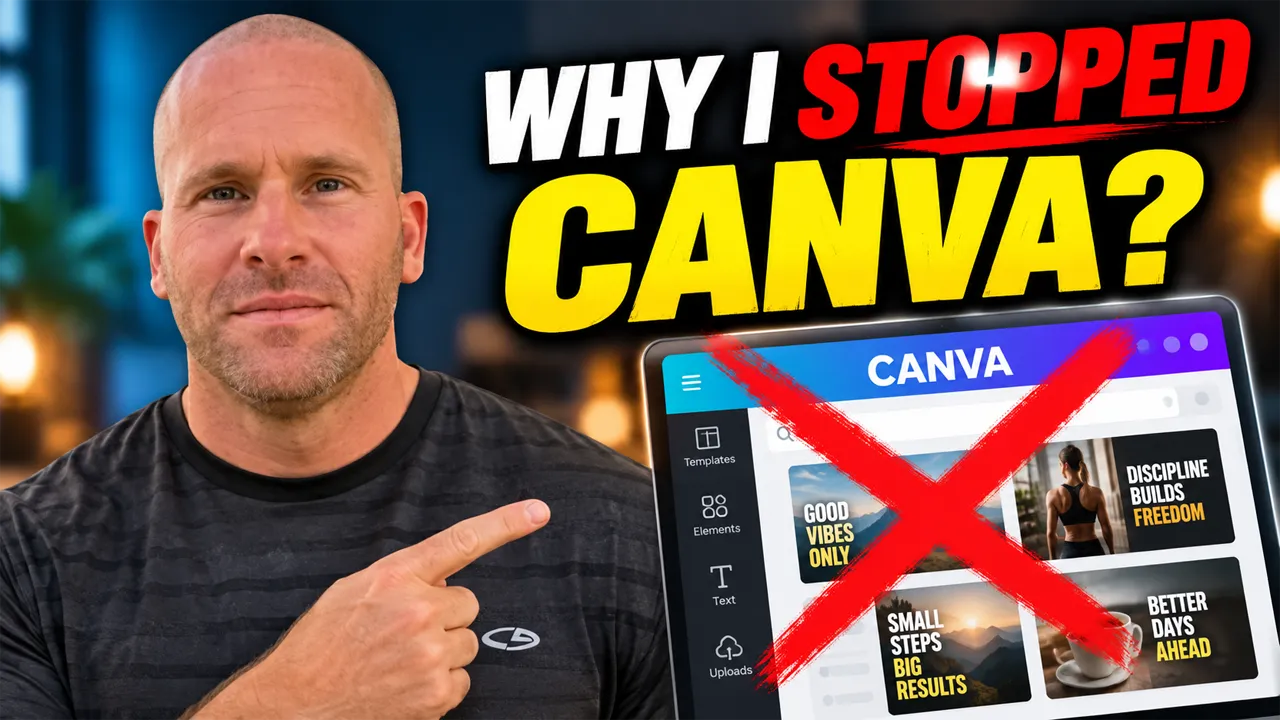
That is the main reason I stopped using Canva for my everyday social media post workflow. It is not because I think Canva is a bad design platform. It is because I found a workflow that makes more sense for the way I work. I built the Social Content Generator inside My Content Creator Pro Elite so I could create social media content and images directly from WordPress and get more value from the articles, ideas, and website content I already have.
Want to see the WordPress AI tools I use?
Learn more about My Content Creator Pro Elite →
Why I Changed the Way I Create Social Media Posts
The biggest reason is simple: time.
When you are running websites, creating videos, publishing blog posts, sending emails, and trying to stay active on social media, every extra step matters. A task that takes only a few additional minutes may not sound like much, but repeating that task across multiple social platforms can quickly turn into a lot of extra work.
My old workflow often looked something like this:
- Write or publish content in WordPress.
- Decide what part of the content could become a social media post.
- Rewrite the idea for a specific social platform.
- Open a separate design tool.
- Create or customize an image.
- Download the finished graphic.
- Return to WordPress or another tool.
- Repeat the process for another platform.
There is nothing inherently wrong with that process. The problem for me was the amount of switching back and forth. I wanted the content and image creation process to begin in the same place where so much of my original content already lives: WordPress.
What I Do Instead of Starting Every Social Post From Scratch
My current workflow starts with the content I already have.
If I have a WordPress article, topic, idea, list, tutorial, or other piece of useful information, I can use that as the source. Then I can use AI to help transform the idea into platform-specific social media content and create a matching image.
That means I am not staring at an empty screen trying to invent a brand-new topic every time I want to post something.
The research may already be done. The article may already be written. The useful ideas may already be organized. Instead of throwing that work away after I publish the article, I can continue using it.
I recently showed this exact strategy in my tutorial on how to repurpose old blog posts into social media content with AI. The idea is to treat your existing WordPress content as a library of source material rather than content that is finished forever once you hit Publish.
Why I Prefer Creating Social Content Inside WordPress
For me, the biggest advantage is keeping the workflow connected.
I am already using WordPress. My articles are there. My Media Library is there. My categories, pages, posts, and content are there. When the social content tools are available in that same environment, I can reduce the amount of copying, pasting, downloading, uploading, and switching between browser tabs.
Instead of thinking of social media as a completely separate project, I can make it another stage of my WordPress content workflow:
WordPress content → AI → social media post → matching image
That is a much more natural process for the way I work today.
I Can Create the Written Post and the Image Together
One of the main reasons I changed my workflow is that the written social post and the image are closely connected.
If I create a post about a specific tip, the image should support that same idea. If I create a Facebook post from a WordPress article, I do not want to spend additional time figuring out what image should go with it after the written post is already finished.
With the Social Content Generator inside My Content Creator Pro Elite, I can work from the same source material and create both the written content and the visual content.
I demonstrate a similar workflow in my guide on how to create social media images from WordPress blog posts with AI. Instead of treating the image as an unrelated task, the visual becomes part of the same content-repurposing process.
Creating Content for Facebook, X, Instagram, LinkedIn, and Pinterest
Another reason I wanted this workflow inside WordPress is that I create content for more than one social platform.
The Social Content Generator can help me create content for:
- X
Those platforms do not all communicate in exactly the same way. A Facebook post may be more conversational. A LinkedIn post may need a more professional angle. Instagram often depends heavily on the visual. Pinterest can work well with educational or idea-driven visuals. X usually benefits from a more concise message.
That is why I do not think the best workflow is simply writing one generic post and pasting it everywhere. I would rather start with the same source idea and adapt it for the platform where it will appear.
How I Use Existing WordPress Blog Posts as the Starting Point
This is where the time-saving benefit becomes much more obvious.
Imagine you already have 100 blog posts on your website. Every one of those posts may contain multiple ideas that could become social media content.
One article might contain:
- Five useful tips.
- Three common mistakes.
- A step-by-step process.
- Two questions your audience asks frequently.
- A checklist.
- An example or case study.
- A conclusion with an important takeaway.
That is not one social media idea. It may be a dozen potential ideas.
Now multiply that across dozens or hundreds of existing articles. Instead of constantly searching for new topics, your website can become an ongoing source of social content.
I also explain the broader strategy in my tutorial on how to turn a WordPress blog post into social media posts with AI.
Why I Do Not Need Canva for Every Everyday Social Post Anymore
Canva can still be useful for certain design projects. If I need a highly customized design, a specific branded layout, or something that requires detailed manual editing, a dedicated design platform may still make sense.
But I do not need that level of manual design work for every single social media post I create.
For everyday content, speed and consistency matter more to me than manually adjusting every element of every graphic.
If I can take an idea from WordPress, generate the written social post, create the related image, review the result, and continue working without leaving the content workflow, that saves me time.
That is the real reason behind the title of this article. I did not stop using Canva because design tools suddenly became useless. I stopped relying on Canva as a required step every time I create ordinary social content.
How the Workflow Works Step by Step
1. Start With an Article, Topic, or Idea
I begin with the subject I want to turn into social content. That could be an existing WordPress article or another idea I want to discuss.
Using an existing article is especially useful because much of the work is already completed. I already have the information, examples, structure, and key points.
2. Choose the Social Platforms
Next, I decide where I want to use the content. I may want versions for Facebook, X, Instagram, LinkedIn, Pinterest, or several of them.
I do not have to treat every platform exactly the same. The goal is to make the content appropriate for the place where people will see it.
3. Add Instructions for the AI
I can provide additional instructions depending on the result I want. That might include the tone, the angle, the call to action, the type of image, or the point I want the social content to emphasize.
This gives me more control than simply asking AI to “make a social post.”
4. Generate the Social Content
AI can then use the source material and instructions to help create platform-specific content.
I still review what is generated. AI is there to make the process faster, not to eliminate judgment. I want the finished post to sound natural, match what I actually mean, and accurately represent the original content.
5. Generate the Matching Image
Once the social idea is established, I can create the visual content that goes with it.
This is the step that replaced a lot of the back-and-forth I used to do. Instead of automatically opening Canva after writing the post, I can create the image as part of the same workflow.
6. Review and Use the Finished Content
Before using anything publicly, I check the text and image. I look for spelling errors, incorrect text inside the image, visual problems, inaccurate information, and anything else that needs adjusting.
AI can speed up content creation, but quality control still matters.
How This Fits Into a Larger Content Repurposing Strategy
A WordPress article can become a Facebook post. I show that process in my tutorial on how to turn a WordPress blog post into a Facebook post with AI.
The same article can become Instagram content. You can see that workflow in how to turn a WordPress blog post into an Instagram post with AI.
A business-focused idea can become a LinkedIn post. I demonstrate that in how to turn a WordPress blog post into a LinkedIn post with AI.
And visual or educational content can become Pinterest content. I cover that in my guide on how to turn a WordPress blog post into Pinterest content with AI.
How My Content Creator Pro Elite Fits Into This Workflow
I created My Content Creator Pro Elite around the idea of making WordPress a more complete AI content environment.
The Social Content Generator is one part of that system. It gives me a way to create social media content and images without making the social workflow feel disconnected from the website content.
My Content Creator Pro Elite also includes other tools I use for content creation and repurposing, including AI article creation, autoblogging, bulk content generation, AI images, infographics, SEO analysis, GEO analysis, internal linking, rewriting, and other WordPress content tasks.
If you want to see the tools I am demonstrating, visit My Content Creator Pro Elite.
What I Still Review Before Publishing AI Social Content
Even though AI can speed things up, I do not recommend blindly publishing whatever it generates.
I review the written content to make sure it sounds like something I would actually say. I check the image for incorrect words, awkward objects, strange visual details, or anything that does not match the subject.
I also make sure the content fits the platform. Something that sounds natural on Facebook may need a different presentation on LinkedIn or X.
The goal is to save time without lowering quality.
Common Mistakes to Avoid When Replacing a Manual Design Workflow
Do Not Make Every Image Look the Same
Saving time does not mean every graphic has to be identical. The visual should still fit the topic and the platform.
Do Not Overload the Image With Text
Social images usually work better when the main message can be understood quickly. Use the caption or social post to provide more detail.
Do Not Ignore Accuracy
Review AI-generated text and images before publishing. Make sure names, numbers, claims, and visible text are correct.
Do Not Repurpose Outdated Information
If you are starting with an older WordPress article, confirm that the information is still current before turning it into new social content.
Do Not Assume Every Tool Must Be Used for Every Job
Different tools can be useful for different tasks. My decision is based on my everyday WordPress social content workflow. Your own workflow should be based on what saves you time and produces the quality you need.
Frequently Asked Questions
Did I stop using Canva completely?
No. The point is that I no longer need Canva as a required step every time I create an everyday social media post or image. For certain custom design projects, a dedicated design platform can still be useful.
Why did I stop using Canva for most of my social posts?
The main reason is efficiency. I wanted to create the written post and matching image directly from my WordPress content instead of constantly moving between separate tools.
Can I create social media images directly from WordPress blog posts?
Yes. That is the workflow I demonstrate with the Social Content Generator inside My Content Creator Pro Elite. Existing WordPress content can provide the ideas and information for both the written social post and the image.
Which social platforms can I create content for?
My Social Content Generator supports content creation for Facebook, X, Instagram, LinkedIn, and Pinterest.
Can one blog post create more than one social post?
Absolutely. A detailed article may contain many individual tips, questions, examples, lists, mistakes, steps, and takeaways. Each one can potentially become a separate piece of social content.
Should I still review AI-generated social media images?
Yes. Review the image and written content before publishing. AI can make the workflow much faster, but human review is still important for accuracy, quality, and consistency.
Final Thoughts: I Changed My Workflow to Save Time
Why did I stop using Canva to create my social posts?
Because for my everyday workflow, I found a faster way to do the job.
I already spend time creating useful information inside WordPress. I do not want that content to stop working for me after I publish the article. I want to take those same ideas and turn them into Facebook posts, X posts, Instagram content, LinkedIn posts, Pinterest content, and matching social media images.
For me, keeping that process inside WordPress reduces the amount of switching between tools and makes content repurposing much easier.
Canva can still be a useful design platform. This is not about saying everyone should stop using it. It is about showing another workflow that may make more sense if you already create a lot of your content inside WordPress.
If you want to see exactly how I do it, watch the video near the top of this article. I show the workflow I use and why I changed the way I create everyday social content.
And if you want to use the WordPress AI tools I am demonstrating, visit My Content Creator Pro Elite.
Instead of starting every social media post and image from scratch, start with the content you already have and use AI to help turn it into something new.